
Compatibility
Minecraft: Java Edition
Platforms
Supported environments


Links
Creators

Details
Licensed ARR
Published 7 months ago
Updated 5 months ago
CustomMagnets
By: FerranV
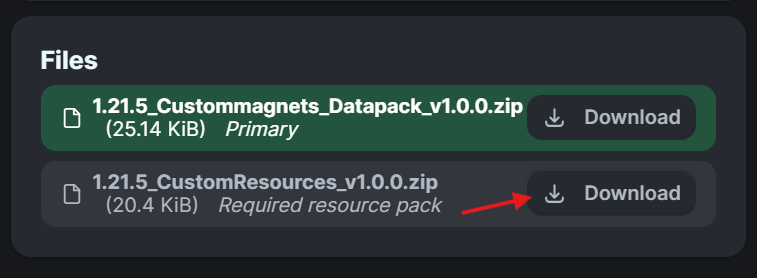
Important Notice!!: When downloading the datapack also download the embedded resourcepack!
- Step 1: Go to
versionsand click on the desired version. - Step 2: Scroll down to
filesand download BOTH the datapack and resourcepack. (Installation guide below if needed)
Description:
This is a datapack (+resourcepack) that adds custom magnet items to the end city loot pools.
-
Obtaining the magnets:
- You find the magnets in the chests that can be found in the end cities.
- If you are an OP you can also obtain the magnets by typing
/function custommagnets:get_magnetin chat.
-
Usage:
- Hold the magnet (either mainhand or offhand) to suck up items in a specific radius depending on it's rarity. Common: 3x3, Epic: 5x5, Legendary: 10x10
- Shift+right_click whilst holding the magnet to toggle the magnet from sucking up items.
- The magnets ARE compatible with the mending and unbreaking enchantments. (The magnets do also all have durability. Common: 3000, Epic: 7000, Legendary: 10000)
Bug report:
- Experiencing any issues or have ideas for enhancements? Please let me know at the
Report issuespage.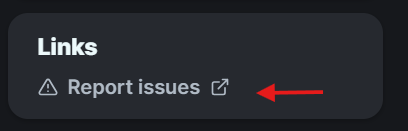
Changelog:
- 1.21.7_v1.0.0: Added support for the 1.21.7 version of Minecraft.
- 1.21.6_v1.0.0: Added support for the 1.21.6 version of Minecraft.
- v1.0.0+mod: now packaged as a mod for easier installation on modded instances.
- v1.0.0: Initial Push
Installation guide:
Modded instance:
- If you're playing on a modded instance you can download the +mod version and drop it in your mods folder and you're done :D. Note: this will enable the datapack on every world that you play on. Just like any other mods would. So if you want it to only affect specific worlds you should follow the steps below.
Datapack:
-
Adding to a new world:
-
Step 1: Press
Create New Worldand thenMore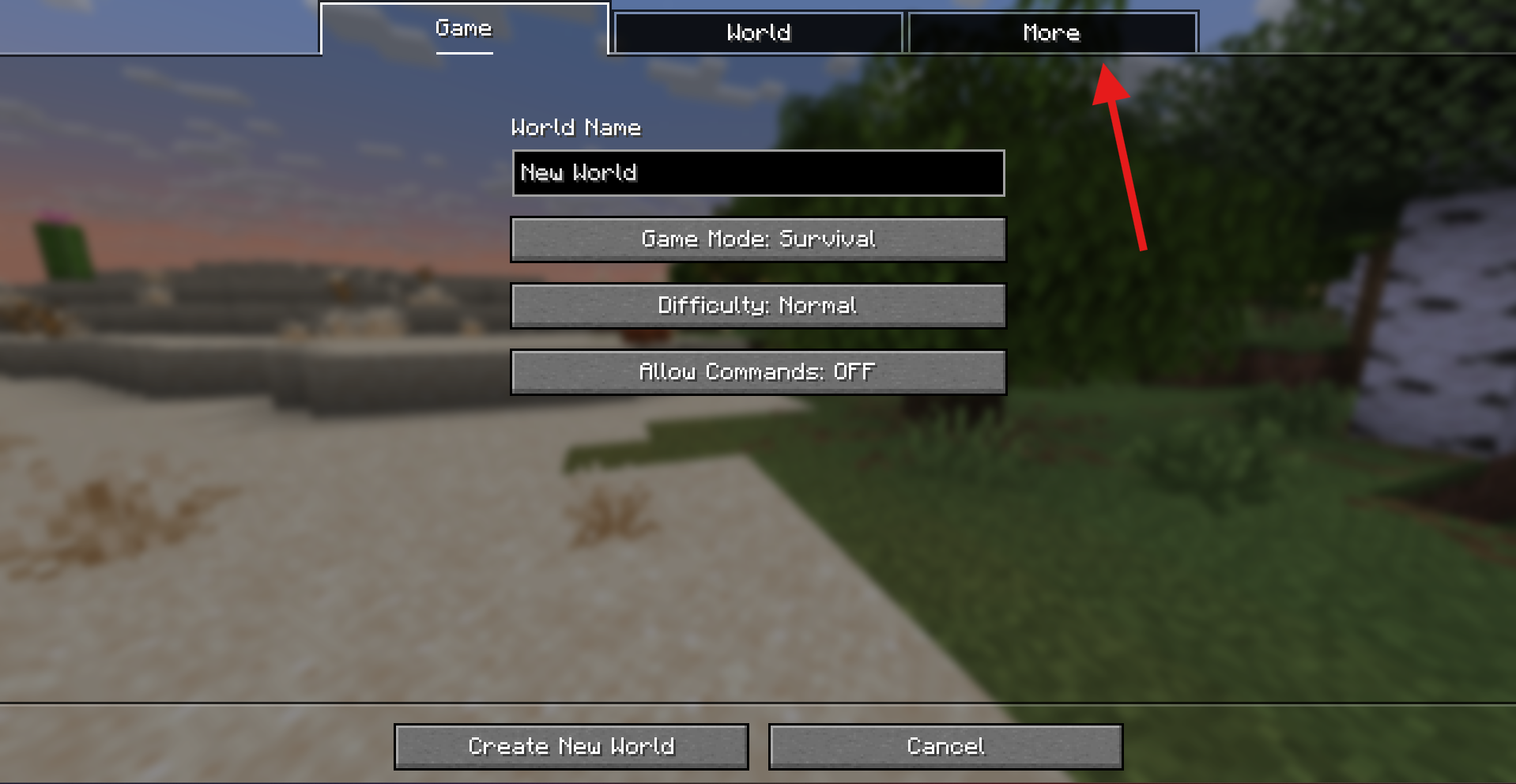
-
Step 2: Press
Data Packs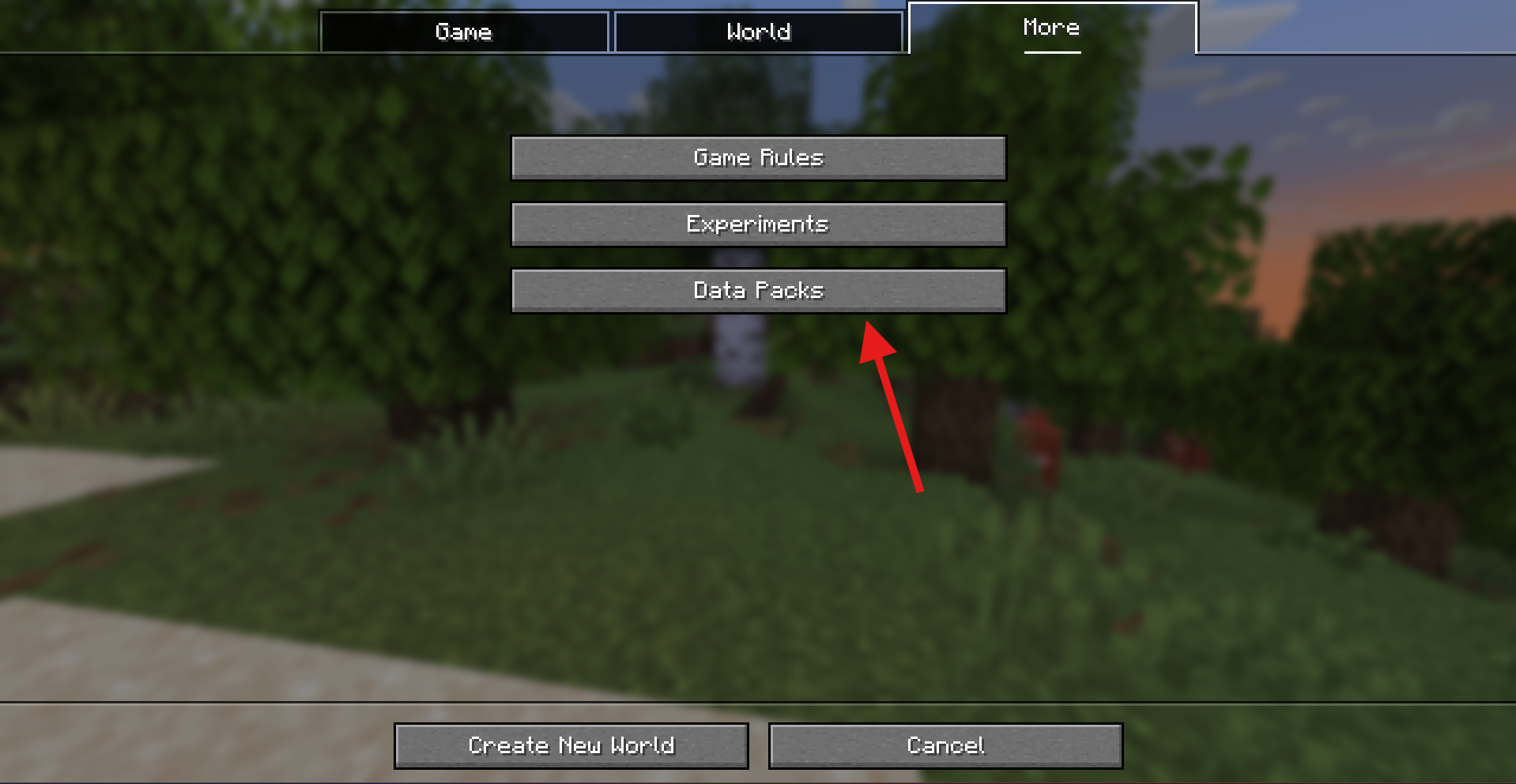
-
Step 3: Press
Open Pack Folderand drop your download.zipfile in the opened folder. (Make sure you select the datapack and not the resourcepack or else it will not work).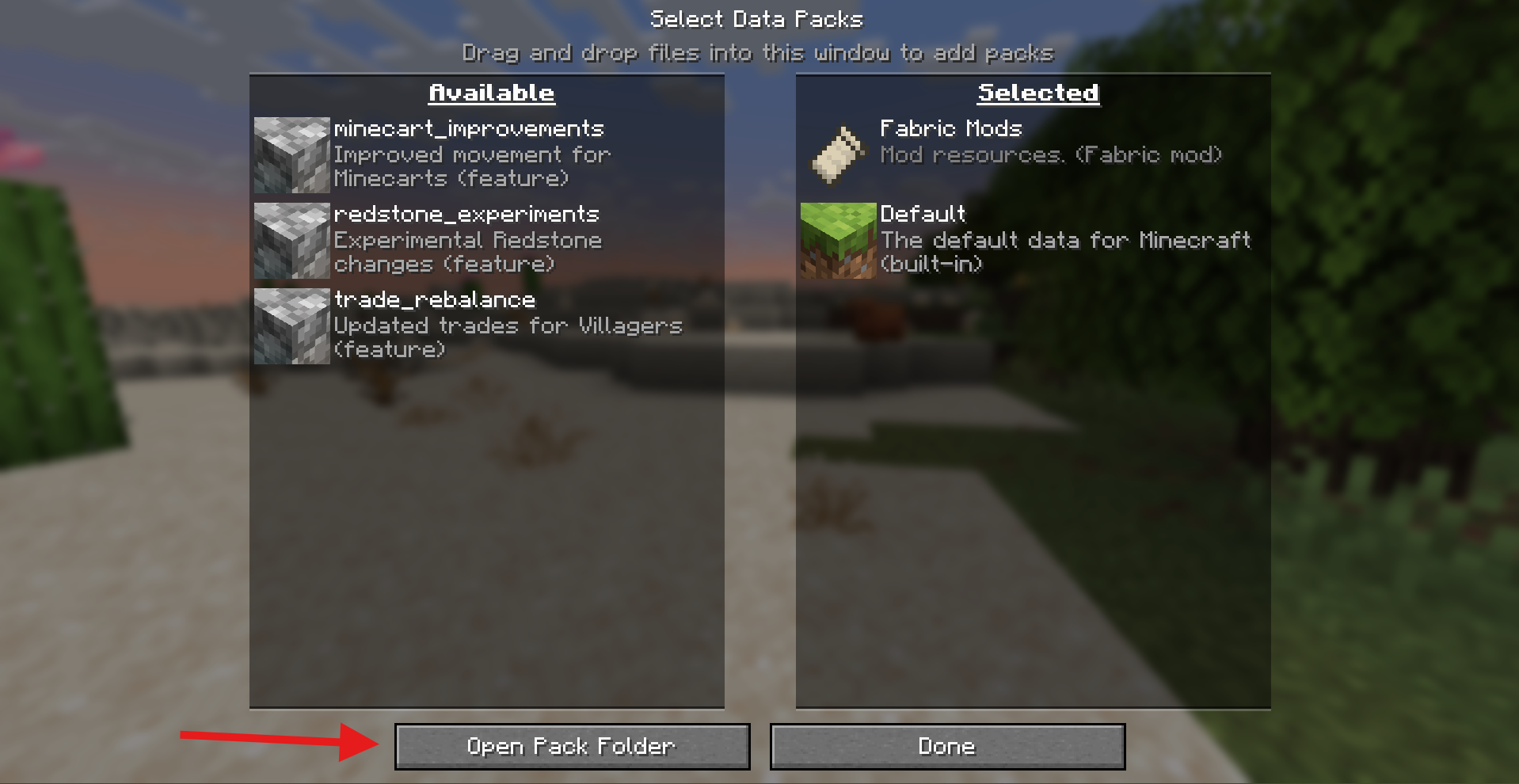
-
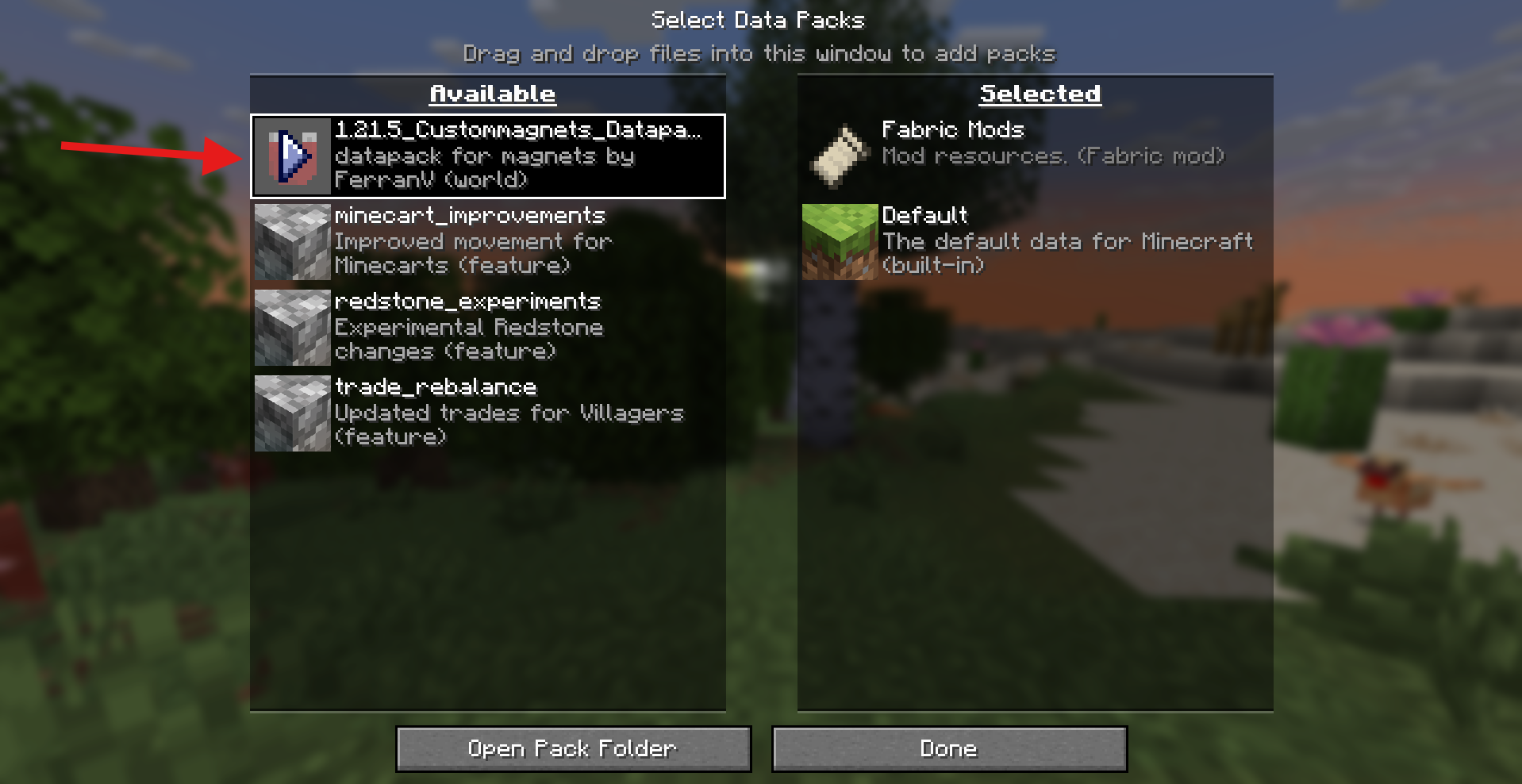
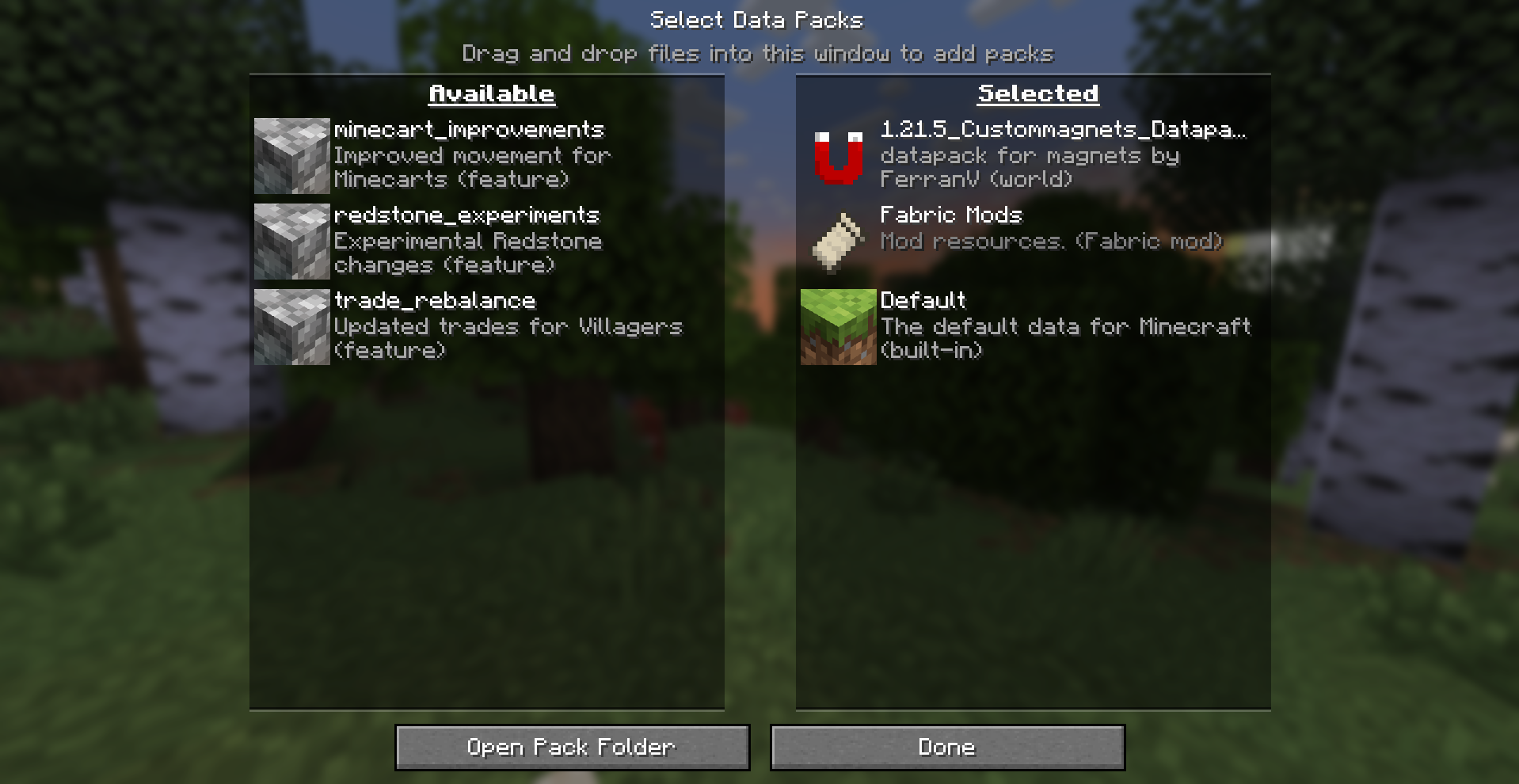
Step 4: Click the arrow next to the now appeared file and you should see it go from
AvailabletoSelected.-
Before:
-
After:
-
-
Step 5: Press
Doneand after changing your world options to your liking pressCreate New Worldand you should be all set up!
-
-
Adding to an already existing world:
- Step 1: Locate your
savesfolder. - Step 2: Open folder of the world you want the datapack to be in.
- Step 3: Locate the
datapacksfolder within that world folder. - Step 4: Drop the
.zipfile into thedatapacksfolder. (Make sure you drop the datapack file and not the resourcepack or else it will not work)
- Step 1: Locate your
Resourcepack:
- Step 1: Locate your Minecraft folder.
- Step 2:
Locate the
resourcepacksfolder - Step 3:
Drop the
.zipfile into theresourcepacksfolder (make sure this is the resourcepack file and not the datapack or else it will not work).