Sync settings across instances
Keep game options, servers, resource packs, and more the same across your instances.
Posted on September 7, 2026 Modrinth Team
Hey everyone,
With this update we've added the ability to sync your game options, servers, resource packs, command history, and creative hotbars across your instances, along with a new screenshots page for viewing all your screenshots in one place.
TL;DR
- Sync game options, servers, resource packs, command history, and creative hotbars across instances
- Override synced content on individual instances when needed
- New Screenshots page with a built-in viewer and editor
Synced settings
One thing that has always sucked about playing modded is that every instance can have completely different game settings, servers, and resource packs. These are often things you want to keep the same every time you play, but until now you’ve had to manage them manually.
Syncing keeps these the same across your instances. Syncing is bi-directional, so changes made from any instance will propagate across all your other instances.
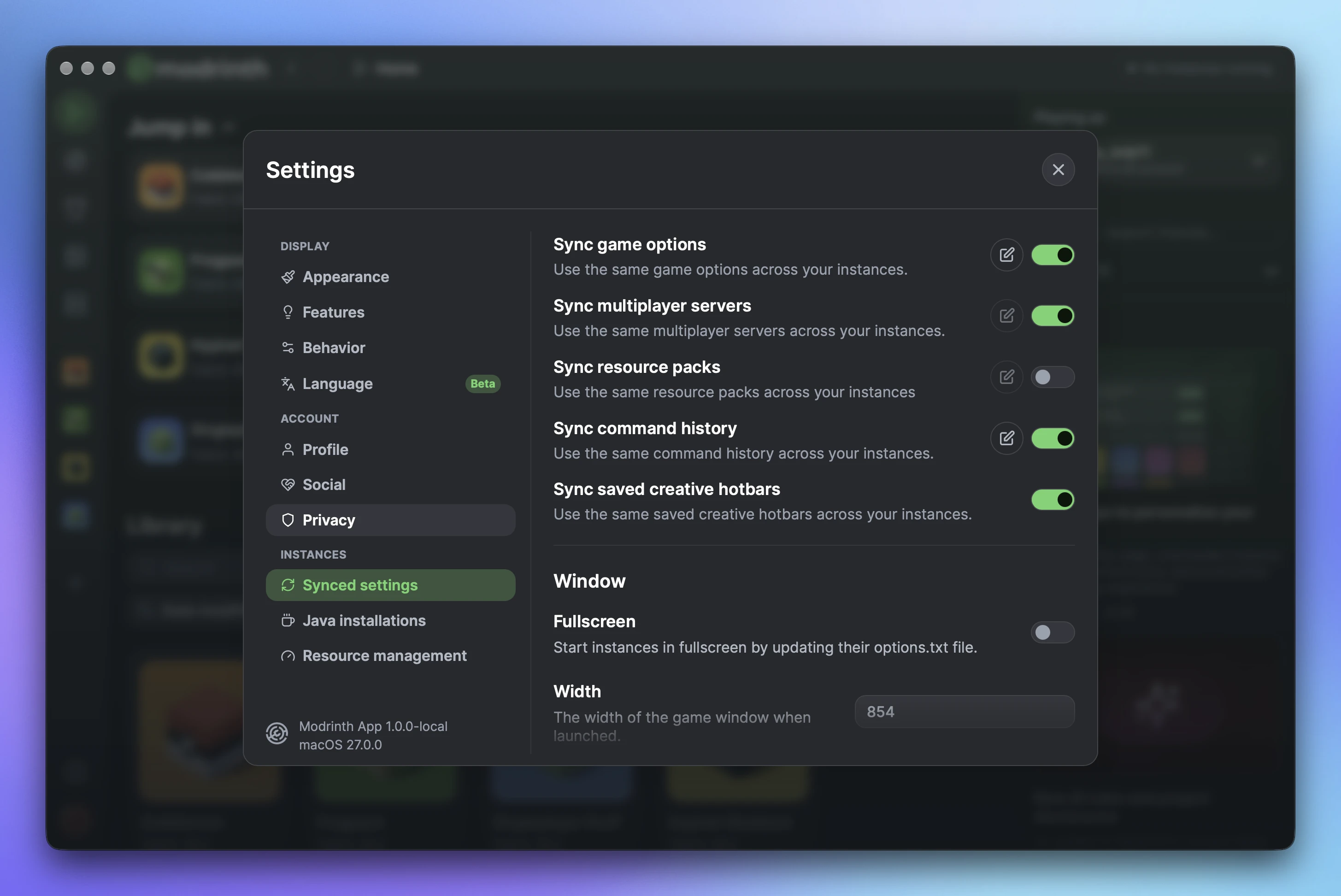
Syncing will be disabled by default for existing users and enabled for new users. When enabling it, we’ll ask which instance you want to use as the starting point.
You can also override syncing for individual instances in their settings. For example, you can start with your default synced game options and then customize them for just that instance, or try a new resource pack without affecting the rest.
Game options
Synced game options work at the individual setting level within the options.txt file. We’ve chosen a default set of settings to sync, but you can fine-tune these however you want.
When a setting is synced, it can be edited either in-game or from within the app. If you create a linked modpack instance that comes with its own options.txt, any fields you’ve chosen to sync will override those values while leaving the rest untouched.
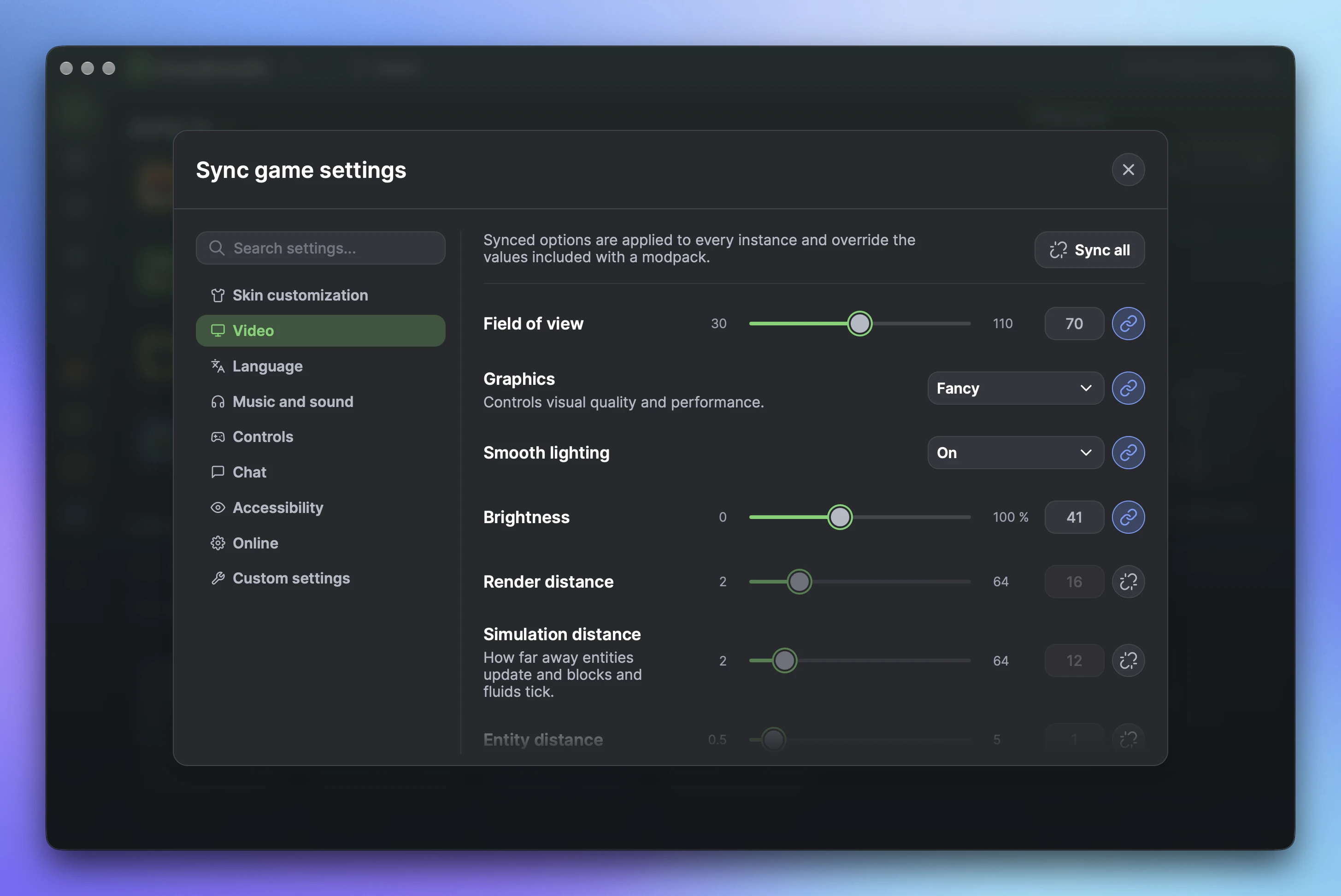
Any settings added to options.txt by mods will appear under custom settings and be synced by default. These will only apply to instances where those mods are installed.
Multiplayer servers
Your multiplayer server list can also stay synced across your instances. You can add or edit servers in-game or from within the app. Servers will not be synced to linked server instances, since these projects often ship with a server specific to that project.
Resource packs
Resource pack syncing is the only new option disabled by default for all users.
When enabled packs will only sync to compatible instances, meaning they must support the game version and loader used by that instance. Enabling, disabling, and deleting actions will sync across instances, while version changes will not.
Resource packs included with a modpack will not be synced to your other instances. Only additional resource packs you install yourself will be synced.
Misc
We’ve also added syncing for command history and creative hotbars. Command history can be viewed and edited from your app settings as-well.
Screenshot page
We’ve also added a new screenshots page to the sidebar, bringing screenshots from all your instances together.
By default, screenshots are grouped by date, but you can also group them by instance or create your own groups to organize them however you want. You can drag and drop screenshots between groups too, just like you can with instances.
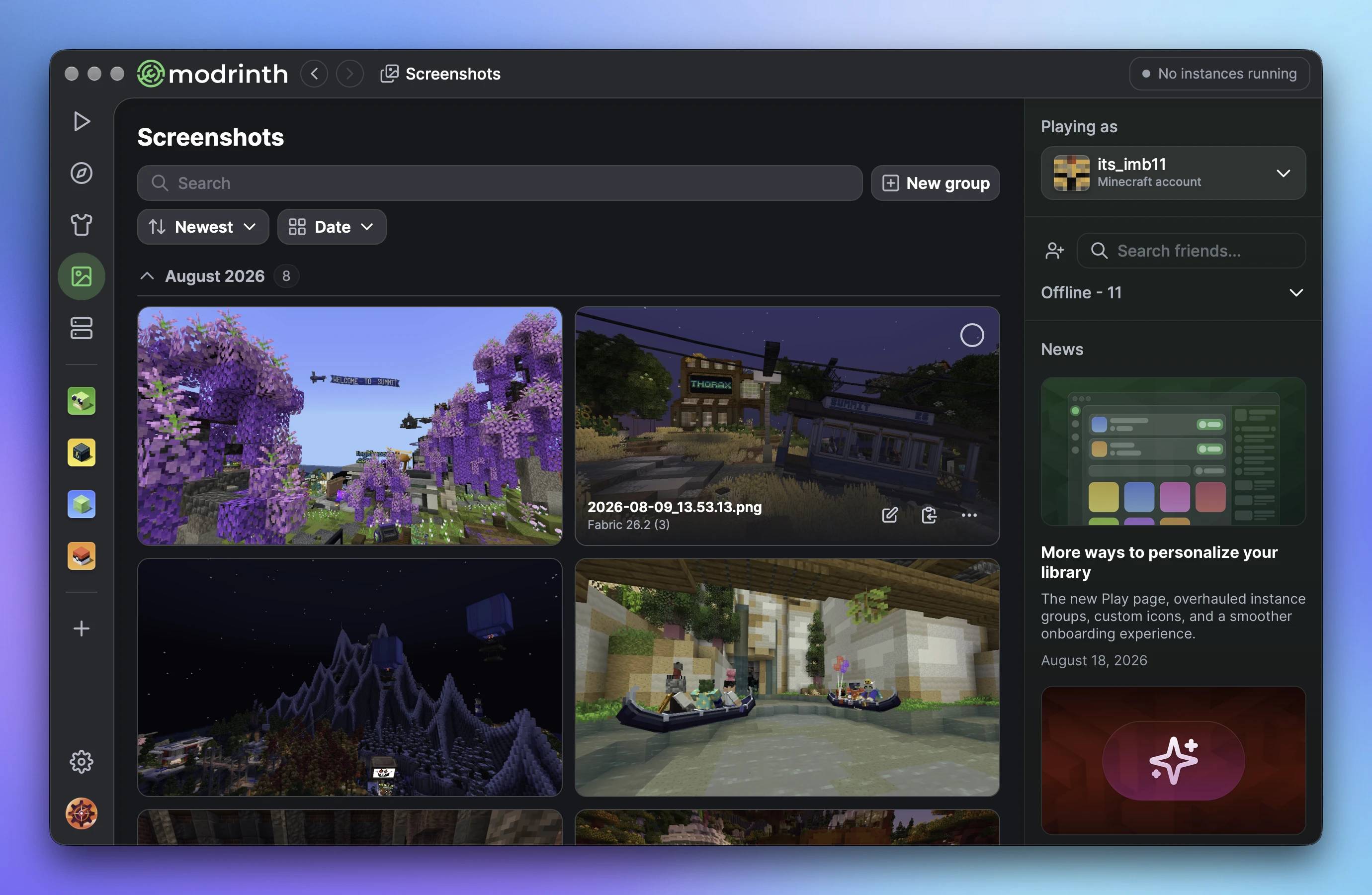
In your app settings, you can also enable a screenshots tab on individual instances if you’d prefer to view them there. We’ve also added more control over instance tabs, letting you enable or disable worlds and files.
Screenshot viewer
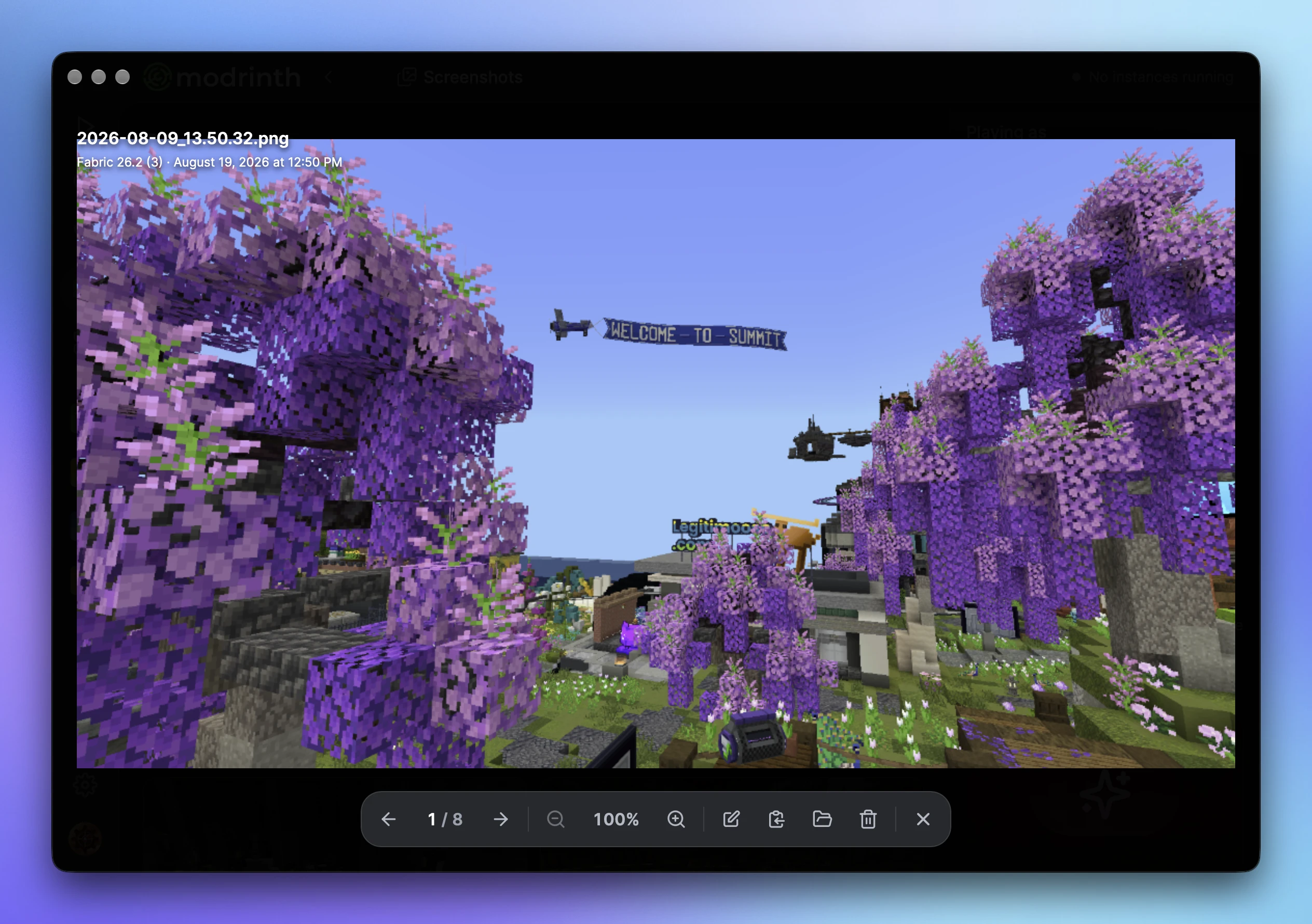
Screenshots can be opened in a larger view so you can take a closer look. From there, you can edit, copy, show in folder, or delete them.
Screenshot editor
Screenshots can also be marked up and saved as a new copy. The editor includes tools for cropping, drawing, highlighting, adding shapes, and more.
Enjoy!