
Compatibility
Minecraft: Java Edition
Platforms
Supported environments


Links
Tags
Creators
Details
This mod adds two tools for creating target designations in the world: the Laser Pointer and the Pocket Laser Pointer.
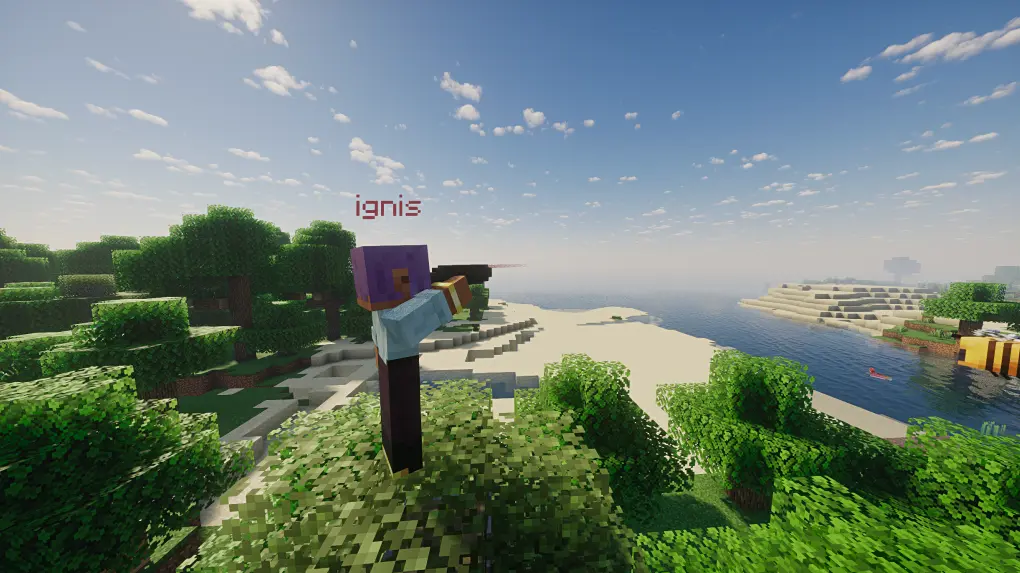
Laser Pointer
The main tool, offering functionality similar to a telescope. Players can aim at blocks or entities to place visible markers to share with other players or to guide fire.
Usage
- Hold Right Click to enter the pointer interface, release to mark the target.
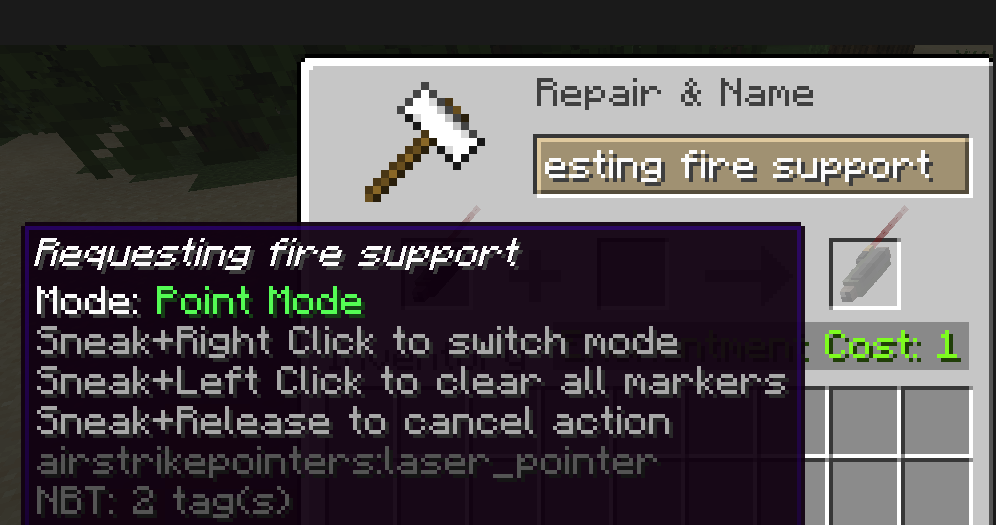
- Shift + Right Click switches between operation modes.
- Shift + Left Click clears all markers created by you.
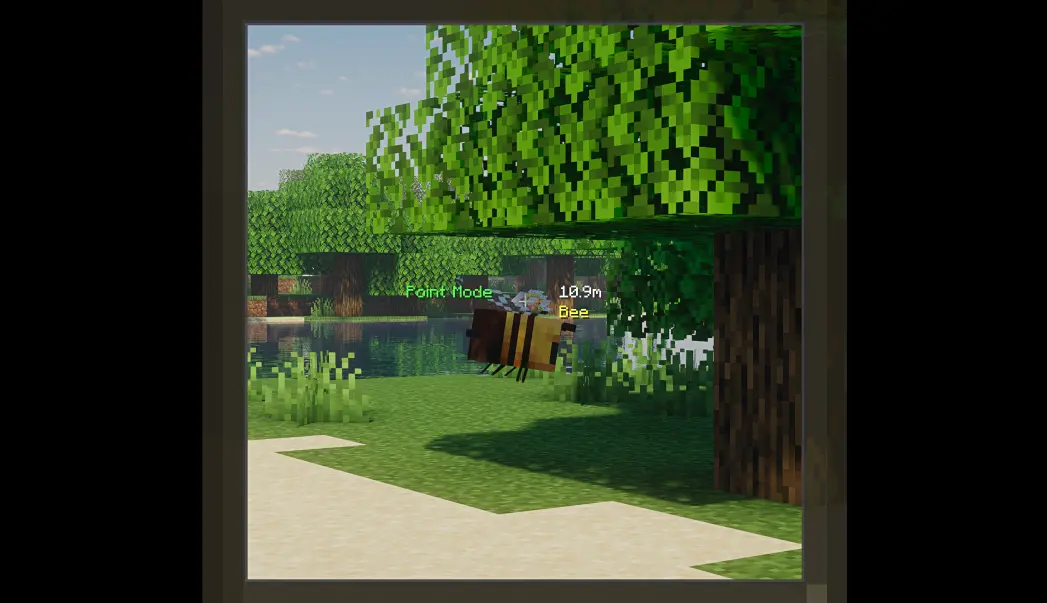
Marker Modes
The Laser Pointer has two modes: Point Marker and Vector Marker.
Point Marker Mode
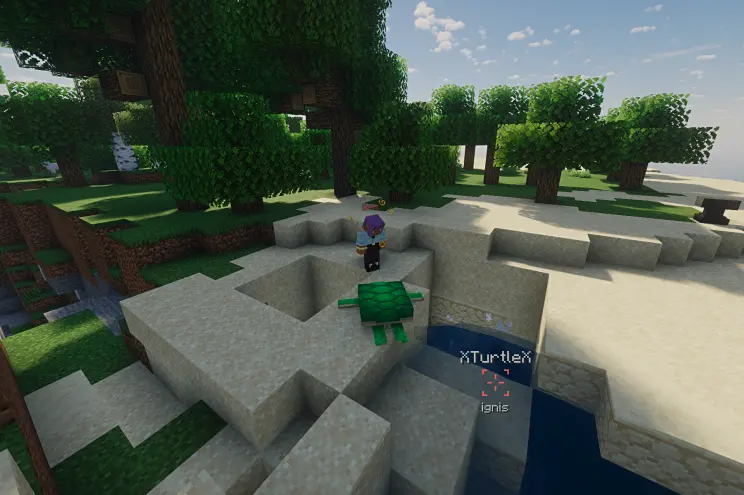
The marker attaches to the targeted block or entity. The marker's name is displayed below, and the name of the targeted entity is displayed above (if attached to an entity).
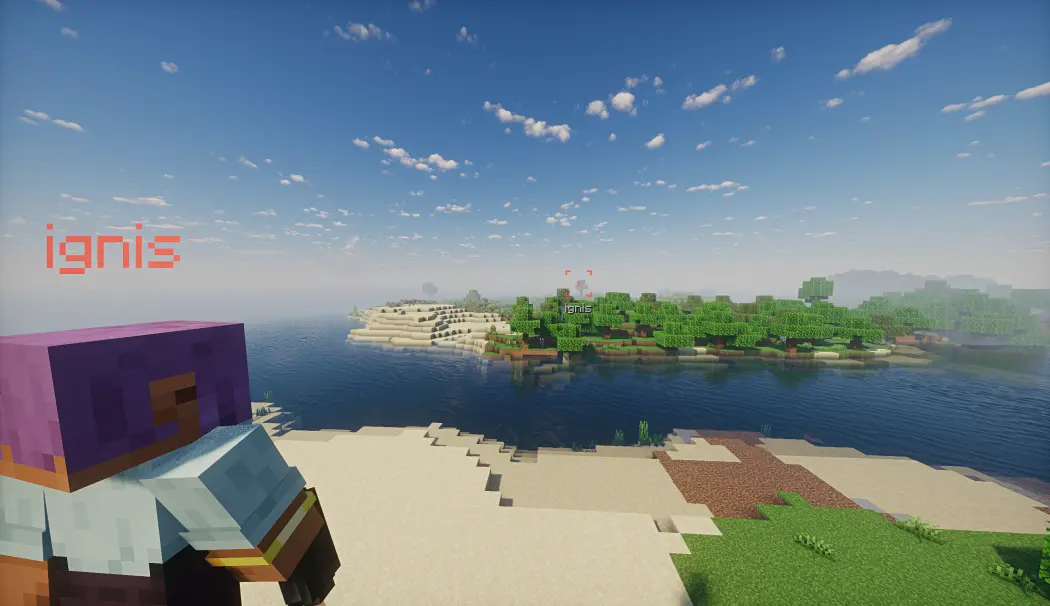
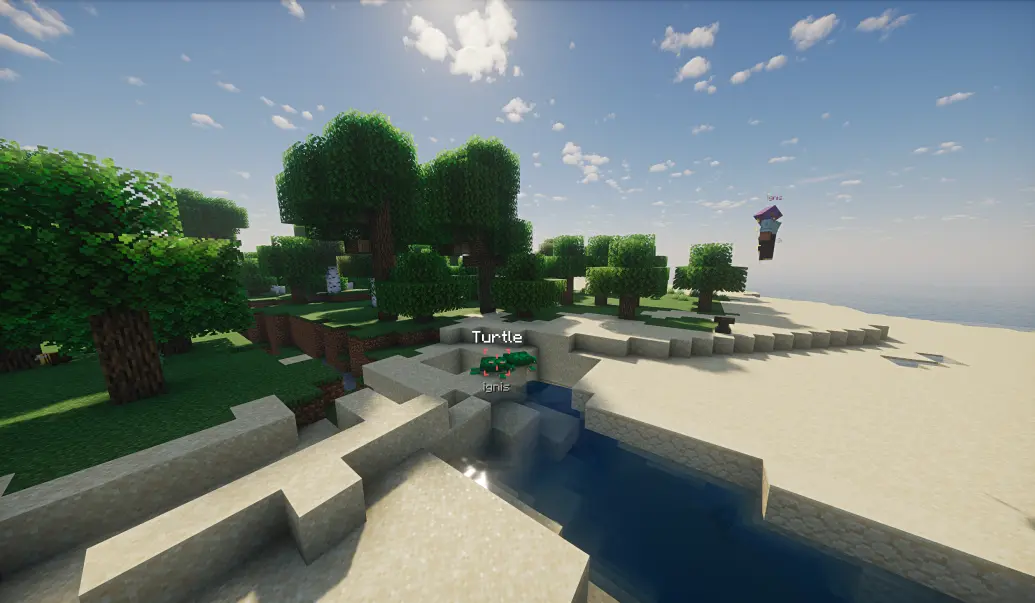
If guidance is enabled, the Point Marker will guide configured entities toward the marker by altering their velocity direction.
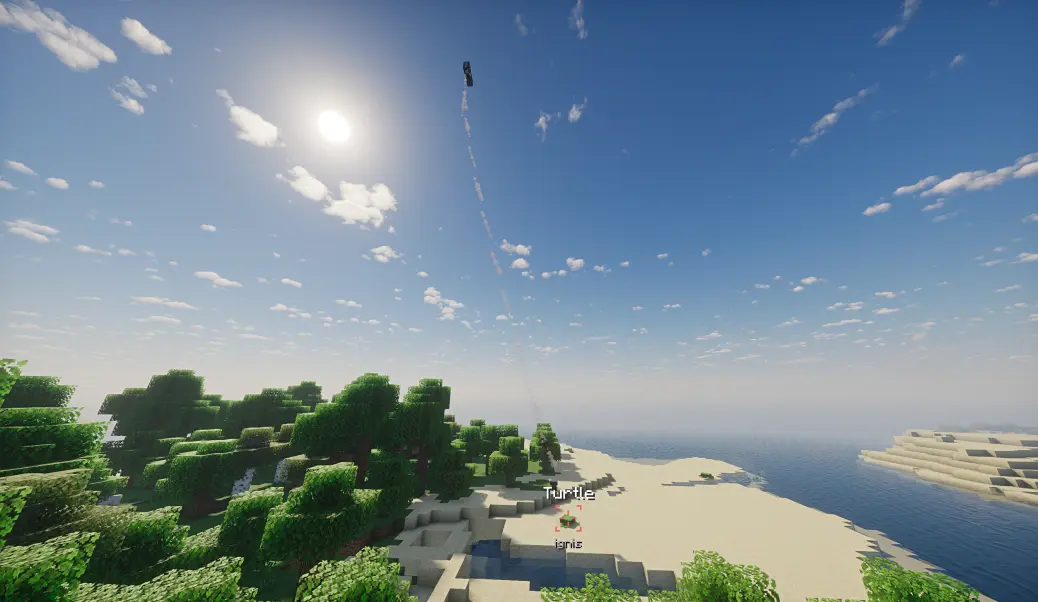
If the marked entity dies, despawns, or is unloaded, the entity name will display an additional "X" prefix/suffix, and guidance will cease.
Vector Marker Mode
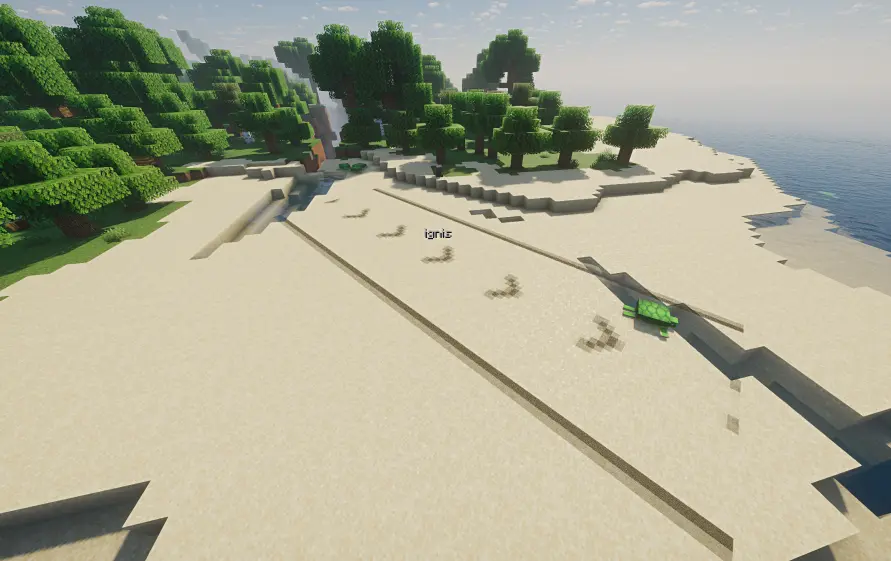
Vector Markers create prominent directional indicators by selecting a start point and an end point. They indicate the path from start to end, making them ideal for guiding airstrikes.
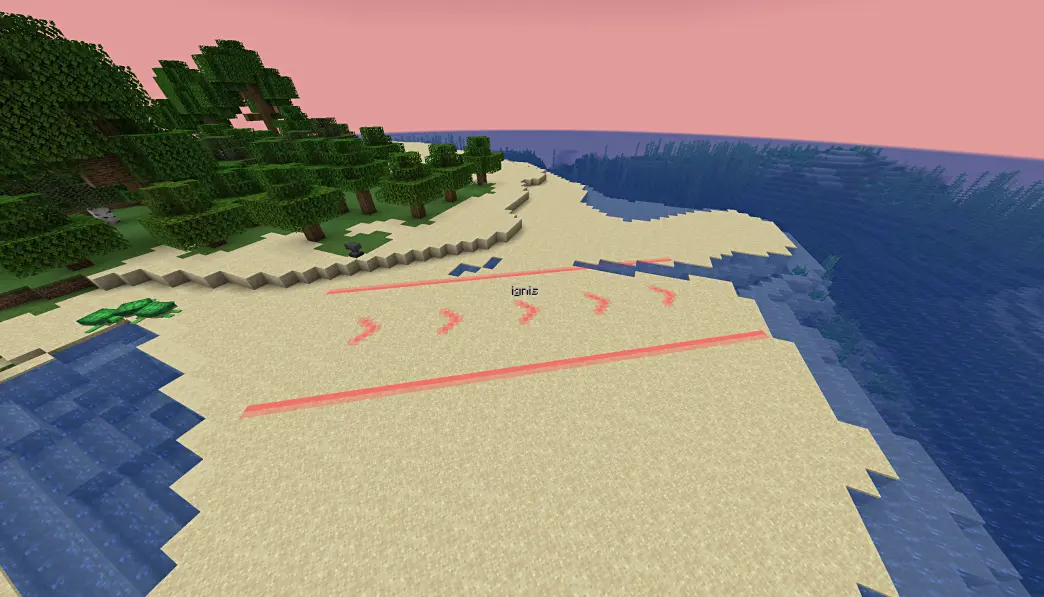
However, Vector Mode has slightly lower rendering compatibility and may have rendering issues in some situations (e.g., when shaders are enabled).
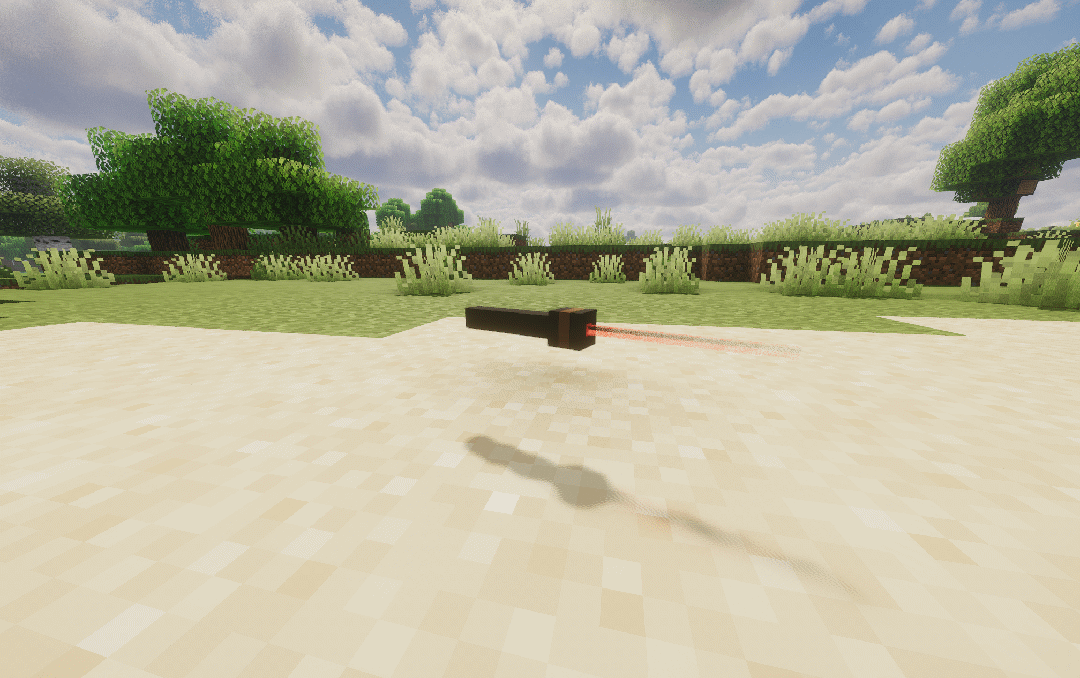
Pocket Laser Pointer
A companion tool designed for quick, non-guided marking. Unlike the Laser Pointer, markers from the Pocket Laser Pointer cannot be guided — perfect for temporary callouts and communication.
Controls
| Action | Result |
|---|---|
| Right Click (short) | Auto-mark with smart icon |
| Hold Right Click | Open icon wheel → select → release |
| Sneak + Right Click | Clear all your markers |
Fast Mark (Short Press)
A quick right-click marks the target immediately with an auto-selected icon based on context:
| Target | Condition | Icon |
|---|---|---|
| Hostile Entity | Max HP ≥ 100 (boss) | Danger |
| Hostile Entity | Normal | Caution |
| Player | — | Like |
| Friendly Mob | — | Defend |
| Block | Player HP < 50% & ≤ 2m away | Danger |
| Block | Has loot/chest/barrel inventory | Satisfied |
| Default | — | Dot |
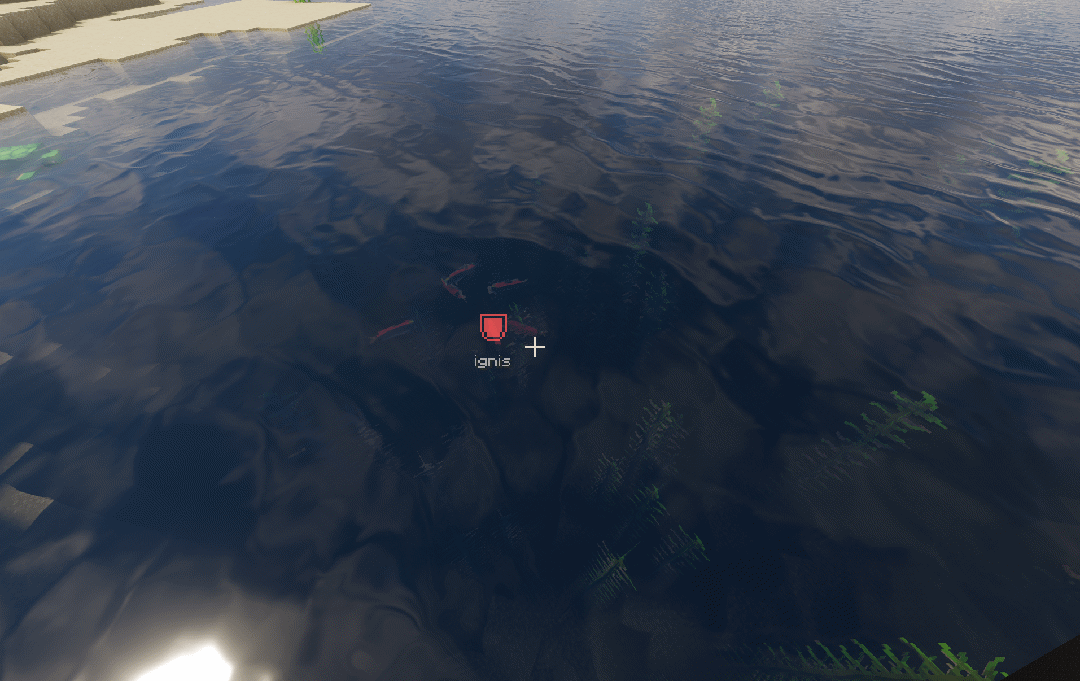
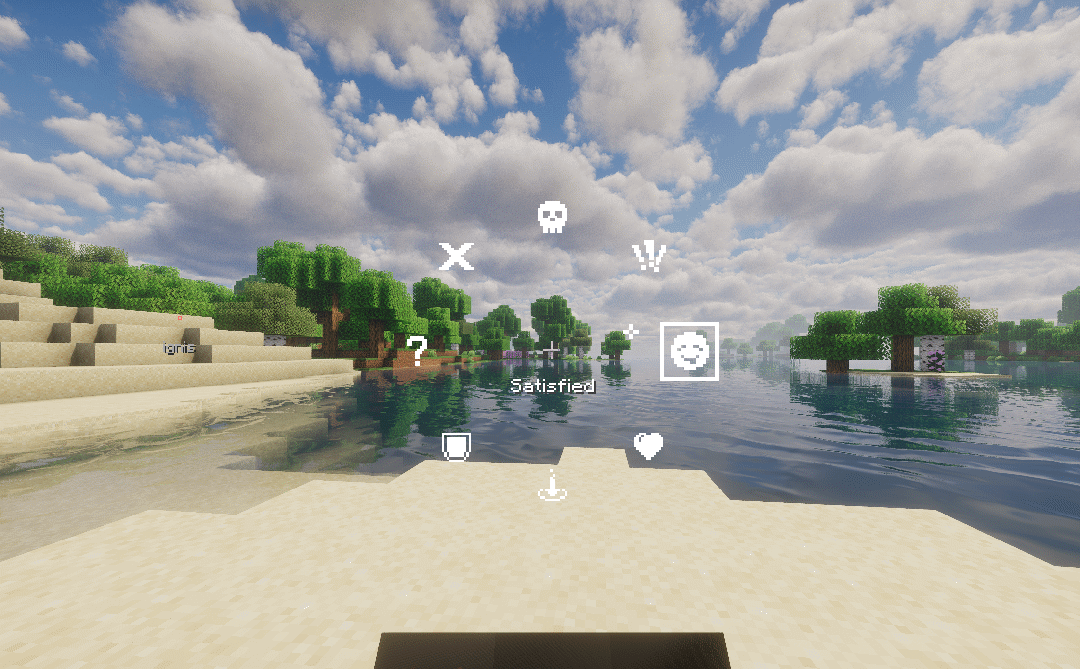
Wheel Mark (Long Press)
Hold right-click for ~3 ticks (configurable on client) to open a radial selection wheel with 8 icons. Drag your mouse toward an icon and release to place the marker with your chosen icon.
- The wheel origin is captured at the moment you press right-click — you can pre-drag during the hold window and release instantly when the wheel appears.
- A lever click sound plays when the wheel opens, and a note block beep plays on successful mark.
Key Differences from Laser Pointer
- Markers cannot be guided
- No spyglass zoom overlay
- One marker per player at a time
- Auto icon selection based on target context
- Client-configurable wheel activation delay
General Features
Features shared by both tools:
- Team Colors: When a player is in a team, the marker automatically uses the team's color. Markers created by players not in a team use a color determined by their UUID.

- Custom Naming: If the pointer is named on an anvil, the created marker will additionally display the pointer's name.
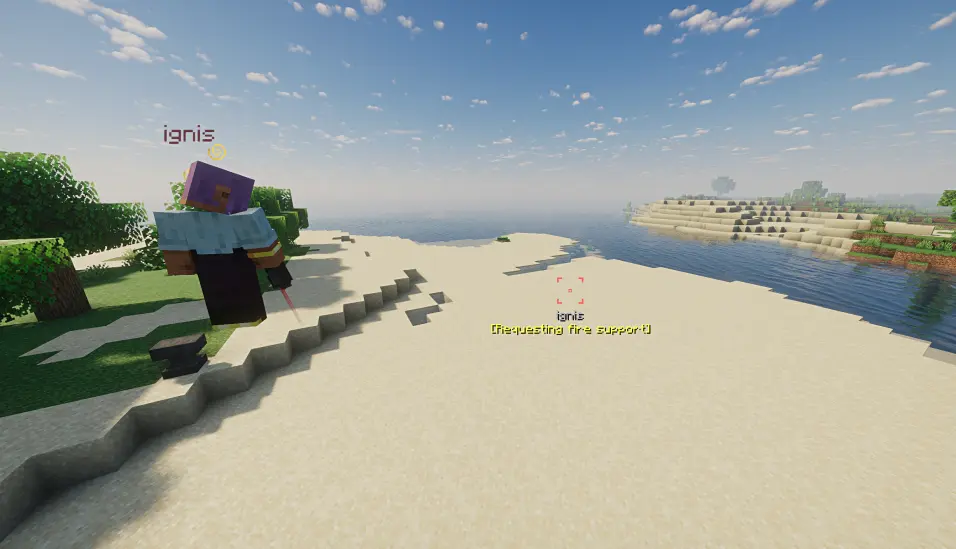
- Synchronization & Config: Markers are fully synchronized in multiplayer. Duration and usage cooldown times are configurable on the server side. Expired markers are automatically cleaned up.
- Client Settings: The client can configure whether to only show markers from their own team and the maximum distance for displaying markers.
- Hot-reload: Configuration supports
/reload. - Marker Size & Visibility: Markers beyond 1000 meters will be less visible.
Known Rendering Issues (Vector Markers)
- Certain shader packs may cause markers to be invisible or change color.
- Clouds can occlude marker rendering; if you frequently need to spot markers from above the clouds, it is recommended to disable clouds.
- Water surfaces may cause markers to change color.
- At specific distances, Distant Horizons LOD models may occlude markers.