
Compatibility
Minecraft: Java Edition
Platforms
Supported environments


Tags
Creators
Details


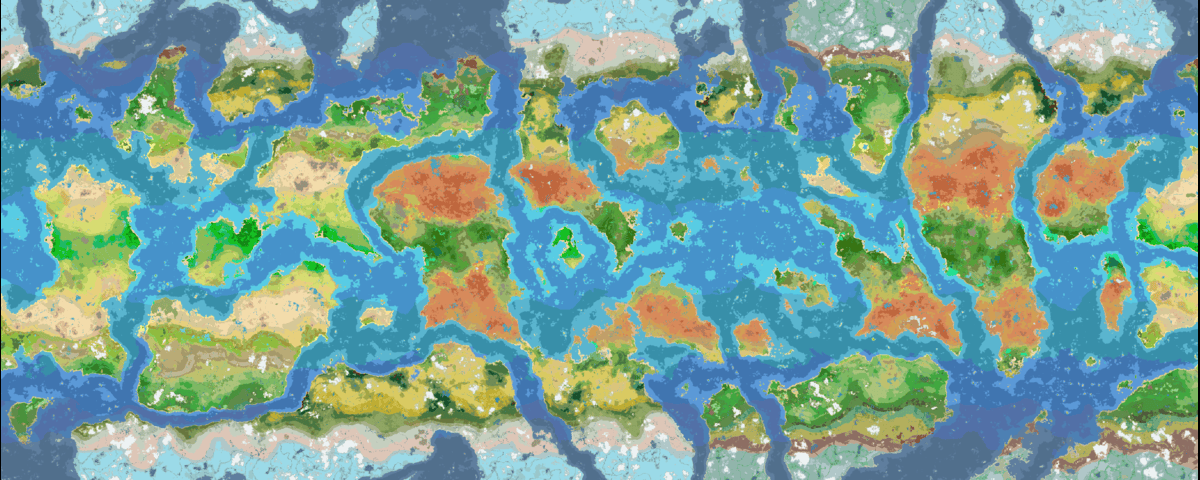
A map of Still Life 1.0 using Seed Viewer
Usage
There are two ways to open the preview:
- World creation screen: a new Seed Viewer tab appears next to Game, World, and More. Open it and the map of your seed starts loading immediately. Type a seed into the field at the top of the tab and hit enter to start loading that seed instead.
- In-game: press the Seed Viewer keybind (default: o, keybind is i on 26.2+) to open the Seed Viewer. The map opens centered on your position.
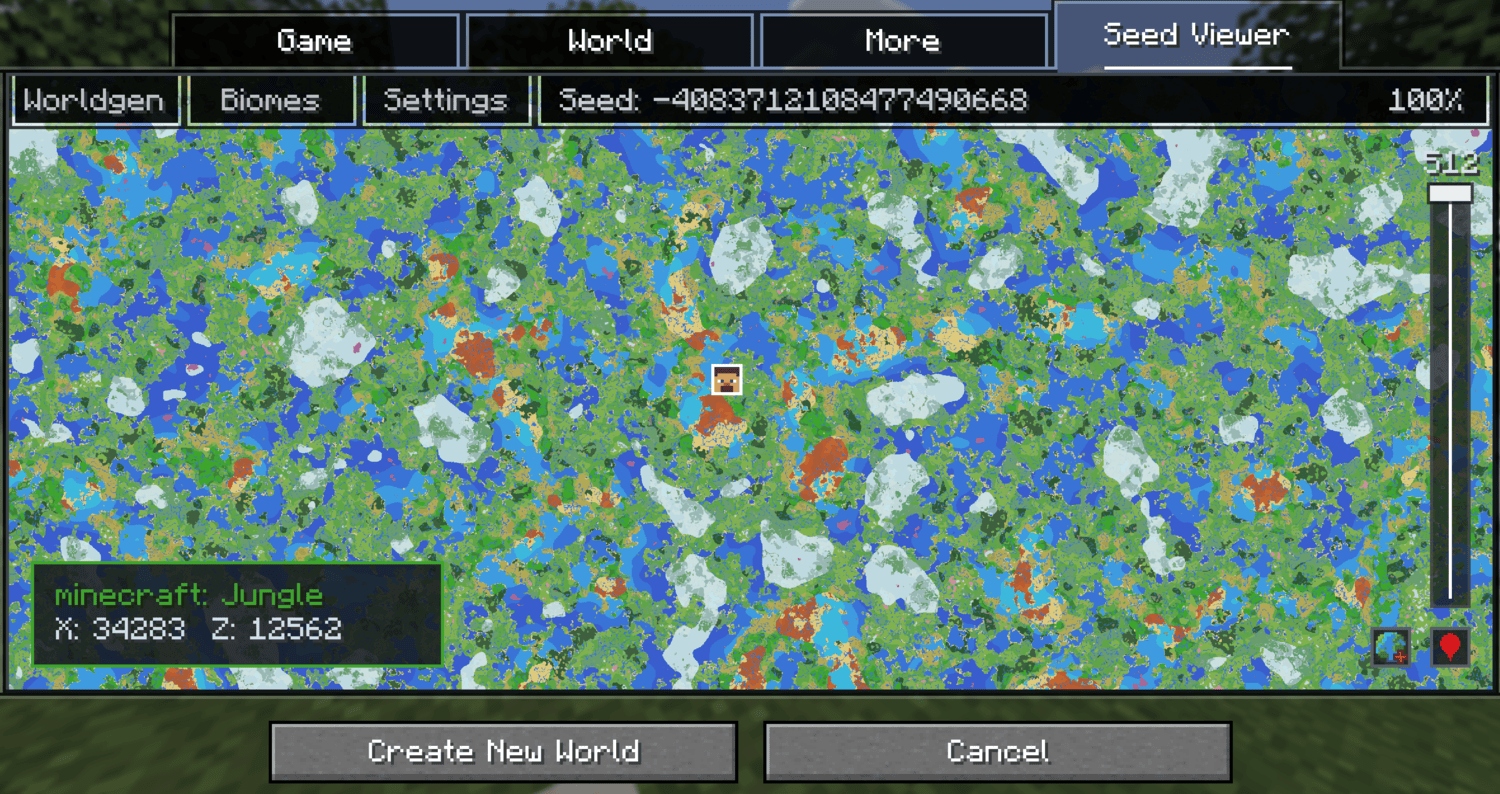
Moving on the preview
- Left Click + Drag to pan.
- Scroll to zoom.
- Use the height slider on the right to change the Y level.
- Click the location button in the bottom right to center on your player in game or on world spawn during the world creation screen.
- Right Click anywhere on the in game map to copy a tp command to that position.
Other features
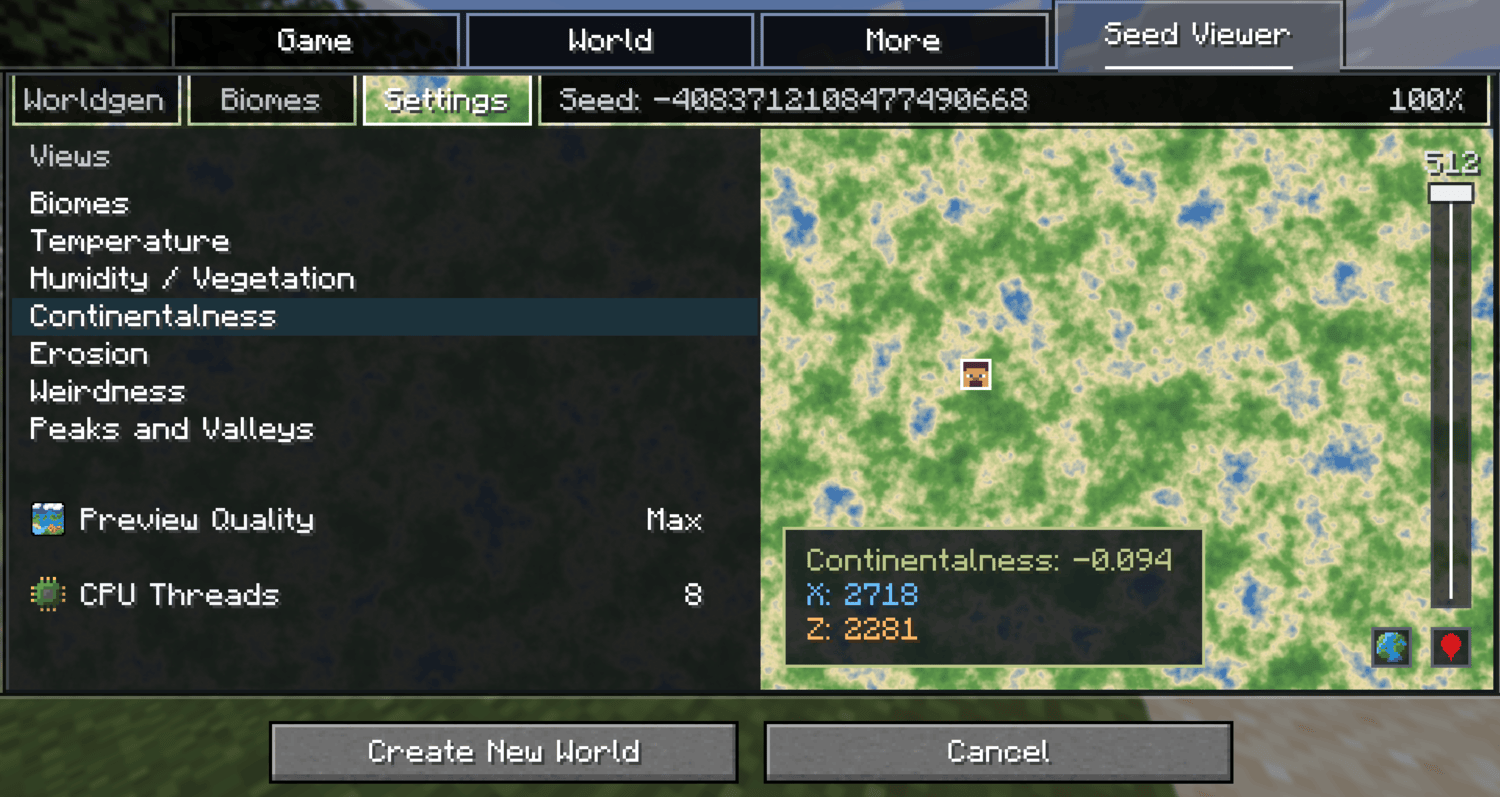
- Map modes: Besides biomes, the Settings tab also has noise views for temperature, humidity, continentalness, erosion, weirdness, and peaks & valleys. Hovering shows the biome name or exact noise value with its coordinates.
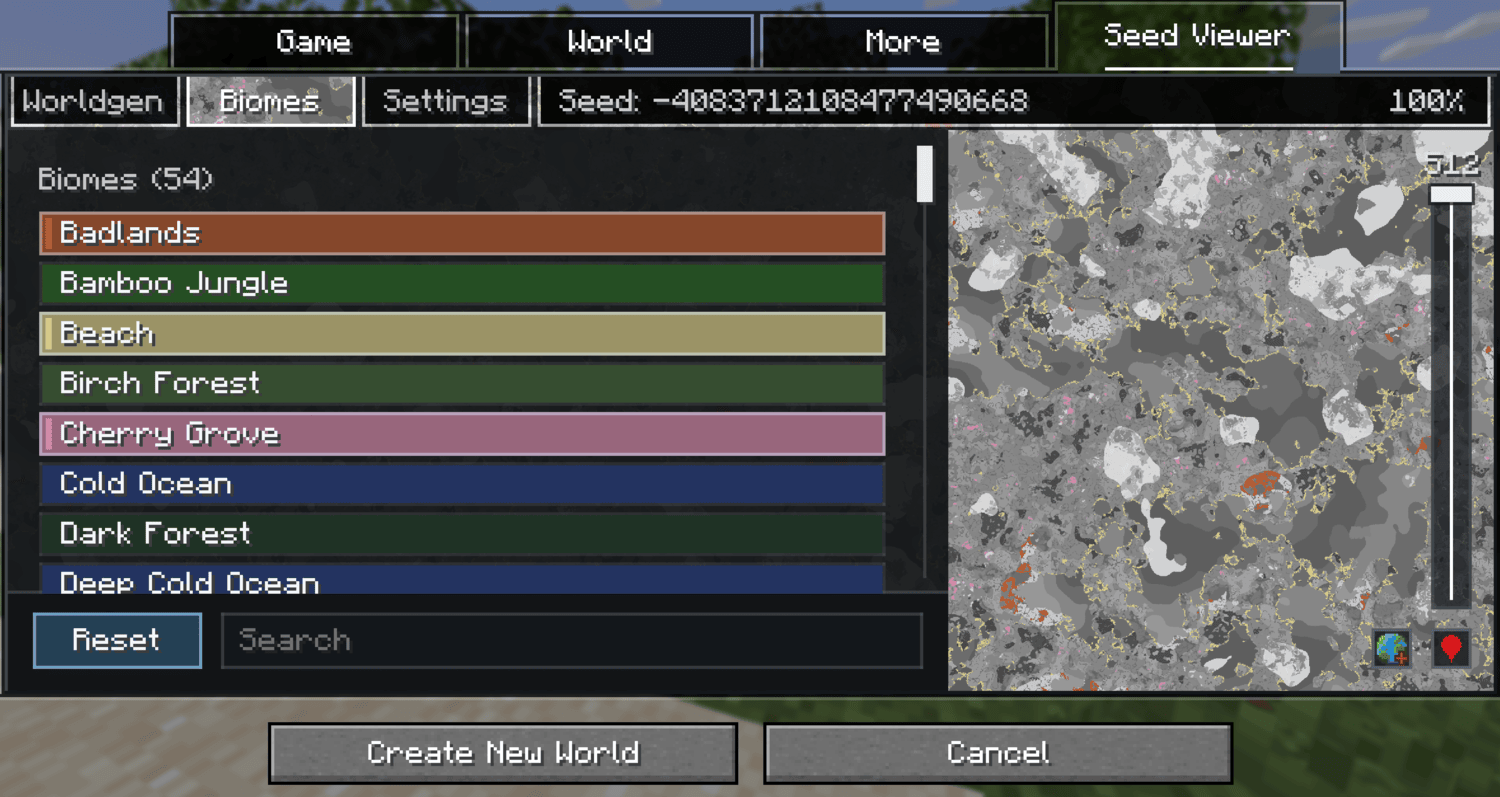
- Biome highlighting: The Biomes tab lists every biome that can or cannot currently generate in the overworld (or whatever dimension you are currently in). Search and click biomes to highlight them on the map; everything else turns grayscale.
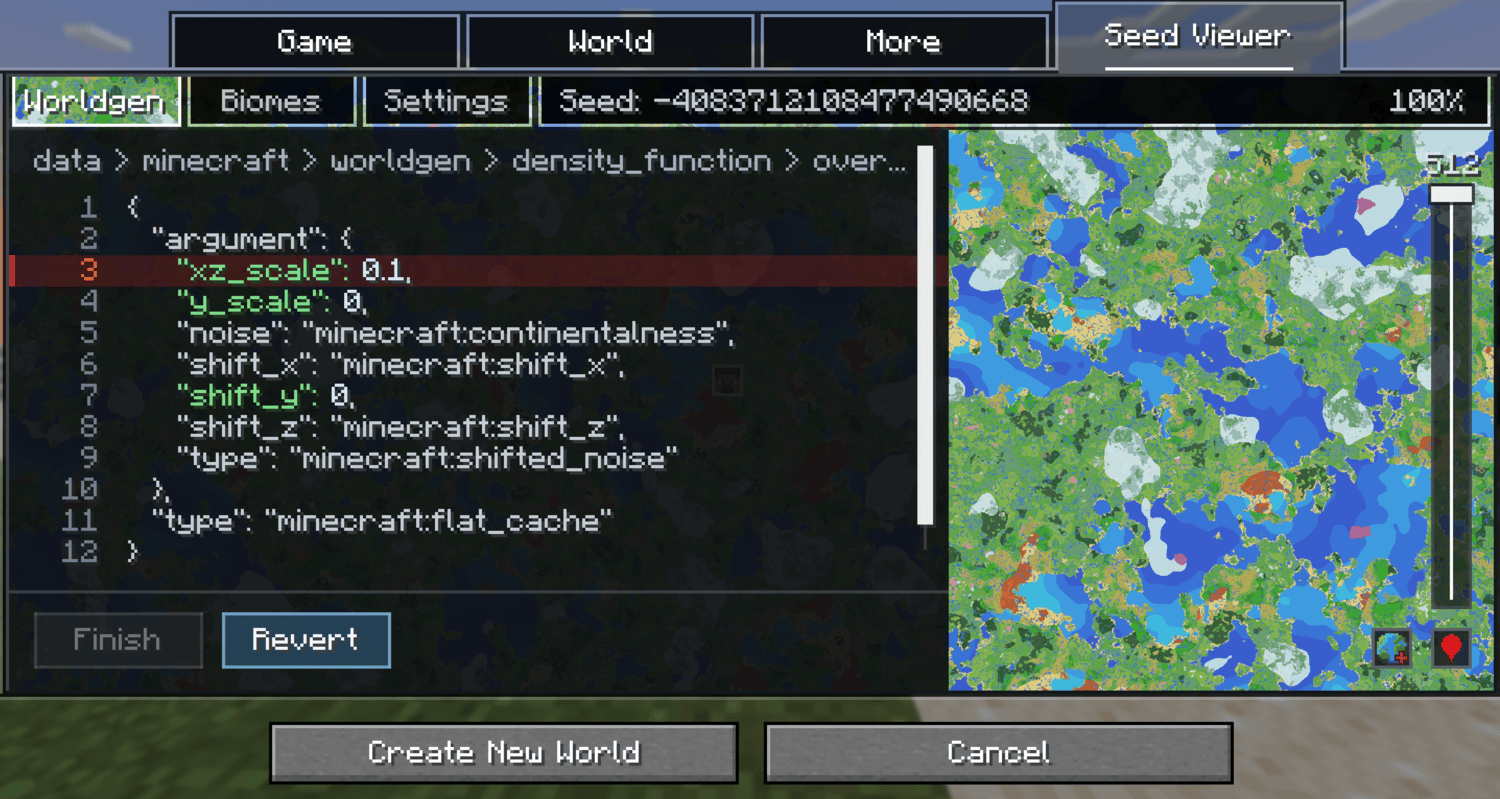
- Worldgen editor: (world creation only) The Worldgen tab lets you edit numeric values of your worlds worldgen datapacks to see how the change in values would affect the world. A compare button toggles between original and edited terrain. This is preview only and does not actually modify your world.
- Performance controls: Five preview quality levels (Performance to Max) and a CPU thread slider, both in the Settings tab. In heavier worldgen datapacks like Still Life or JJThunder To The Max it is recommended to lower the quality level.
Note: The in game map works in singleplayer only. It does not work on multiplayer servers.
✅ Supported Versions
| Minecraft | Status |
|---|---|
| 1.21.1 | Supported |
| 1.21.5 | Supported |
| 1.21.6 | Supported |
| 1.21.9 | Supported |
| 1.21.11 | Supported |
| 26.1 | Supported |
| 26.2 | Supported |
❓ FAQ
Does this work with modded biomes?
The in game viewer works with all biomes, however the preview on the create world screen currently only works with worldgen datapacks. An update to bring compatibility for mods in the create world screen is planned.
Is an update planned for viewing structures?
Yes, I plan to eventually add a toggle that lets you see the location of structures.Can the worldgen editor break my world?
No. Editor changes are preview only and are never written to the created world. Use it to see how changing certain values would affect the datapack. To have the actual changes show up in your world you must change the datapack values manually.
The preview uses a lot of CPU while loading, is that normal?
If you are experiencing freezing or high cpu loads, lower the CPU threads in either the config or the settings tab. If loading the map is slow, lower the preview quality which is also found in the config or settings tab.Mod Compatibility
On the create world screen, all worldgen datapacks should be functional. Mods that modify worldgen may not be reflected until the world exists, open the in game preview for an exact map for modded worlds. The in game viewer should work with most if not all worldgen mods.
Custom Biome Colors
Map colors for custom biomes are generated automatically, but you can override them: add data/<namespace>/worldgen/biome_colors.json to a datapack, mapping biome IDs to r / g / b values for custom colors.