
Compatibility
Minecraft: Java Edition
Platforms


Tags
Creators
Details
🎵 CDisc Music
Turn any track from the internet into a real music disc. Put it in a jukebox and everyone nearby hears it through proximity voice chat: the closer you stand, the louder it gets.
YouTube, Spotify, SoundCloud, Yandex Music, VK, TikTok, Twitch, Discord attachments, your own music folder, and more.
No API keys, no tokens, no accounts. Install it and it plays. Keys still work if you have them, but nothing needs them.
📥 Requirements
- Simple Voice Chat or Plasmo Voice. One is enough; with both installed CDisc plays through both, so players on either mod hear the same jukebox, and players with both mods hear it once.
- Spigot, Paper or Folia, 1.20 or newer. One jar for all three.
Optional: WorldGuard for protecting jukeboxes in regions, PlaceholderAPI for placeholders.
Put CDisc and the voice plugin into plugins/ and restart. Players need the matching voice-chat client mod to hear the music.
🚀 Quick start
Hold any music disc and run:
/cdisc create never gonna give you up
Pick a track from the list in chat. The disc in your hand now carries that track, with its name and author in the tooltip. Put it in a jukebox, and it plays from the jukebox itself, in sync for everyone in range.
More ways to make a disc:
/cdisc create https://youtu.be/dQw4w9WgXcQwrites a link straight to the disc/cdisc create sc:lofi hip hopsearches SoundCloud (yt:sp:ym:vk:work the same way)/cdisc create local:rain.mp3plays a file fromplugins/CDisc/local, with Tab completion/cdisc disc playlist <link>writes a whole playlist: drop blank discs into the window and each gets a track
A disc is an ordinary item from then on: carry it, trade it, store it in a chest.
✨ Features
💿 Jukeboxes and the player screen
- Crouch at a playing jukebox to see a progress bar with the track and its time, then right-click it to open the player. Without crouching, a right-click takes the disc out as usual.
/cdisc sneaklets each player choose how crouching works. - The player screen: play / pause, seek ±5 s or type an exact timecode, previous / next, repeat (off, whole queue, one track) and shuffle. On 1.21.6+ it opens as a real window with sliders and buttons; older versions and Spigot get the chest screen.
- A queue of 42 discs per jukebox, played one after another. Choose what happens to a finished disc: it stays, it is ejected, or it moves to the end.
- Crossfade: the end of one disc blends into the next, with no gap between tracks.
- Nothing is lost: queues survive restarts and crashes, a playing jukebox resumes where it stopped, and breaking or burning a jukebox drops a jukebox that still holds every disc. Placing it again puts the queue back.
- Live streams from Twitch and YouTube play for as long as the broadcast runs.
- Parrots dance to CDisc discs just as they do to vanilla ones.
📡 Sound
- True proximity audio: the music comes from the jukebox and fades with distance.
- Beacon range boost: build a beacon pyramid under a jukebox and raise its range from the player screen. Bigger pyramids allow more range.
| Pyramid level | Extra range |
|---|---|
| 1 | +16 blocks |
| 2 | +32 blocks |
| 3 | +64 blocks |
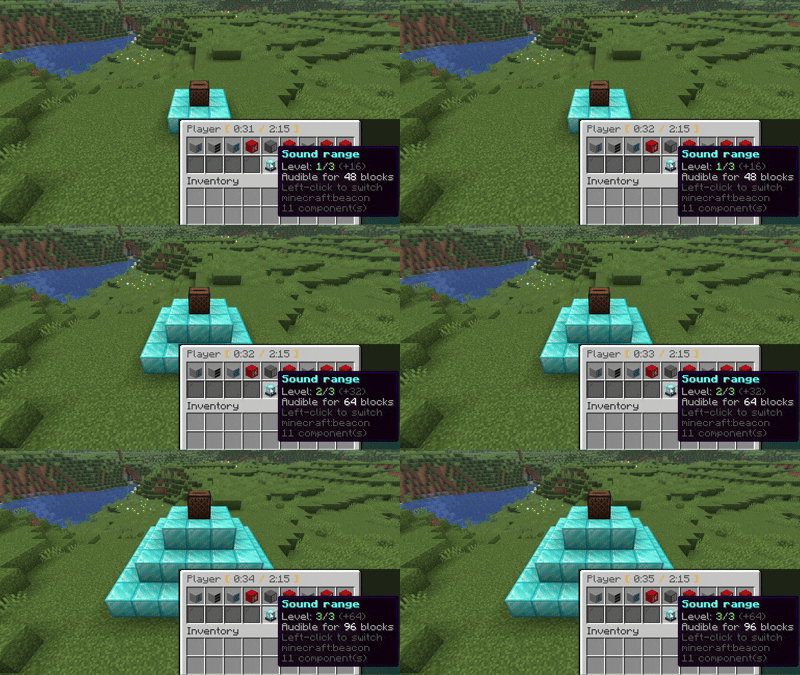
- Speaker groups: link up to 8 jukeboxes into one group and they play the same track in sync. Each speaker can be set to stereo, mono, the left channel or the right one, at its own volume. Good for a club, an arena or a town square.
- Carry a jukebox: pick a playing jukebox up without stopping the track, and the music follows you, through portals too. With
/cdisc player scoreboardthe lyrics go to your sidebar, and everyone else reads them over your head. - Two volumes: one for everyone around the jukebox, and one for whoever carries it.
- Goat horns:
/cdisc createwith a goat horn in hand records a short sound onto it, up to 15 seconds by default. Blowing the horn plays it through voice chat.
🎤 Lyrics over the jukebox
- Timed lyrics float above a playing jukebox, line by line, from free lyrics databases.
- Each player chooses what they see: the words, the words with the track and time, the words with the time, the track and time, the time alone, or nothing. Left and right click on the lyrics button in the player screen step through the views, or use
/cdisc lyrics. - Your own look:
/cdisc presetsets colours, size, opacity, line count, shadow, fade and slide, with a live sample in front of you. Everyone reads the hologram their own way, and/cdisc preset share <player>offers your look to a friend. - Server presets: admins make named looks with
/cdisc admin presetsand hand them to players, to a selector, or to everyone as a default. Optionally forced, so nobody can change them. - Live chat: on a Twitch or YouTube live stream, the stream's chat takes the place of the lyrics.
🎙️ Broadcasts (experimental)
⚠️ Experimental. Broadcasts are new and may still have bugs. If something goes wrong, please report it on GitHub, ideally with a
/cdisc admin logslink.broadcast.enabled: falseinconfig.ymlswitches them off.
/cdisc create broadcast:Name makes a disc that plays no music: in a jukebox it goes live. Its host adds up to six microphones. A handheld one can be passed from player to player; a block microphone hears everyone standing near it. Voices come out of the jukebox and every speaker linked to it, so a stage or a radio station is one disc away.
📁 Your own music folder
- Drop audio files into
plugins/CDisc/localand they are discs:local:with Tab completion, played straight from disk with nothing fetched. - A
.jsoncfile beside a track gives it its own name, volume, permission and lyrics./cdisc admin local-files-config <file>edits all of it in a window. /cdisc admin download <link or search>saves a track into the folder from in game, from YouTube, Spotify, a direct link or a search, so it keeps playing whatever happens to the original.
🛠️ For server owners
- A permission for every action: pause, skip, seek, queue, carrying a jukebox, lyrics and more, all set in
permissions.yml. Screens hide the buttons a player may not use. Limits for players who are not staff: a cooldown, the longest allowed track, live streams on or off, allowed and blocked hosts. - WorldGuard: a jukebox inside a region answers only the region's members. The
cdisc-jukeboxflag opens a region's jukeboxes to everyone, or closes them to members too. - A settings window:
/cdisc admin configedits every config file in game (Paper 1.21.7+). - Diagnostics:
/cdisc admin doctorshows which sources work and which are missing something, and/cdisc admin logsuploads the log with that report for a bug report, with keys and tokens hidden. - Updates itself: new releases from Modrinth or GitHub are downloaded and installed when the server stops. This can be turned off.
- 7 languages: English, Russian, Ukrainian, German, Spanish, Hebrew and Arabic. Each player reads their client's language, or you pin one for the whole server. Your own translation drops into
languages/. - PlaceholderAPI:
%cdisc_track%,%cdisc_position%,%cdisc_progress%and more for the nearest jukebox a player can hear. - API: other plugins can listen to
TrackStartEvent,PlaybackStopEventand the cancellableDiscCreateEvent, and askCDiscApiwhat a jukebox is playing. - Upgrades keep your settings: every config file is brought up to date from the new jar, your changes stay, and the old file is kept as
.old.
🌍 Sources
| Source | Prefix | Needs |
|---|---|---|
| YouTube | yt: (or no prefix) |
nothing |
| Spotify | sp: |
nothing; keys only make search use Spotify itself |
| SoundCloud | sc: |
nothing |
| Yandex Music | ym: |
nothing |
| VK Music | vk: |
nothing |
| TikTok | links, or tt: + video number |
nothing |
| Twitch, Mixcloud, Reddit | links | nothing |
| Discord attachments | links | nothing (Discord's links expire after about a day) |
| Your music folder | local: |
nothing |
| Any direct audio link | links | http: true in sources.yml |
A search shows a list to pick from; add :10 at the end for more results. Albums and playlists open too.
Why no keys are needed
YouTube is read directly first. When YouTube refuses the server, as it does for many hosting addresses, CDisc asks its public backend, which fetches the track from its own address. The same backend reads Spotify, Yandex Music and VK links without any tokens. It is on by default; sources.yml turns it off.
Keys and tokens in tokens.yml are still read if you add them: Spotify client keys, Yandex Music and VK tokens as a fallback when the backend cannot be reached, a YouTube po-token, and an outgoing proxy. None of them are required.
⌨️ Commands
| Command | What it does |
|---|---|
/cdisc create <link or search> |
Write a track onto the disc or goat horn in your hand |
/cdisc disc clear |
Turn the held disc back into a normal one |
/cdisc disc playlist <link> |
Write a playlist onto blank discs |
/cdisc disc convert |
Convert a disc made by pv-addon-discs |
/cdisc player <pause | play | next | previous | seek | repeat | queue | info> |
Control the jukebox you are looking at or carrying |
/cdisc player scoreboard |
Lyrics in your sidebar while you carry a jukebox |
/cdisc lyrics <view> |
Choose what you see over jukeboxes |
/cdisc preset |
Your own hologram look; share <player> offers it to someone |
/cdisc pair <create | add | remove | dissolve | channel | volume | list> |
Speaker groups |
/cdisc sneak <toggle | release | off> |
How crouching at a jukebox works for you |
/cdisc messages |
Turn "Now playing" messages on or off |
/cdisc admin <reload | doctor | download | logs | config | presets | local-files-config> |
Server tools; they run from the console too |