
Compatibility
Minecraft: Java Edition
Platforms
Supported environments


Tags
Creators
Details
Version 4.X.X
For older versions of the mod, check the wiki.
This Mod connects the Minecraft chat with a discord chat.
The Mod adds Discord command integration for the Mods Dimension Access Manager (CurseForge or Modrinth) and More MobGriefing Options (CurseForge or Modrinth).
This Mod only works on the server side and won't work on the client side.
You need a server to play with friends? You don't know how to set up one? Just rent an already configured server!

Click on the picture above, select a plan (with recommended at least 6 GB),
use my code agent to get 25% off your first month and enjoy playing with your friends!
Important Notes
- When sharing a world of a server, where Discord Integration is installed, remember to remove "discordintegration-server.toml" file in the "serverconfig" folder, to protect your bot token.
- You can regenerate the bot token in the Discord Developers Site on the "Bot tab".
Support
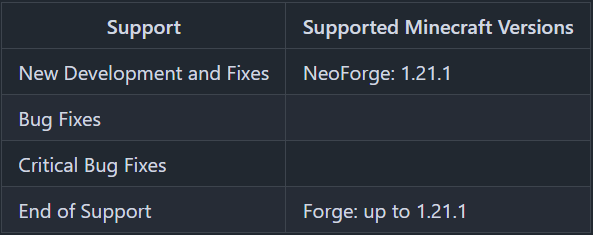
Minecraft versions, for which the mod is not released, are not supported.
You can find a text version here.
Features
Chat
Minecraft > Discord
Everything written in the Minecraft chat is added to the Discord chat by a Discord bot.
Additional death messages, advancements messages are sent to Discord.
The "say"- and the "me"-command has been changed and sent their messages to Discord too.
Server started and server stopped messages can be customized in the config.
Discord > Minecraft
Every message except from bots are sent to the Minecraft chat.
Bot messages can be sent to the Minecraft chat, if it is activated in the config.
The max length of messages transmitted from Discord to Minecraft can be configured to prevent spam. An error message is shown in the Discord chat, if the message is too long.
Messages, which are commands, are also not sent to the Minecraft chat.
There are default commands added by Discord Integration, custom commands can be added in the config. The command prefix can be configured in the config too.
Management
The "management" part of Discord Integration consists of two parts, the management channel and the management role.
In the management channel, all Discord Integration commands can be used. Also, messages about server start, stop and crash, player joined and left are shown. If the whitelist feature is activated, additional messages will be shown, if a Minecraft and Discord account are linked or unlinked and if a Minecraft account is added or removed from the whitelist.
Additionally, the management channel can be used for conversations between the moderators and admins of the Minecraft server, which will not be shown in the Minecraft chat.
With the management role commands can be executed that are marked as management commands.
Whitelist
From the whitelist usable by Discord Integration requires the whitelist to be activated in the server.properties file. It has two mechanisms to secure the whitelist, role and single link management, which are described in the following sections. Linkings from users leaving the Discord server will automatically be removed. If the linkings are out of sync, for example because the Minecraft server was offline or the Discord API had issues, this can be solved by restarting the server, which resyncs the linkings.
The config key "whitelist.use_role" is used to set, if the use role mechanism is active, and the config key "whitelist.use_single_linking_management" is used to set, if the single link management is active.
To create linkings users can use the !link and !unlink commands in the chat channel. Important: The !link and !unlink commands have to be enabled in the config, before they can be used.
Only linking
If both mechanisms are deactivated, the user only has to create a linking to get onto the whitelist.
Role
If the role mechanism is active, the user has to have the role whose ID is set to the config key "whitelist.role_id". The role has to be assigned by a moderator of the Discord server. If the "@everyone" role is used, the user just has to create a liking to get onto the whitelist.
Single Link Management
For the Single Link Management two config values have to be set. The "whitelist.linking_management_channel_id" has to have the channel ID set of the channel in which the "Linking Messages" are shown. The "whitelist.single_linking_management_role_id" is the role ID of the role that is needed to activate or deactivate a linking. The linking can be simply activated or deactivated by clicking the tick or "X" reaction below the message.
On startup, all linking messages in the link management channel are updated, this takes about 1 second per message due to Discord API restrictions.
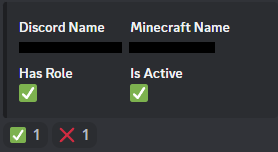
Role + Single Link Management
The Discord user has to have the role assigned, whose ID is set to the config variable "whitelist.role_id" and the link has to be activated in the link management channel (details in the previous section).
Minecraft Commands
/discord commands- shows the list of available commands configured in the Discord Integration with a help message what they do./discord gamerules- shows the values of all Minecraft gamerules./discord mods- shows a list of all mods in the server./discord link <player> [<discordMemberId>]- creates a linking between a Discord user and a Minecraft player. From the Discord chat only the variate with only the player can be user and in Minecraft only with player and discordMemberId the command is usable (Only of players with op level 3 or higher)./discord unlink <player> [<discordMemberId>]- deletes a linking between a Discord user and a Minecraft player. From the Discord chat only the variate with only the player can be user and in Minecraft only with player and discordMemberId the command is usable (Only of players with op level 3 or higher).
Default Discord Commands
If you type the following commands into the discord chat, you get information from the Minecraft server.
Custom commands can be added in the config.
Commands for Vanilla Minecraft
!difficulty- shows the difficulty of the server.!gamerules- shows the gamerules and their values.!help- shows all commands with its description.!link <Minecraft player name>- links a Minecraft player with the Discord user using this command.!mods- shows a list of the mods on the server.!online- shows how many and which players are on the server.!seed- shows the seed of the active world.!time- shows the current day time on the server.!tps- shows the tps statistic of the server, and it's dimensions.!unlink <Minecraft player name>- unlinks a Minecraft player from the Discord user using this command.
Commands for the Dimension Access Manager Mod
!dimensions- shows the access states of all dimensions.
Commands for the More MobGriefing Options Mod
!mobgriefing- shows all mobgriefing options of the mobs.
Server Config
The config file can be found in the "serverconfig" folder in the "world" folder and is named "discordintegration-server.toml". The name of the world folder is set for servers in the "server.properties" file.
- bot - General bot configuration
- active - Should the Discord Integration be active? Default: false
- bot_token - Token of your Discord bot. Default: "INSERT BOT TOKEN HERE"
- guild_id - Guild/Server ID of the Discord server, where the Discord Integration should operate.
- discord_presence - Discord Presence configuration
- show_discord_presence - Shall a Discord Presence message be shown? Default: false
- message - Message shown in the Discord Presence (activity is always playing). (Available parameters: %online_player_count% = Online Player Count, %max_player_count% = Max Player Count) Default: "Minecraft with %online_player_count% players"
- chat - Chat channel settings
- enabled - Should the Minecraft and Discord chat be linked? Default: false
- channel_id - Channel ID where the Minecraft and Discord chat will be linked.
- use_raw_message_format_discord_to_minecraft - Use raw message format for Discord to Minecraft messages (examples: https://minecraft.fandom.com/wiki/Commands/tellraw#Examples)? Default: false
- invalid_raw_message_format_for_discord_to_minecraft_error_message - Error message shown in Discord, if the raw message format is malformed JSON. (Available parameters: %username% = Discord username, %nickname% = Discord nickname, %error_message% = Error message, %new_line% = New line) Default: "%username%%new_line%Error: Invalid JSON format for raw message for Discord to Minecraft message.%new_line%%error_message%"
- message_format_discord_to_minecraft - Message format for Discord to Minecraft messages. (Available parameters: %username% = Discord username, %nickname% = Discord nickname, %message% = Message) Default: "[%username%] %message%"
- message_format_minecraft_to_discord - Message format for Minecraft to Discord messages. (Available parameters: %player% = Player name, %message% = Message) Default: "%player% %message%"
- message_format_minecraft_to_discord_me_message - Message format for Minecraft's /me command to Discord messages. (Available parameters: %player% = Player name, %message% = Message) Default: "%player% %message%"
- max_char_count - How long should Discord messages sent to Minecraft chat be at most? If the value is -1, there is no limit to the length. Default: -1
- max_char_count_error_message - Error message shown in Discord, if the message is too long. (Available parameters: %username% = Discord username, %nickname% = Discord nickname, %max_char_count% = Max message length (value of chat.max_char_count), %actual_message_char_count% = Actual length of the send message, %new_line% = New line) Default: "%username%%new_line%Error: Message too long.%new_line%Messages can only be up to %max_char_count% characters long.%new_line%Your message is %actual_message_char_count% characters long."
- transmit_bot_messages - Should messages of other bots be sent to the Minecraft chat? Default: false
- suppress_server_messages - Suppress messages sent from the Minecraft server (for example, with the say command)? Default: false
- messages - Messages shown on Discord in the chat channel
- server_started - Options for the server start message (enabled: true, message: "Server started")
- server_stopped - Options for the server stop message (enabled: true, message: "Server stopped")
- server_crashed - Options for the server crash message (enabled: true, message: "Server crashed")
- player_joined - Options for the player joined message (enabled: true, message with %player%)
- player_left - Options for the player left message (enabled: true, message with %player%)
- player_died - Options for the player died message (enabled: true, message with %player%, %default_message%)
- tamed_mob_died - Options for the tamed mob died message (enabled: true, message with %tamed_mob%, %default_message%)
- player_got_advancement - Options for the player got advancement message (enabled: true, message with %player%, %advancement_title%, %advancement_description%, %new_line%)
- management - Management channel settings
- enabled - Should a management channel be used? Default: false
- channel_id - Channel ID, where the management channel should be.
- role_id - Role ID, which Discord users need to execute management commands
- messages - Messages shown on Discord in the management channel (server_started, server_stopped, server_crashed, player_joined, player_left, linking_created, linking_removed, whitelist_update_with_forced_message_update_start, whitelist_update_with_forced_message_update_finished, player_whitelist_added, player_whitelist_removed)
- whitelist - Settings for whitelist management in Discord
- enabled - Should the whitelist management in Discord be enabled? Default: false
- use_role - Does the user have to have a specific role to be whitelisted? Default: true
- role_id - Role ID of the Discord role, that a user have to have to be whitelisted.
- use_single_linking_management - Does every linking has to be separately activated, before the Minecraft account is being whitelisted? Default: true
- single_linking_management_role_id - Role ID of the Discord role, that a user have to have to activate or deactivate the linkings. Only needed if whitelist.use_single_linking_management is true
- linking_management_channel_id - Channel ID of the channel, where the activation of the linkings are handled.
- command_settings - Command settings
- command_prefix - Command prefix for Discord commands. Default: "!"
- command_normal_user_permission_level - Permission level for Minecraft commands for users, who don't have the management role. Default: 2
- command_management_user_permission_level - Permission level for Minecraft commands for users, who do have the management role. Default: 4
- other_bots_command_prefixes - Command prefixes of other bots. Messages with these prefixes are not sent to the Minecraft chat.
- messages - Command message settings (only_management_command_hint_message, link_created_result_message, link_already_exists_result_message, link_removed_result_message, link_invalid_discord_member_id_error_message, unknown_command_error_message, invalid_permissions_error_message)
- commands - Command mapping from Discord to Minecraft commands (minecraft_command, discord_command, management_command, use_parameters, description, enabled)
How to set up a Discord bot and get the bot token
First you have to log into the Discord Developers Site.
Press "New Application" and enter a name for your application.
Go to the "Bot tab".
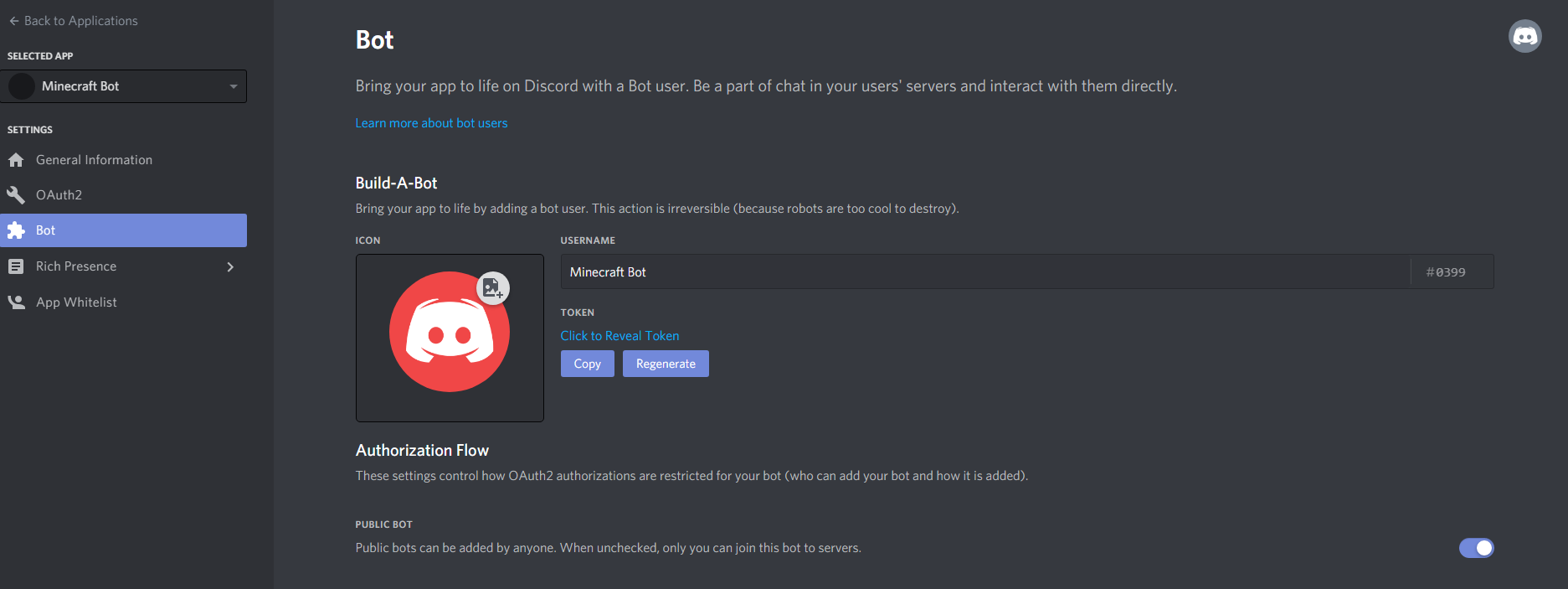
Click onto "Reset Token" to get the bot token for the config. The token is only shown once, so copy it directly into the config.
Enable the Privileged Gateway Intents
This step is required. In the "Bot tab", scroll down to "Privileged Gateway Intents" and enable:
- Server Members Intent - needed for the whitelist, the linkings and the management role
- Message Content Intent - needed to read the messages and commands from the Discord chat
Click "Save Changes".
The "Presence Intent" is not needed.
If the intents are not enabled, the bot can't connect to Discord and the server log shows an error with "Disallowed intents" (close code 4014).
To add the bot to a server click on "General Information" and add the "Client ID" into the following link:
https://discordapp.com/oauth2/authorize?client_id=YOUR_BOTS_CLIENT_ID&scope=bot&permissions=75840
You have to replace YOUR_BOTS_CLIENT_ID by the client ID of your bot.

Open this link and add the bot to one of your server.
The bot can only see the channels that you allow. The link intentionally doesn't give the bot the "View Channel" permission, so it only sees the channels, that everyone (@everyone) can see, and the channels you allow explicitly. Allow the bot (or its role) "View Channel" in every channel set in the config (chat channel, management channel, linking management channel), if the channel isn't visible for everyone: right click on the channel > "Edit Channel" > "Permissions". Without it, the bot can't read or send messages in these channels.
You can only add the bot to your own servers. If you want to add the bot to a server, that you don't own, you have to check the "Public Bot" option in the Bot tab and let the server owner add the bot to his/her Discord server.
How to get the guild ID
To get the guild ID, you have to go in Discord into the "User Settings" > "Advanced" and have to activate the "Developer Mode"
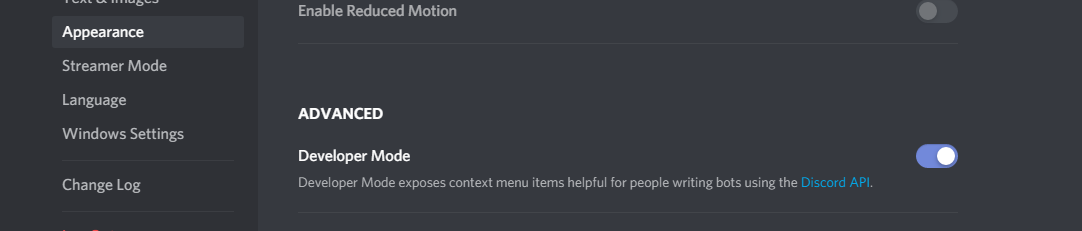
Next, you go to the server in which the bot shall operate.
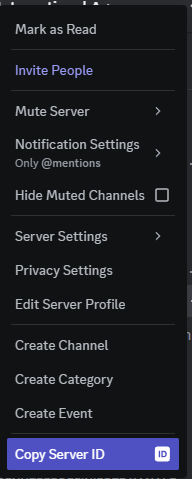
Make a right click on this server name or icon and click "Copy Server ID" and paste it into the config.
How to get the channel ID
To get the channel ID, you have to go in Discord into the "User Settings" > "Advanced" and have to activate the "Developer Mode"
Next, you go to the server and channel in which the bot shall operate.
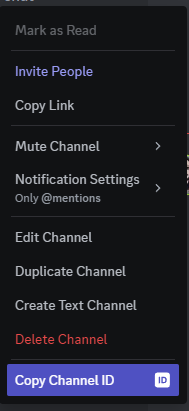
Make a right click on the channel and click "Copy ID" and paste it into the config.
How to get the role ID
To get the role ID, you have to go in Discord into the "User Settings" > "Advanced" and have to activate the "Developer Mode"
Next, you go to the server in "Server Settings" > "Roles".
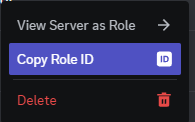
Make a right click on the role and click "Copy Role ID" and paste it into the config.
Thanks for the logo to Muse31.
You can use this mod in non-commercial modpacks without asking.
You can find more mods from me on CurseForge and Modrinth.
