
Compatibility
Minecraft: Java Edition
Platforms
Supported environments


Tags
Creators
Details
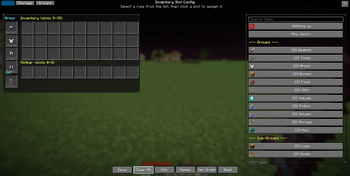
Slot Config
Visual Inventory Config / Slot Configuration The Visual Inventory Config screen shows a live preview of your entire player inventory and hotbar. Click on any of the 36 slots to assign it a rule — this rule determines what items can go there when you press OI. You can set a slot to accept any item (filler), a specific category (like "weapons" or "food"), a specific item type (like "sword" or "pickaxe"), an exact item (like "minecraft:diamond_sword"), a custom group you defined, or keep it empty-locked so nothing ever goes there. Every slot can have its own rule, or you can leave slots as "any" to let unclaimed items flow into them. Your slot layout is saved automatically, so your inventory always sorts the same way.
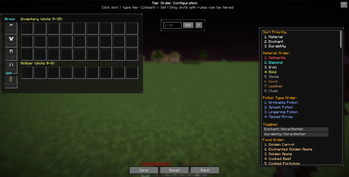
Tier Order
Sorting Order / Tier Prioritization Within each item category, Inventory Organizer sorts items by tier — a priority order you define. For example, in the Weapons category, you might want Diamond swords to appear before Iron swords, and Iron before Stone. The Sorting Order Config screen lets you drag tiers up and down within each category pool to customize this ranking. When you press the OI button, all items are sorted according to your tier preferences, so your best tools always end up in the same slots, in the same order, every time. You can set different tier orders for Weapons, Tools, Armor, Blocks, Food, Valuables, Utility, and Potions independently.