
Compatibility
Minecraft: Java Edition
Platforms
Supported environments


Tags
Creators
Details
Patchwork adds a way to manage block interactions in a clear and flexible way using a data-driven node graph editor built right into the mod.
Using Patchwork, you can create an SF Network (Simulated Factory) of blocks, (such as machines), and virtually route their behavior. You can even interact with their GUIs fully remotely from within the Patchwork editor. You have the choice of connecting physically placed blocks to your network using an SF Interface, or alternatively to upload the blocks into the editor, allowing the SF Network to fully manage it for you without you having to place it anywhere.
Patchwork is sort of like a data-driven mix of AE2 and Compact Machines.
Getting started
To get started you need a mod that provides a power source, as Patchwork doesn't provide this.
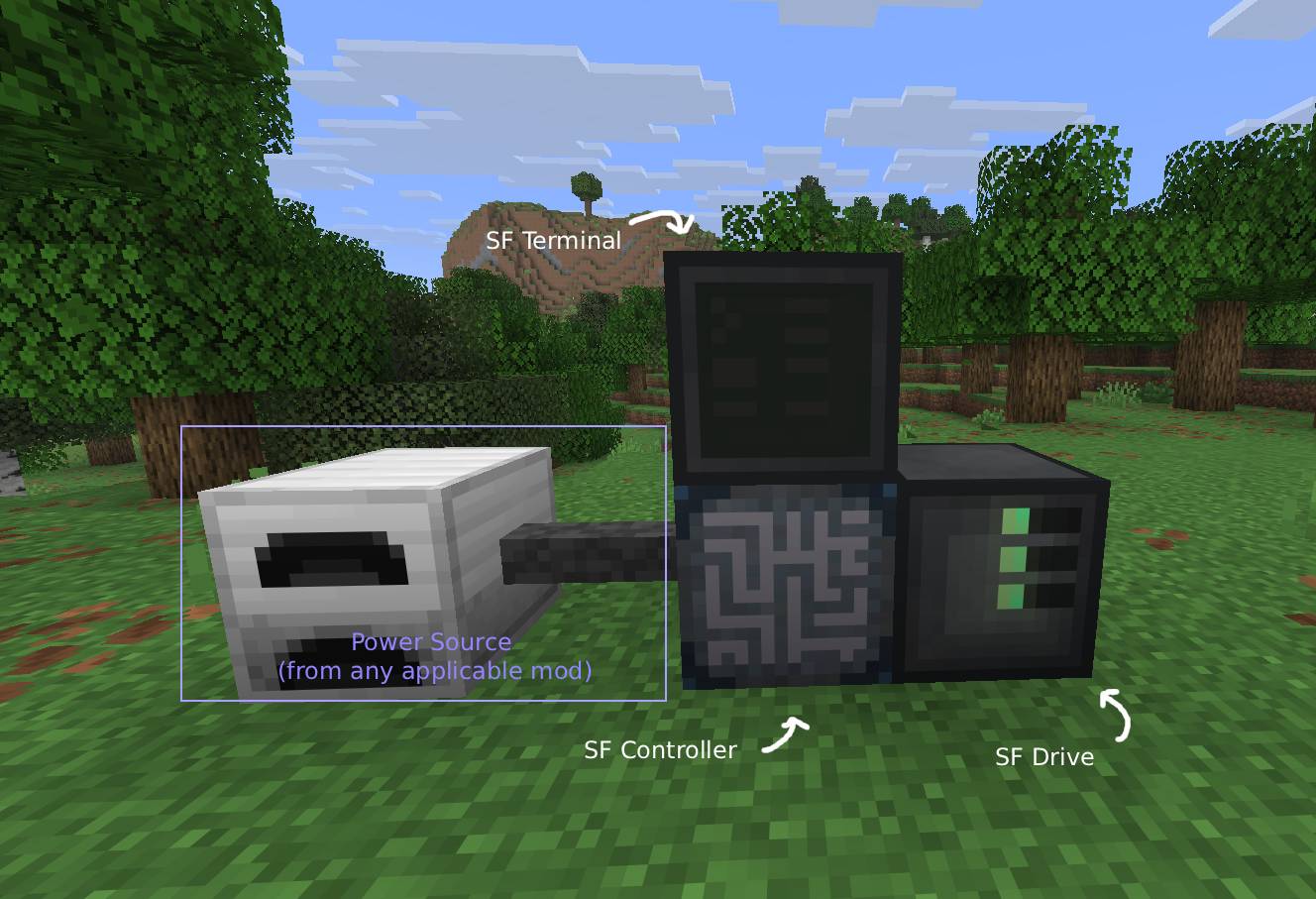
All SF networks require at least five things;
- An SF Controller, to accept power into the network
- A power source for the SF Controller
- An SF Drive, to store the storage modules
- Virtual Storage Modules, to store the configurations
- and finally, an SF Terminal, to edit the configuration. Technically doesn't have to be present for the network to function once you've configured it, but it probably doesn't make sense to remove it ever, so effectively this is always required.
There are currently three storage tiers. The abilities of each tier are provided below.
| Tier | Max patches | Max virtualized blocks |
|---|---|---|
| 1 | 1 | 4 |
| 2 | 2 | 16 |
| 3 | 8 | 64 |
You can, however, add an unlimited amount of SF Interfaces to a network, regardless of storage.
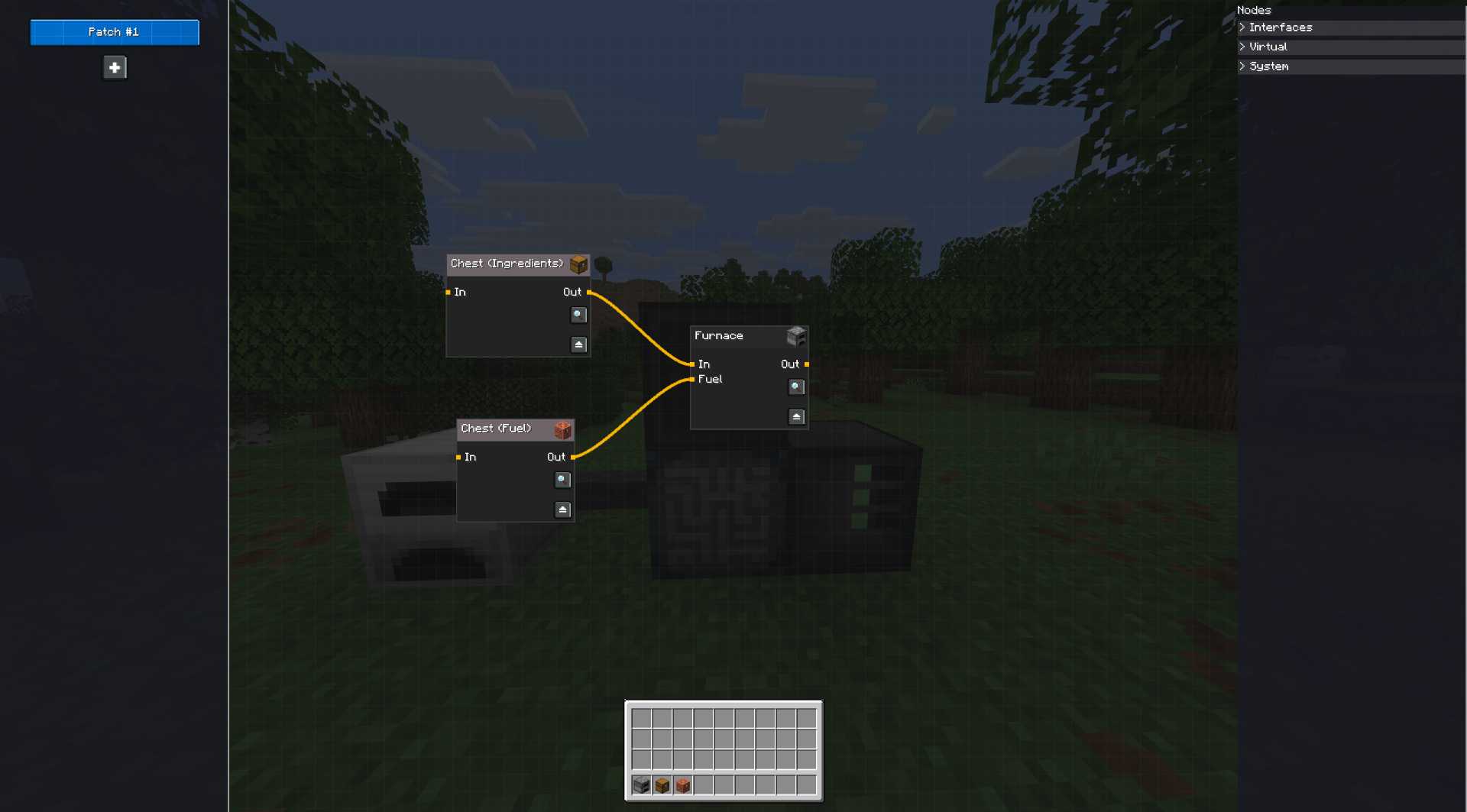
Once the storage has been placed into the SF Drive, feel free to open the SF Terminal and click the plus button. You can then shift click a block from your inventory to upload it to the system, and then open the "Virtual" tab on the right to drag them into the editor. You can now manage the block virtually! By clicking on the magnifying glass on a node, you can open it's GUI remotely and interact with it if necessary. By double clicking on a node, you can rename it, as well as manually modify the nodes inputs and outputs. Make sure you press CTRL+S (or the Save Button) on the top left to save your changes before you close the editor! As soon as you have saved, the SF Controller will begin executing the graph.
SF Interfaces
Alternatively, instead of virtualizing nodes, you can use SF Cables and SF Interfaces to manually plug a block into the network and configure it that way. Those appear under the "Interfaces" tab, but otherwise work just the same as virtualized blocks. This is how you get resources in and out of the world and into the network. Do keep in mind that SF Interfaces and ME Interfaces do not function the same way. An SF Interface is more akin to an ME Storage Bus than an ME Interface. SF Networks provide no inventories on their own to the network, and as such cannot expose directly an inventory to other blocks in the world. You must bring your own item storage and either virtualize it by uploading it into the editor, or attaching it with the SF Interface, thus allowing you to route the storage.
Mod Compatibility
SF Controllers should accept power from any block that can provide it using NeoForge's EnergyHandler capability. The mod also has explicit support for Mekanism and will automatically configure most Mekanism machines that are attached to the network, meaning you shouldn't have to bother with any block configurations other than adding upgrades or enabling Auto-sort.