
Compatibility
Minecraft: Java Edition
Platforms
Supported environments


Links
Tags
Creators
Details
Resource Pack Profiles




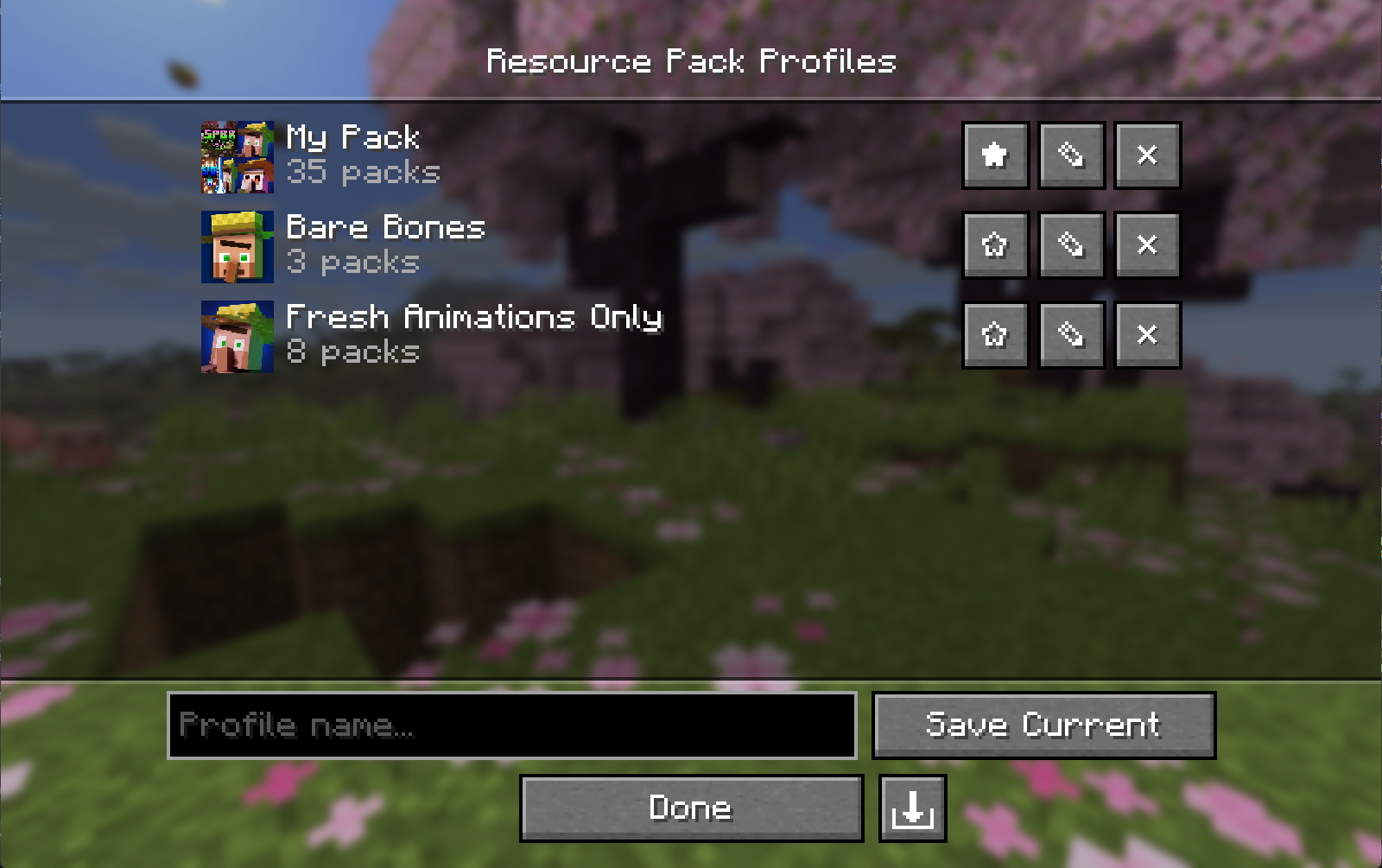
A client-side Fabric mod for saving, managing, and sharing named resource pack load order profiles. Switch between different pack setups from the resource pack screen.
Features
- Save profiles: save your current resource pack load order as a named profile.
- Load profiles: apply a saved profile and your packs reload without a restart.
- Edit profiles: add, remove, and reorder packs in a profile without changing your main load order. Editing the active profile re-applies it.
- Favorites: star profiles to pin them to the top of the list.
- Custom icons: set an image for any profile. Profiles without one get an icon built from their packs' art.
- Import and export: share profiles as
.rpprofilefiles, a single JSON file with the pack list and custom icon. - Missing packs: profiles that reference packs you don't have are flagged, and can still be applied without them.
- Accessibility: the profile and pack lists use Minecraft's native widgets, so they support keyboard navigation and screen readers.
Download
- Modrinth (recommended)
- GitHub Releases
Installation
- Install Fabric Loader for your Minecraft version.
- Install Fabric API.
- Install Fabric Language Kotlin.
- Drop the mod
.jarinto your.minecraft/modsfolder. - (Optional) Install Mod Menu to open the profiles screen from the mods list.
Client-side only. No server installation is needed.
Compatibility
| Minecraft | Fabric Loader | Fabric API | Fabric Language Kotlin | Mod Menu (optional) |
|---|---|---|---|---|
26.3 |
0.19.5+ |
0.161.0+26.3 |
1.14.1+kotlin.2.4.20 |
21.0.0-beta.1 |
26.2 |
0.19.3+ |
0.152.2+26.2 |
1.13.12+kotlin.2.4.0 |
20.0.0-beta.3 |
26.1 to 26.1.2 |
0.19.3+ |
0.145.1+26.1 |
1.13.12+kotlin.2.4.0 |
18.0.0-beta.1 |
Usage
Open the Resource Pack Profiles screen via the Profiles button on the vanilla resource pack screen (left of Open Pack Folder), or via Mod Menu.
| Action | How |
|---|---|
| Save current load order | Type a name then click Save Current |
| Load a profile | Click anywhere on the profile's row |
| Edit packs in a profile | Click ✎ |
| Delete a profile | Click ✕ |
| Favorite a profile | Click ★ / ☆ |
| Set / change a profile icon | Open Edit (✎) then click Icon… |
| Remove a custom icon | Open Edit (✎) then click ✕ next to the icon |
| Export a profile | Open Edit (✎) then click the export button (bottom right) |
| Import a profile | Click the import button (bottom right of the profile list) |
In the editor, click a pack in the Available column to add it to the top of Selected. Use the arrow overlay on a selected pack's icon to remove it or reorder it. With keyboard focus, use Enter to add/remove and Shift+Up/Down to reorder.
Profile File Format
Profiles are saved to:
config/resourcepackprofiles.json
Custom icons are stored in:
config/resourcepackprofiles/icons/
Exported .rpprofile files are standard JSON:
{
  "name": "My Profile",
  "packIds": ["file/Pack1", "file/Pack2"],
  "favorite": false,
  "customIcon": "<base64 encoded PNG, or null>"
}
Building from Source
git clone https://github.com/ZephByte/ResourcePackProfiles.git
cd ResourcePackProfiles
./gradlew build
License
MIT - free to use, modify, and redistribute. See LICENSE.
Author
Made by ZephByte.