Compatibility
Minecraft: Java Edition
Platforms
Supported environments


Tags
Creators
Details
Simple Voice Chat Soundboard
A client-side soundboard mod for Simple Voice Chat. Play your own sounds through voice chat so everyone using Simple Voice Chat can hear them.
This is not an official Simple Voice Chat addon. Please do not ask for support in the Simple Voice Chat Discord server. Instead, use the GitHub issue tracker; I will try to help as soon as possible.
Features
- Play any
.mp3file through Simple Voice Chat - Start and stop sounds with keybinds
- Start and stop sounds directly from a customizable sound wheel
- Multi-key keybinds (like
Ctrl + Shift + 1) - Bind an unlimited number of sounds
- See active playing sounds in an optional HUD element
- Configure each sound individually:
- Loop on or off
- Amplifier (the volume sent to other players)
- Play sounds while your microphone is muted
- Adjust your local playback volume without changing how loud other players hear the sounds
- Search, sort, and filter large sound collections
- English and German interface
Dependencies
Quick Start
- Launch the game once so the
soundsfolder is created in your Minecraft instance. - Put your
.mp3files into that folder. - Open the Soundboard Config screen with
Oby default. - Assign keybinds to your sounds and, optionally, to the sound wheel.
- Use the keybinds in singleplayer or multiplayer to start a sound; use the same keybind again to stop it.
GUI and Usage Guide
Currently Playing Sounds
All currently playing sounds are shown in a small HUD at the bottom-right of the screen. Looping sounds are marked accordingly. You can disable this indicator in the settings.

Sound Wheel
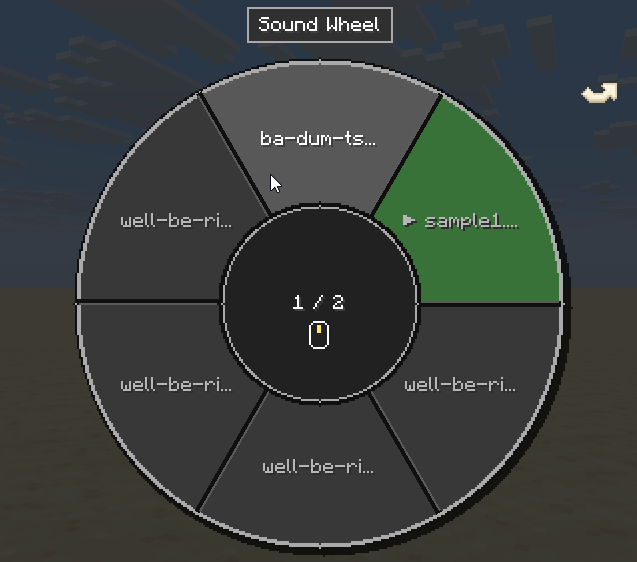
Assign a keybind to Open Sound Wheel in the General tab. By default, the wheel stays open while you hold the keybind. You can instead enable toggle mode and optionally close the wheel after playing a sound.
The wheel shows six alphabetically sorted sounds per page. Change pages with the mouse wheel, the left and right arrow keys, or the clickable page arrows. Hover over a sound and left-click it to start or stop it. Indicators show which sounds are currently playing or set to loop, and you can keep walking, jumping, sneaking, and sprinting while the wheel is open.
Local Soundboard Volume
Change how loud the soundboard is for you with the Soundboard category in Simple Voice Chat's Adjust Volumes menu. This only affects local playback and does not change the amplifier or how loud other players hear the sounds.

Settings
Open the custom Minecraft-style config screen with O by default. You can change this key in Minecraft's Controls menu. Use Apply to save without closing the screen, or Done to save and close it.
General
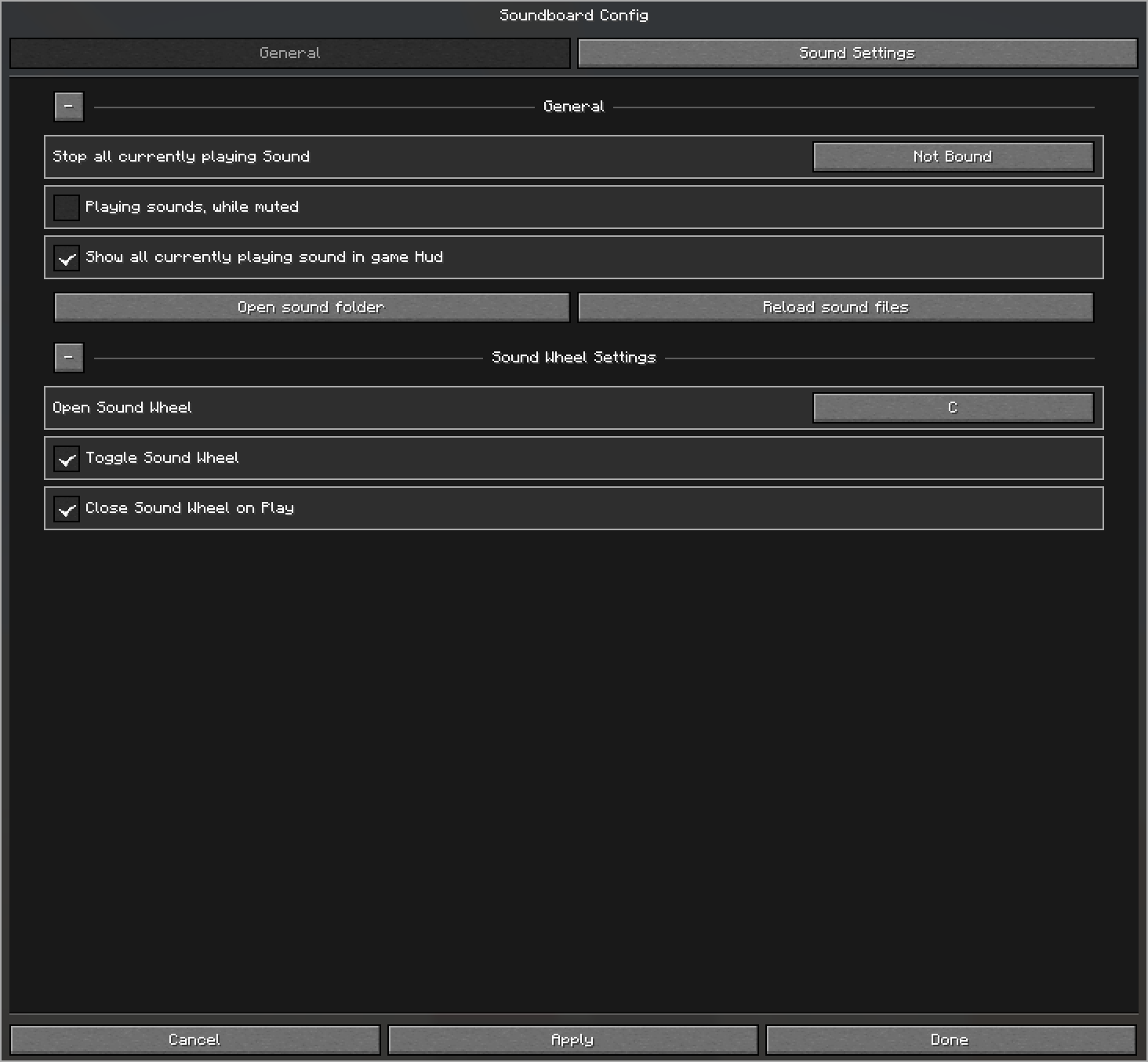
The General tab contains the global options and keybinds. Its persistent, collapsible sections let you:
- Bind Stop all currently playing sounds
- Allow sounds to play while your microphone is muted
- Show or hide the currently playing sounds HUD
- Open the sound folder or reload its files
- Bind the sound wheel and configure its toggle and close-on-play behavior
Sound Settings
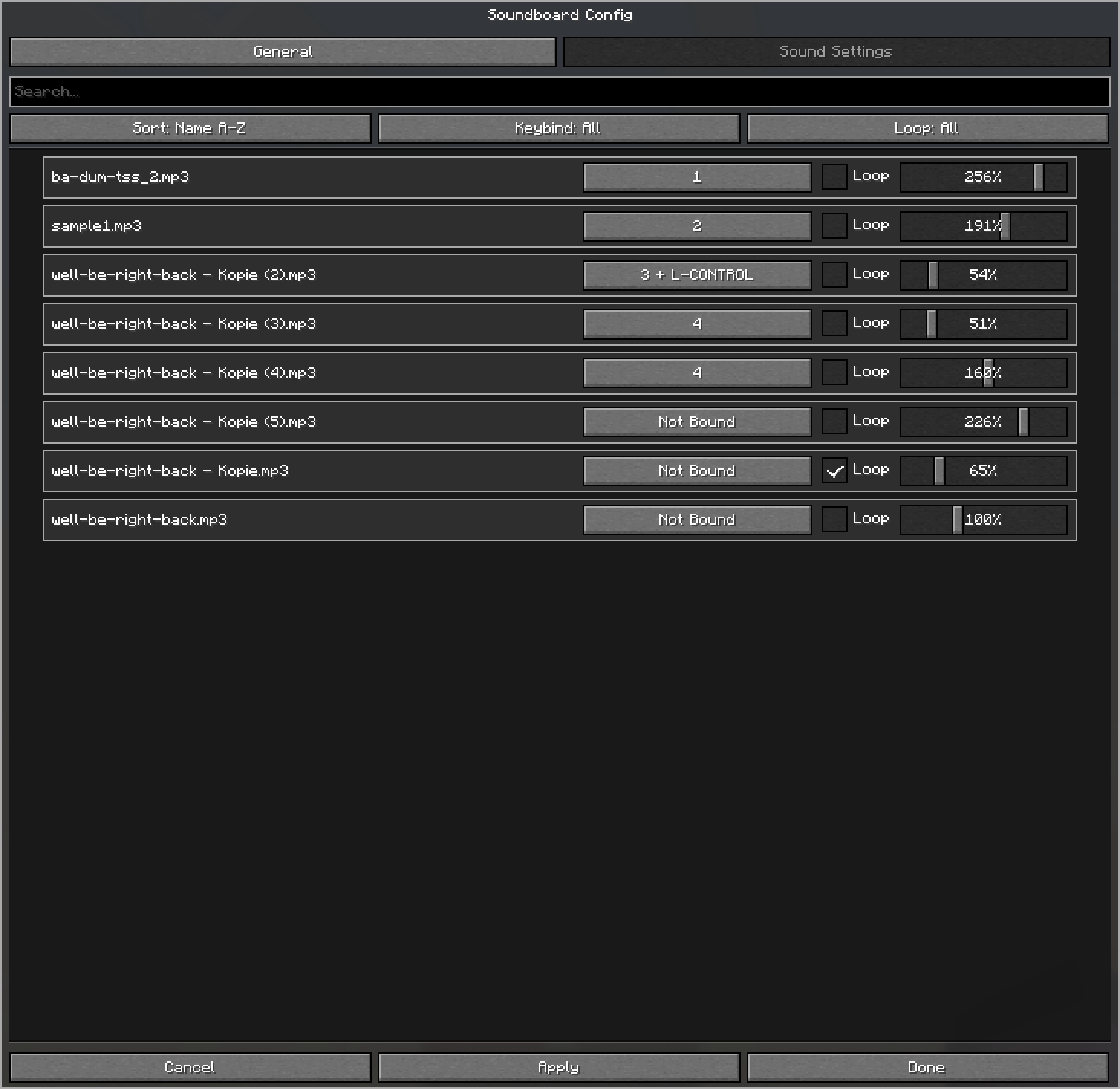
The Sound Settings tab lists all .mp3 files detected in your sounds folder. Search by name, sort from A-Z or Z-A, and filter sounds by whether they have a keybind or use looping.
Each sound can be customized individually:
- Keybind (multiple keys supported)
- Loop on or off
- Amplifier (the volume sent to other players)