Compatibility
Minecraft: Java Edition
Platforms
Supported environments


Links
Tags
Creators
Details
WebDisplays Mod(This mod is ported from ds58 and Lyzantra's WebDisplays(forge)and yhe original mod WebDisplays is by the authors ds58 and Lyzantra!!! ) - Implemented Features
🖥️ Core Display
Web Screen Block - Placeable in-world block that displays web pages via MCEF (Chromium Embedded Framework)
Multiplayer Support - Screen data (URL, size, rotation) synced to all players; each player loads pages locally via their own MCEF instance Texture Broadcasting (Experimental) - Screen owner's browser texture captured and broadcast to other players every 500ms for identical content
📦 Blocks & Items
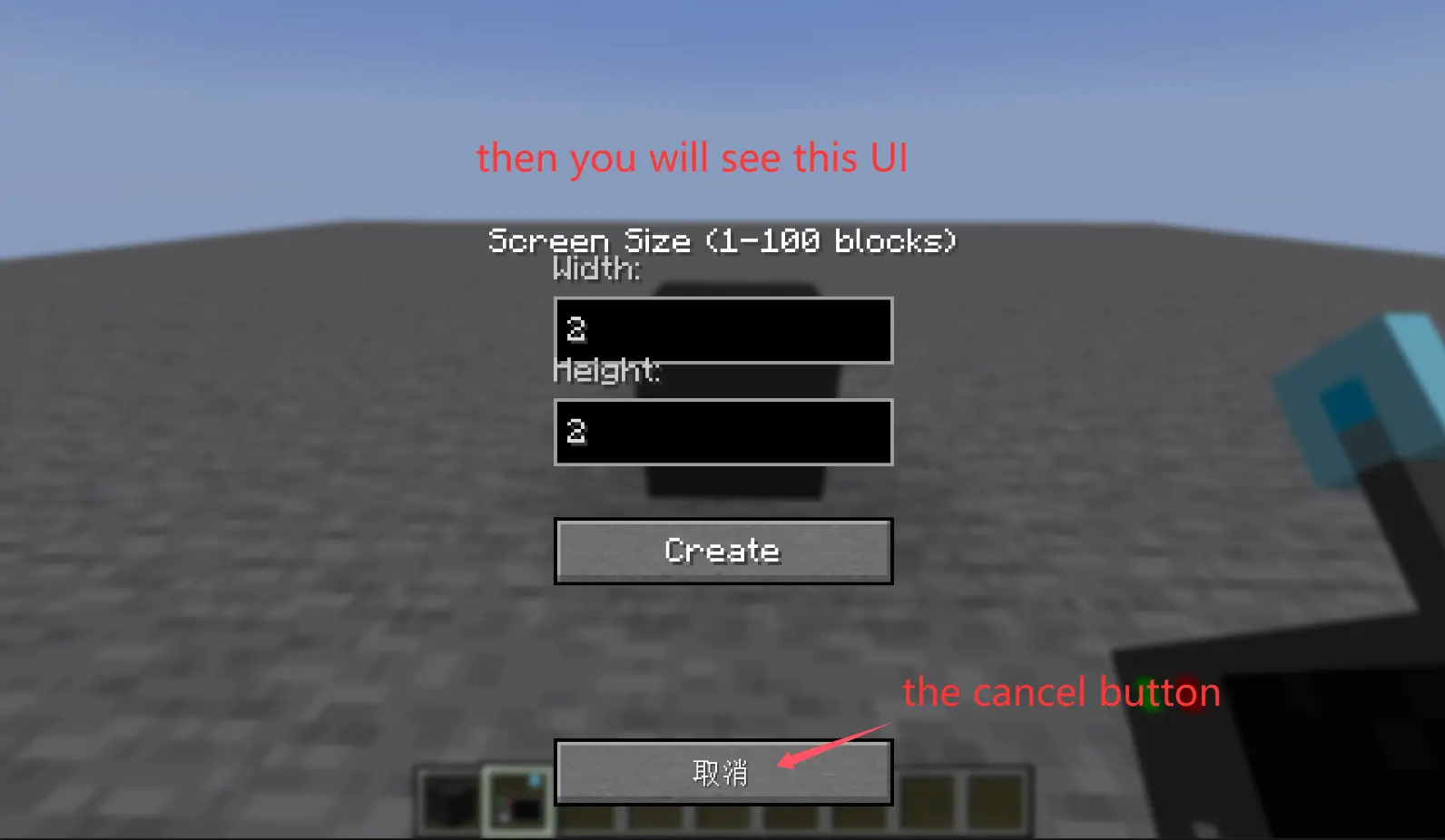
Keyboard Blocks (Left & Right) - Right-click to type on screen, linkable to screens using Linking Tool Screen Configurator - Right-click screen to open settings GUI for creating/removing screen faces, setting URL, resizing, and rotating
Linking Tool - Click screen to select, then click keyboard to link them together Creative Tab - All items grouped under Web Displays creative tab
🎮 Interaction
Mouse Interaction - Raycast-based cursor tracking for clicking and scrolling on screen surfaces (Tab to toggle cursor) Keyboard Input GUI - Dedicated input screen for typing on browser pages
🌐 Network
Network Sync - Custom payload system for screen actions (add/remove/resize/rotate/URL changes)
⚙️ Rendering & Stability
OpenGL State Protection - Mixin to reset GL_UNPACK_ROW_LENGTH/SKIP_PIXELS/SKIP_ROWS after MCEF texture updates, preventing visual corruption Pixel Store Reset - Mixin to reset GL pixel store state after MCEF texture updates to prevent rendering artifacts
💻 Commands
/screen Command - Give items via command:
/screen screen
/screen configurator
/screen linker
/screen kb_left
/screen kb_right
!!!!!!!!!!!!!!!!!!!!!!!!!!!!!!!!!!!!!!!!!!!!!!!!!!!!!!!!!!!!!!!!!!!!!!!!!!!!!!!!!!!!!!!!!!!!!!!
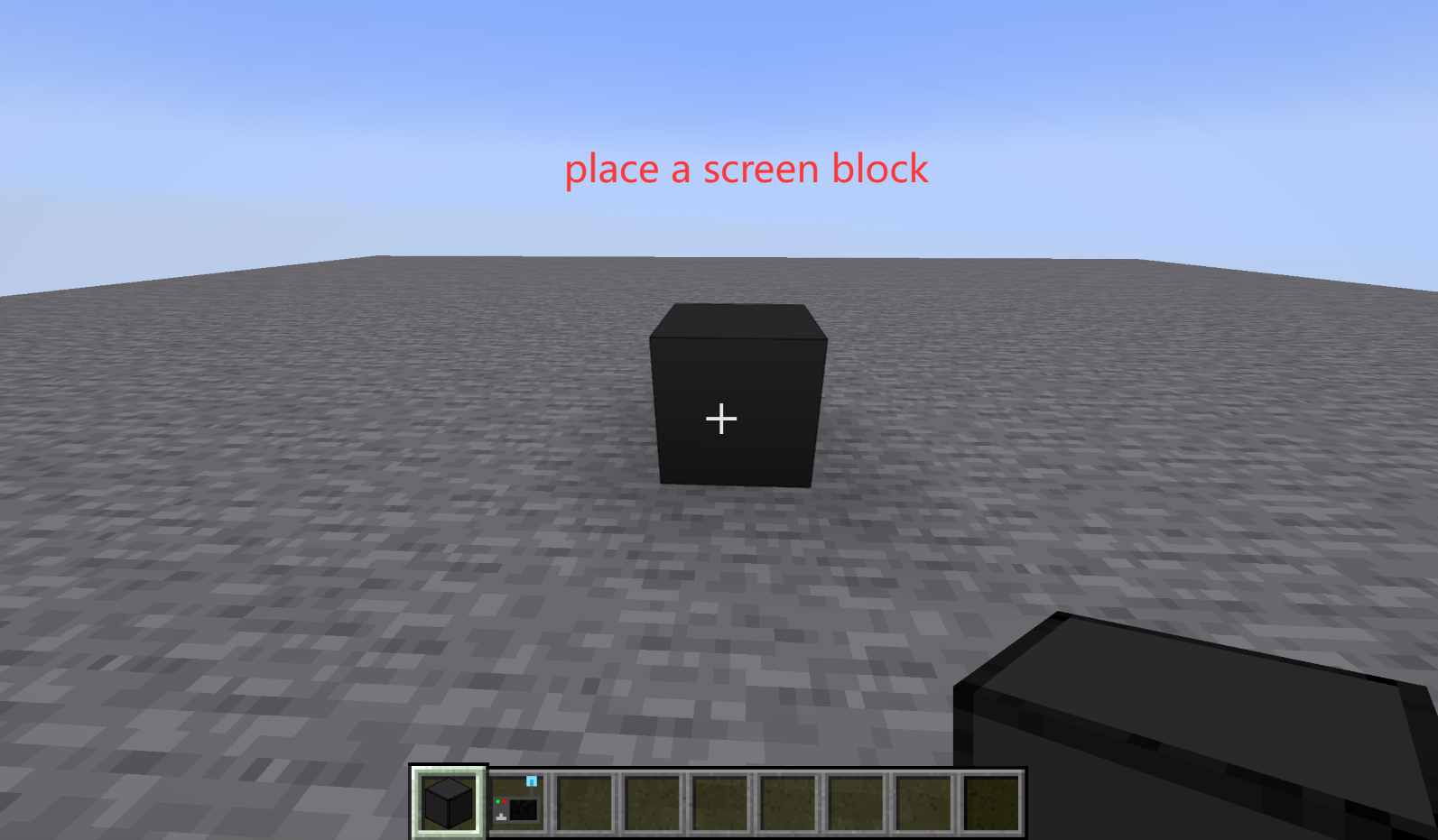
How to use? Use the /screen command to obtain the screen block, configurator, connector, and keyboard.
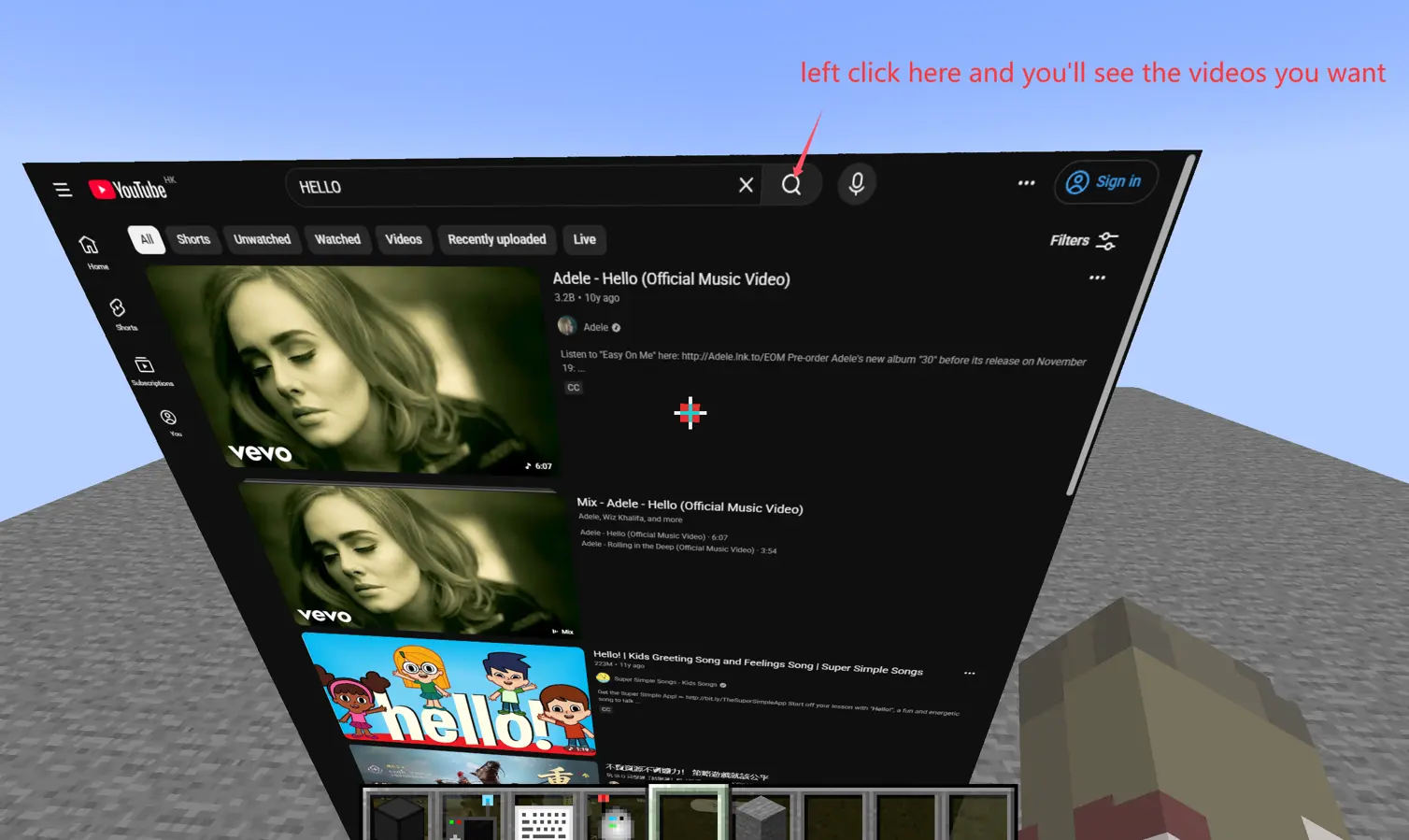
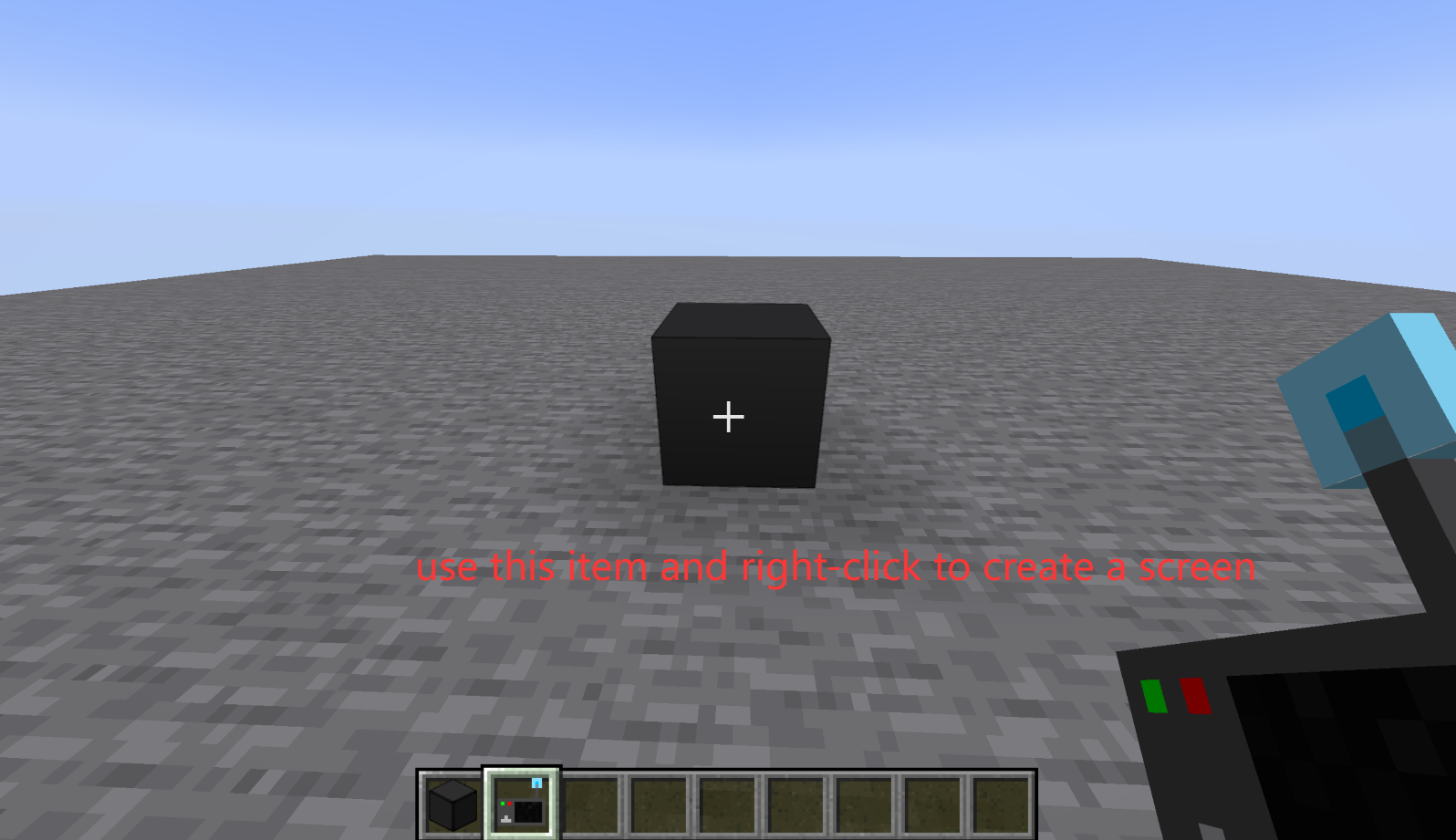
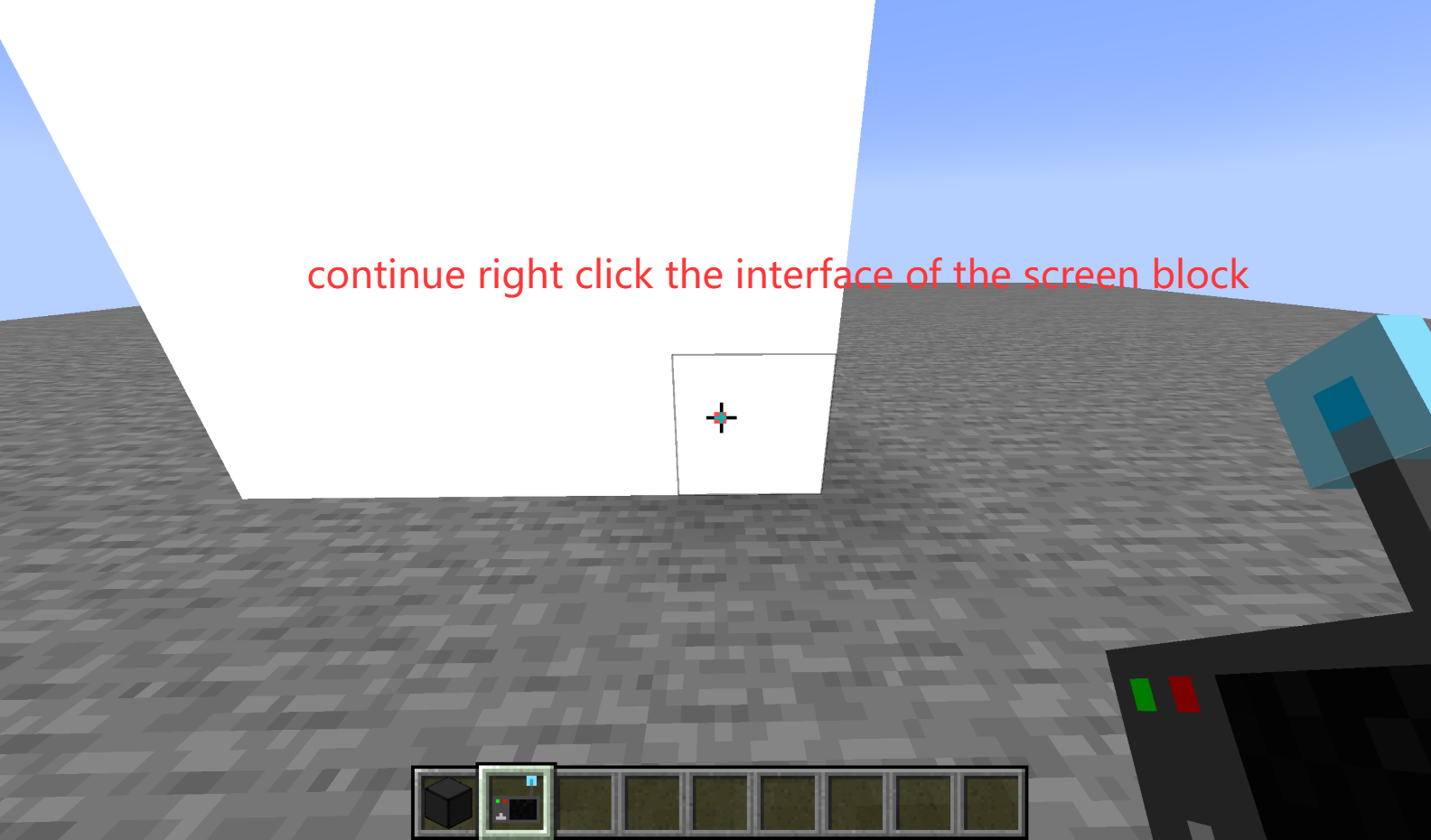
Place the screen block. Right-click the screen block with the configurator to create a screen. Right-click again to adjust the screen ratio, URL, etc. Left-click functions the same as a left-click in a normal browser. Shift + scroll wheel functions the same as scrolling in a normal browser. Ctrl + scroll wheel functions the same as zooming in and out in a normal browser. Press Tab to hide the red pointer. Press F6 to hide the screen.
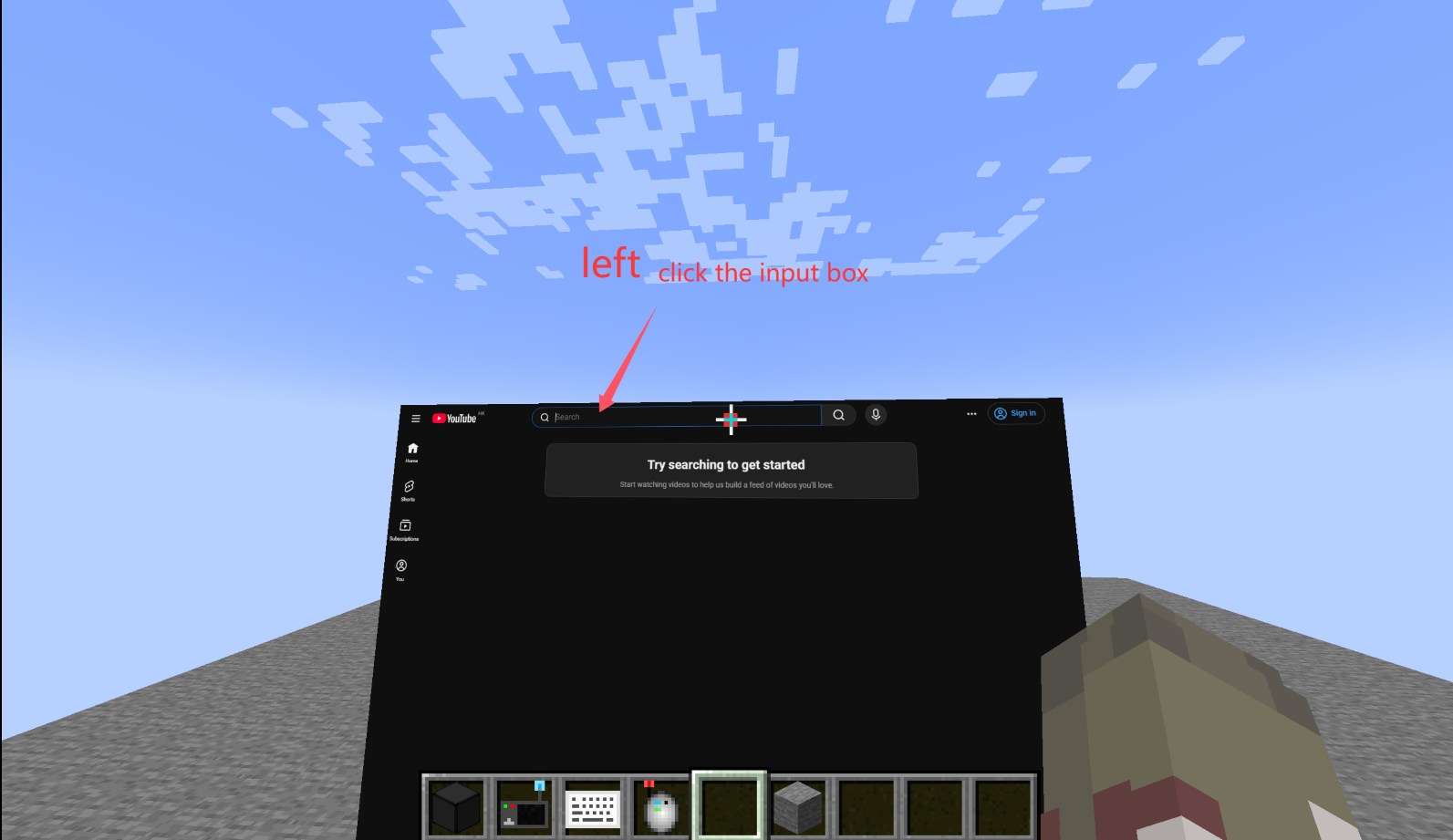
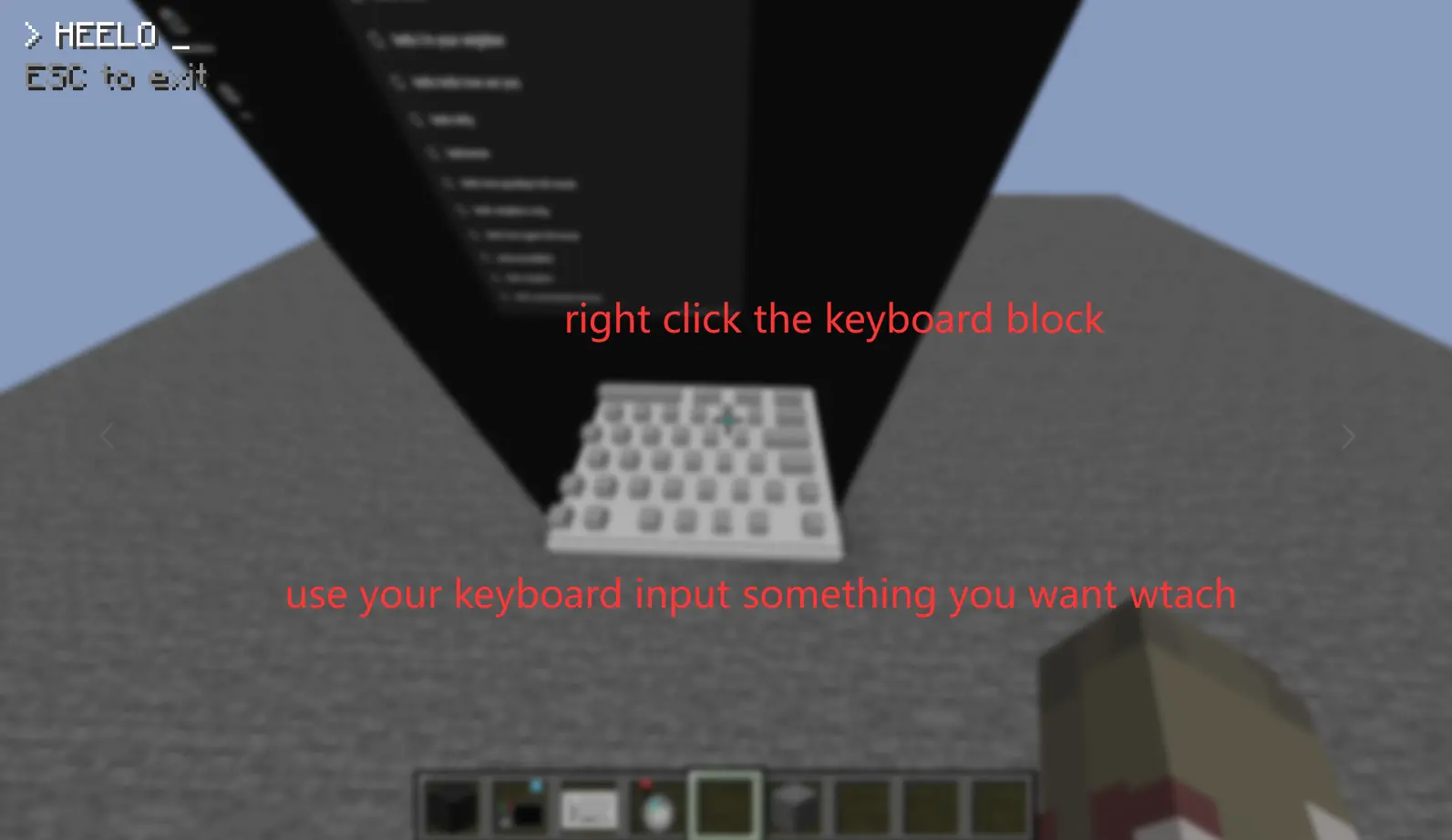
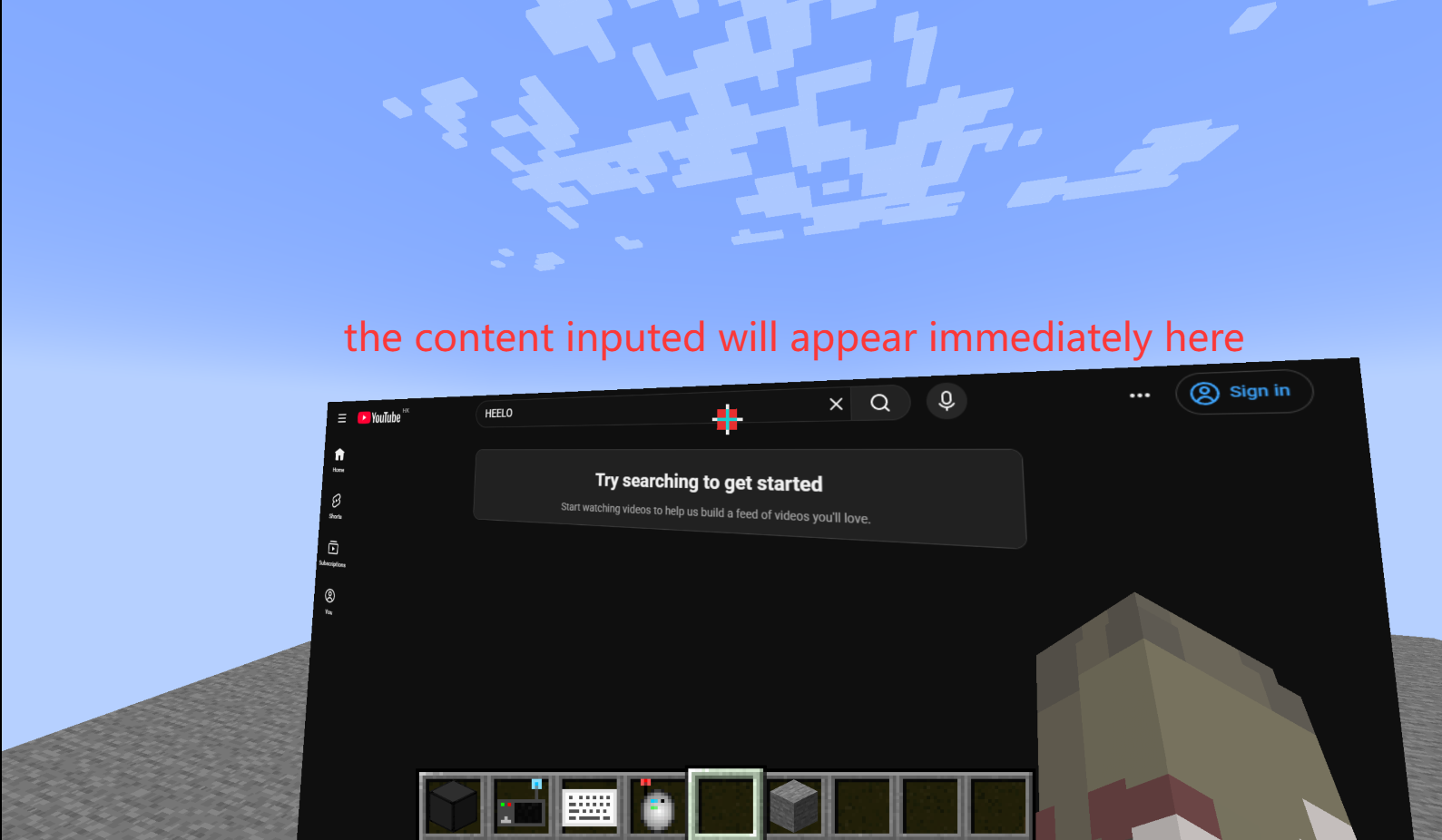
Place the keyboard. Use the connector to right-click the screen block and the keyboard respectively to connect them. Left-click on the input field on the screen to enter input mode. Right-click on the keyboard to type as you would in a normal browser (directly mapping the input content to the browser). Press Esc to exit.
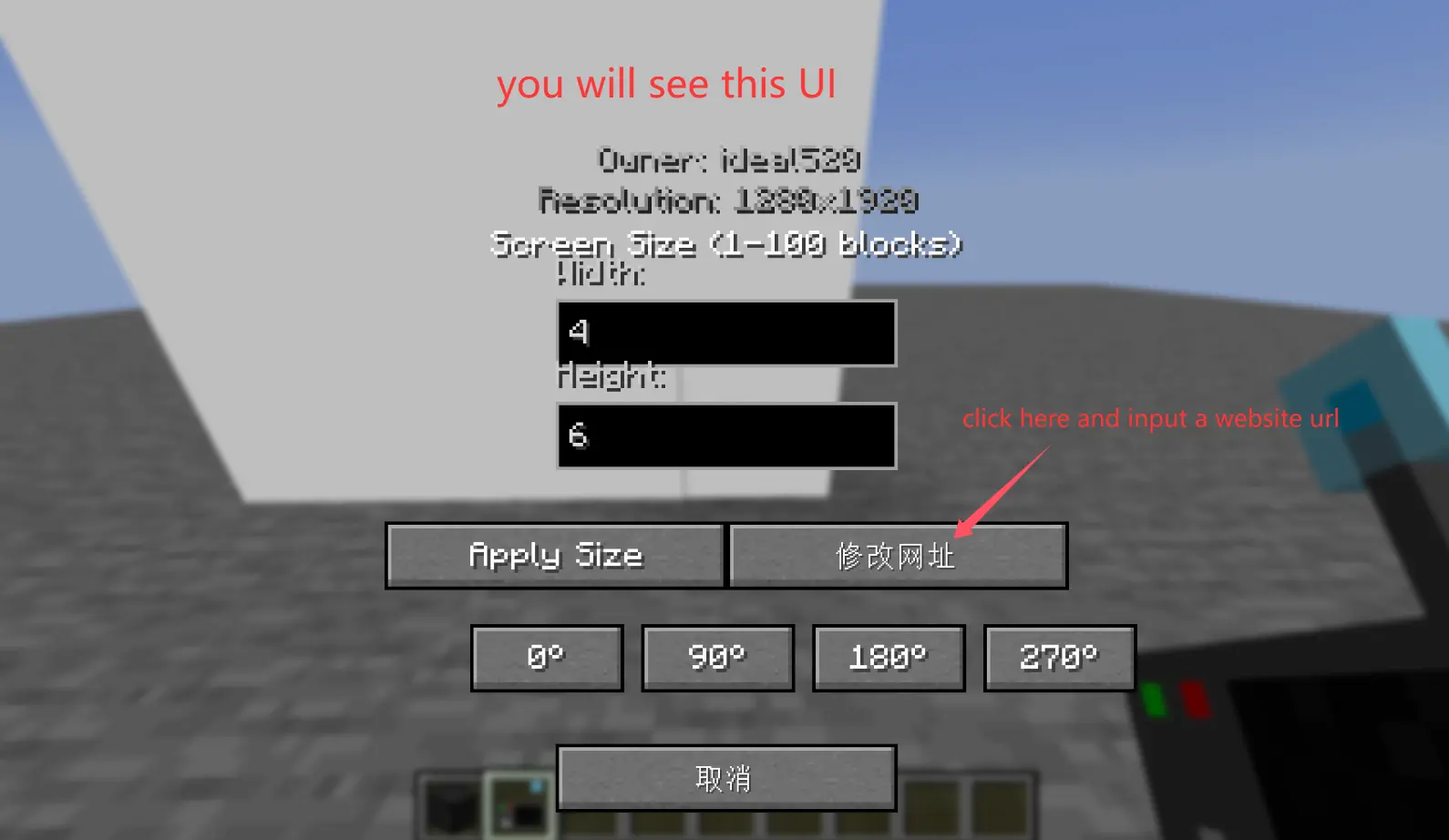
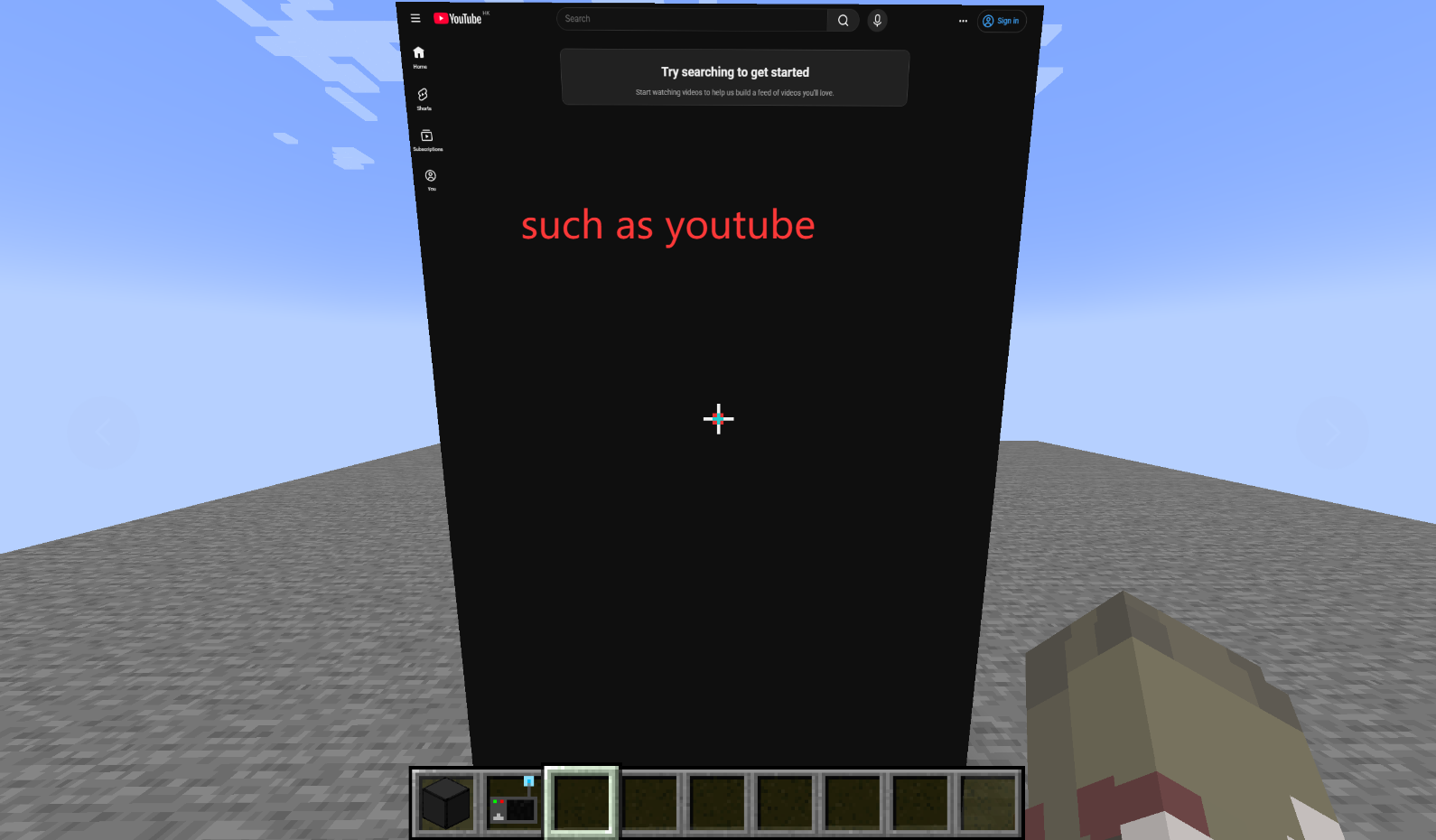
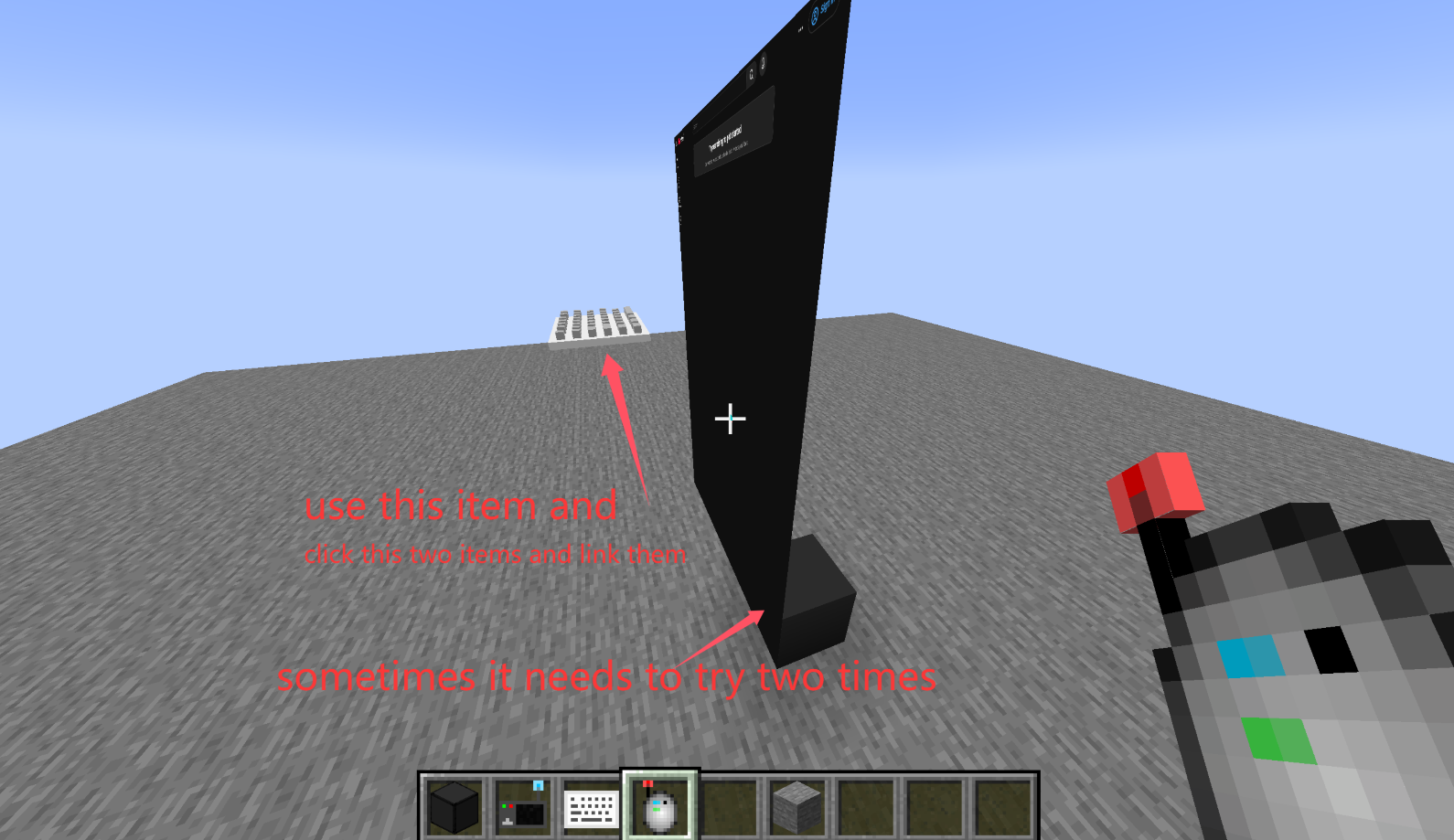 right click the screen block first!