
Compatibility
Minecraft: Java Edition
Platforms
Supported environments


Tags
Creators
Details
Server Waypoint







Make your world easier to explore.
Share useful places with your community and help players find their way around your world.
Server Waypoint provides shared destinations, cross-server teleportation, navigation and clickable chat commands. Players can use the server features with a vanilla client. The optional client mod adds in-world markers, a waypoint manager and map integrations.
Across servers, closer together
The optional Velocity integration lets players browse shared waypoints on connected servers and teleport between them when permitted. Cross-server browsing and teleportation are available through clickable chat without the client mod.
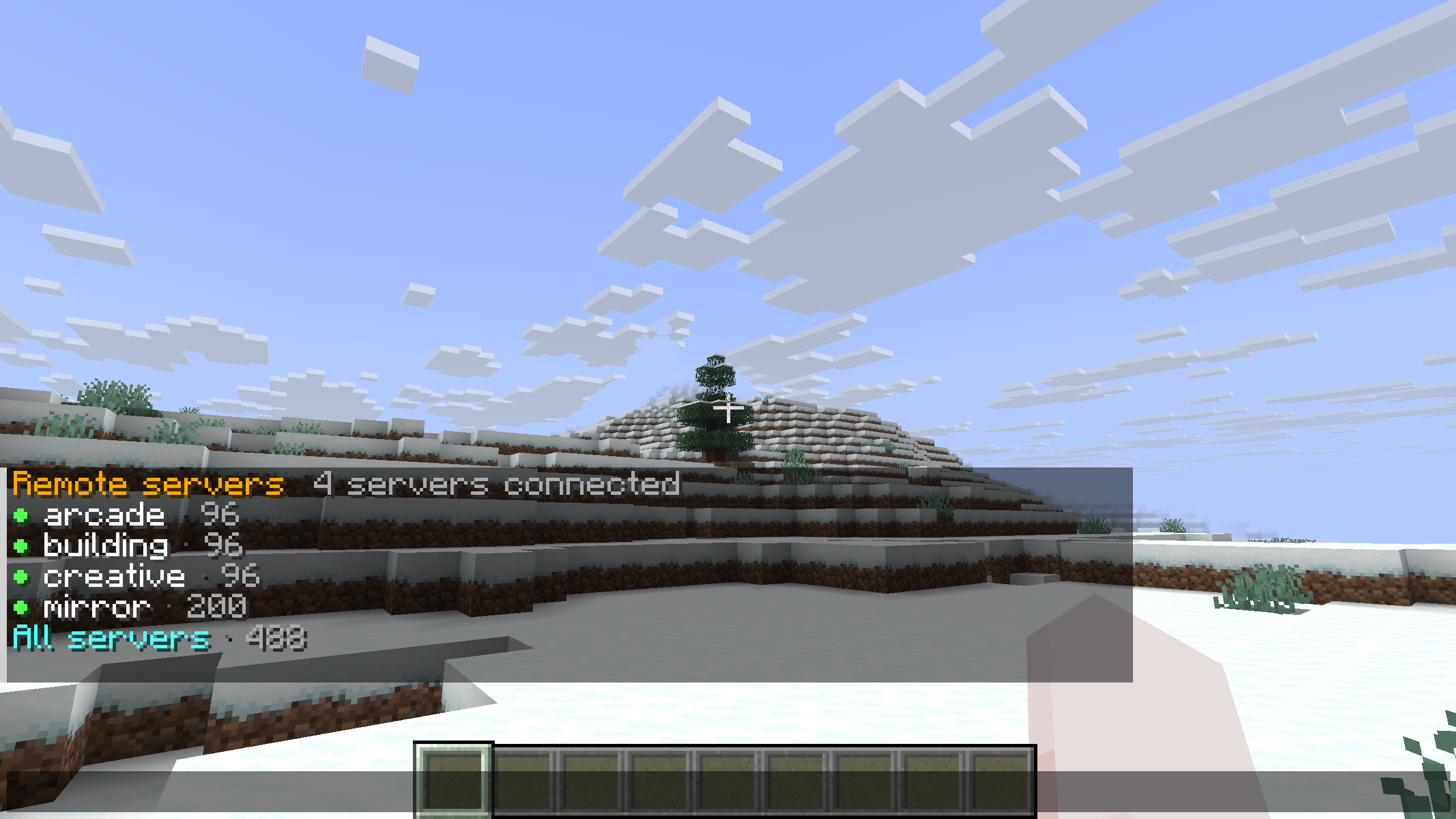
Use chat across the network. Run /wp remote to browse without the client mod. The chat view lists connected servers with availability indicators and waypoint counts, with an All servers option for browsing them together.
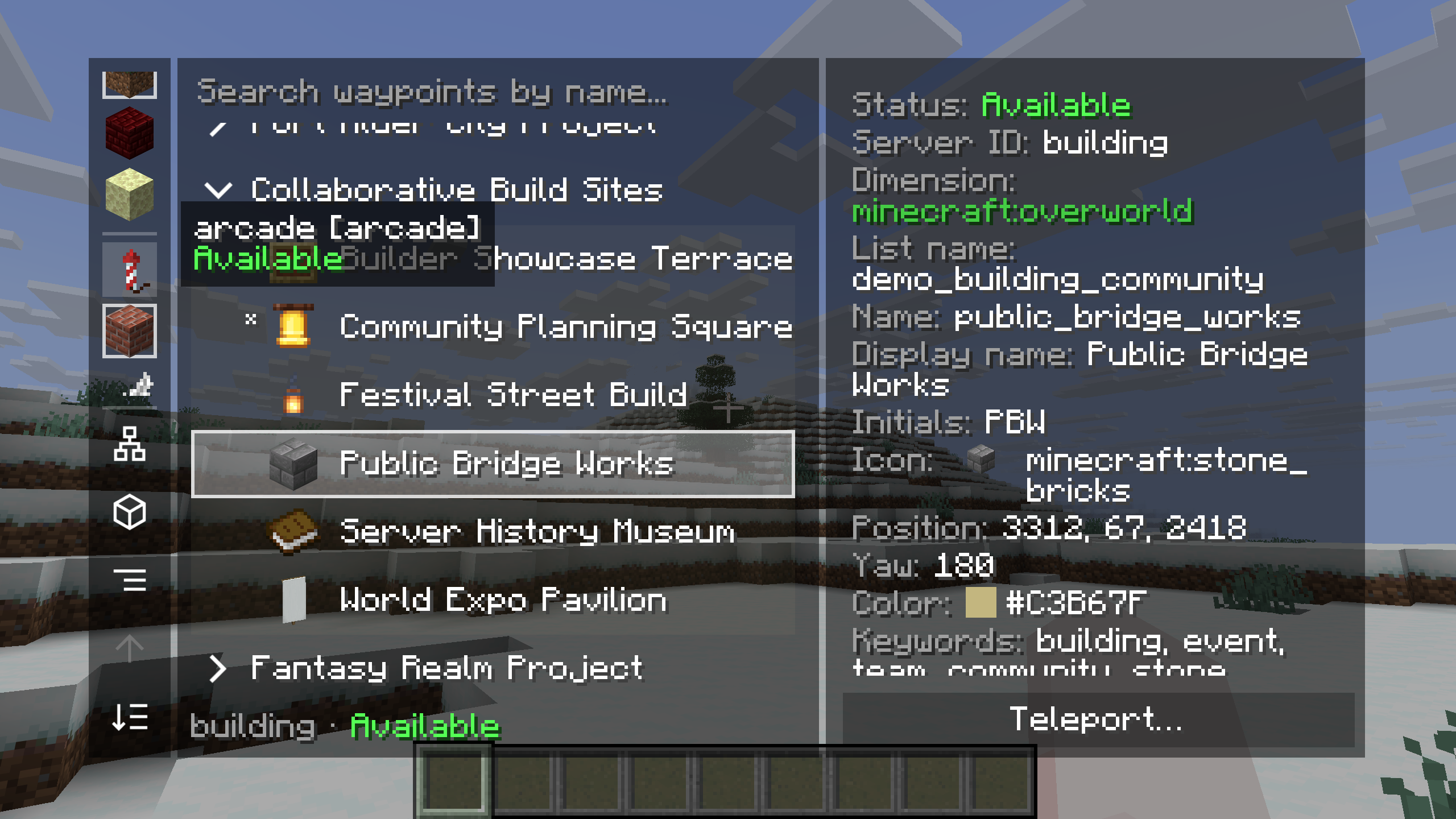
Browse another server's places. In the client manager, choose a remote server and explore its lists. Here, the building server's Collaborative Build Sites list contains Public Bridge Works. The details panel shows the server's availability, the destination's properties and a Teleport action.
Cross-server teleportation follows the server's permissions. To edit a remote waypoint, join the server that owns it.
Follow the route your way
Choose the guidance that feels comfortable as you travel. The labeled example shows all five server navigation methods pointing to Festival Green at the same time.
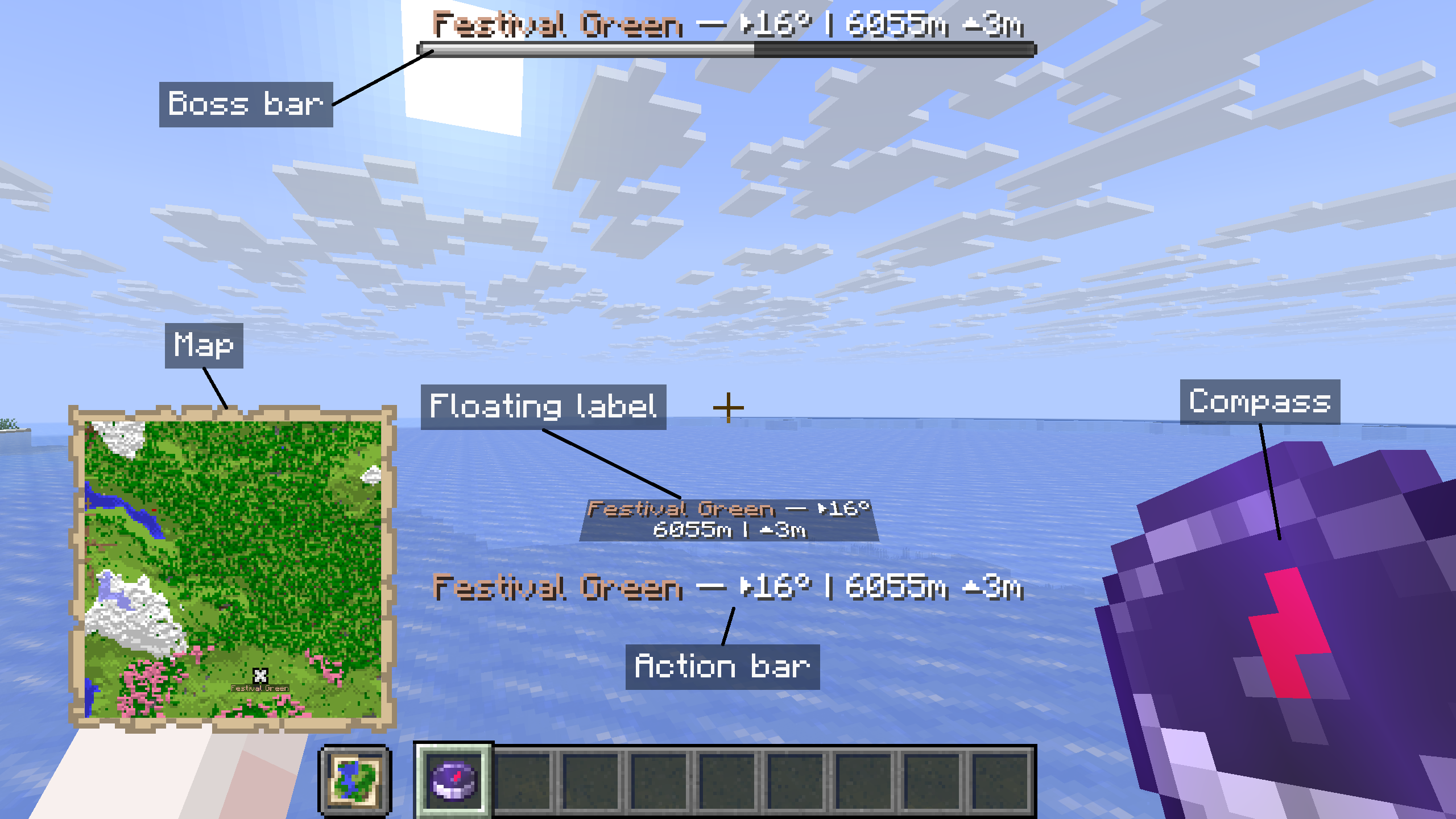
- Compass and map: follow the compass toward the destination or find its marker on the navigation map.
- Boss bar and action bar: keep the destination's name, direction, distance and height difference on screen.
- Floating label: see the destination's guidance within the world.
Use /wp navigate to change your navigation methods or stop navigation. All five methods are provided by the server and work without the client mod.
Browse and manage with clickable commands
Browse and manage waypoints from Minecraft's chat. The server provides clickable lists, hover details and waypoint actions, so players can get started with a vanilla client.
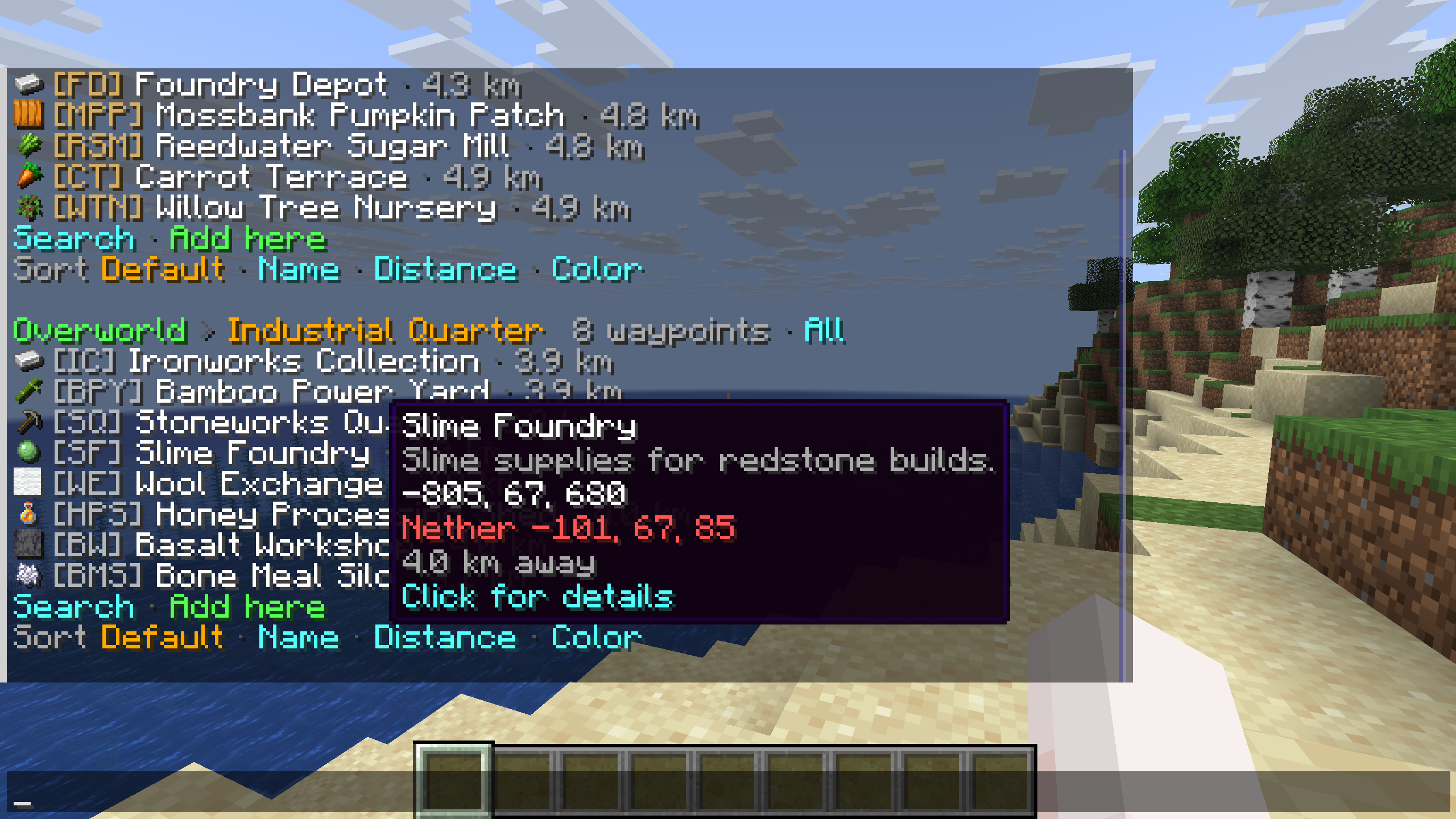
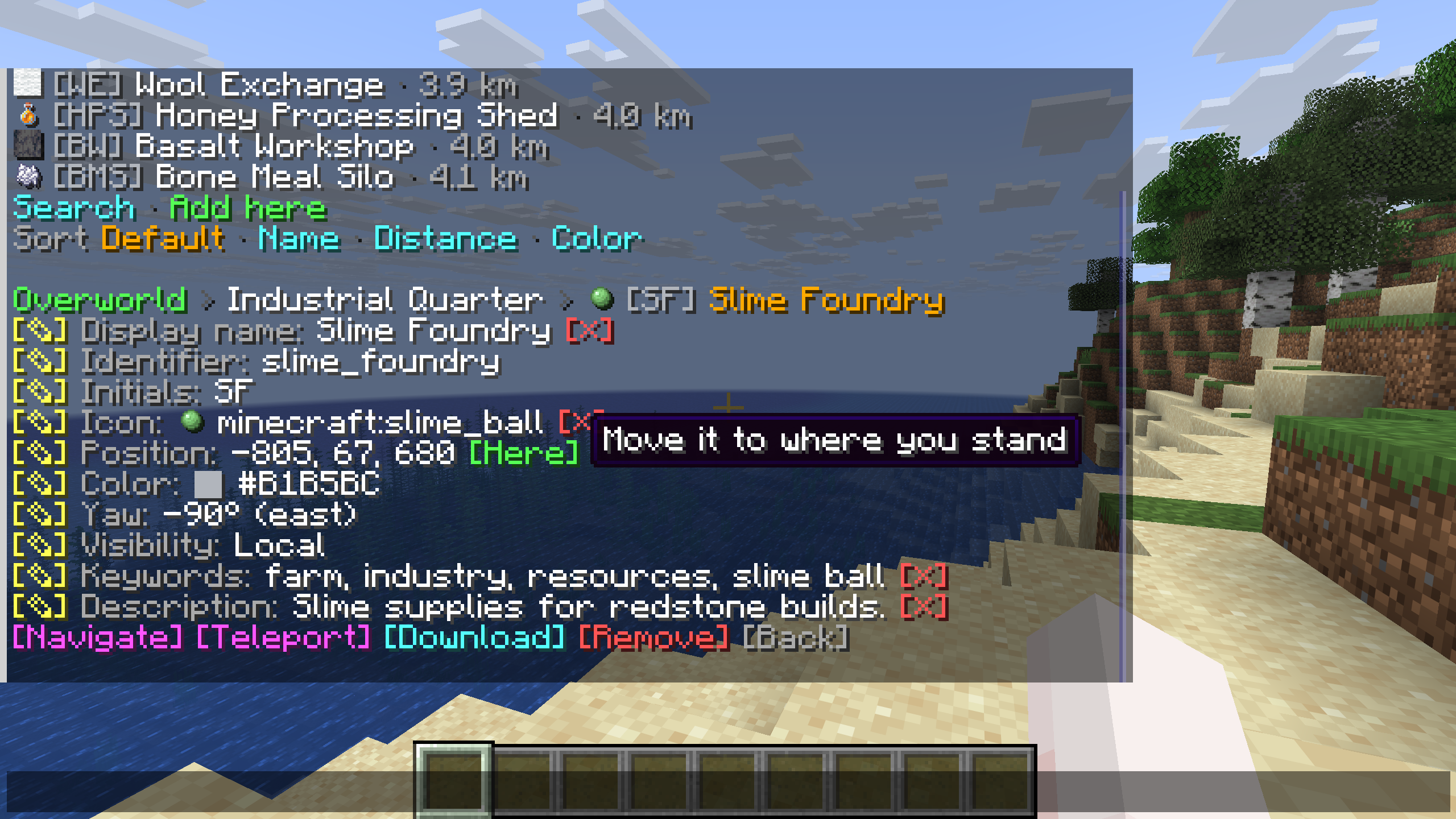
Browse before you travel. Open /wp to view waypoints grouped by dimension and list, with icons and distances beside their names. Search or change the sort order, and hover over a destination to read its description and coordinates. The example shows Slime Foundry in the Industrial Quarter list.
Details and actions in one place. Select a waypoint to see its properties and the available edit controls. The detail view includes actions to navigate, teleport, download or remove the waypoint. Hover hints explain controls such as Here, which moves the saved position to where you are standing.
The server's permissions determine which actions each player can use. Messages follow each player's Minecraft language setting.
Give every destination its own style
Shared waypoint display names and descriptions support JSON text components, so you can combine colors and text styles for each destination. The screenshots show how the client mod displays that shared formatting in the manager and in-world markers.
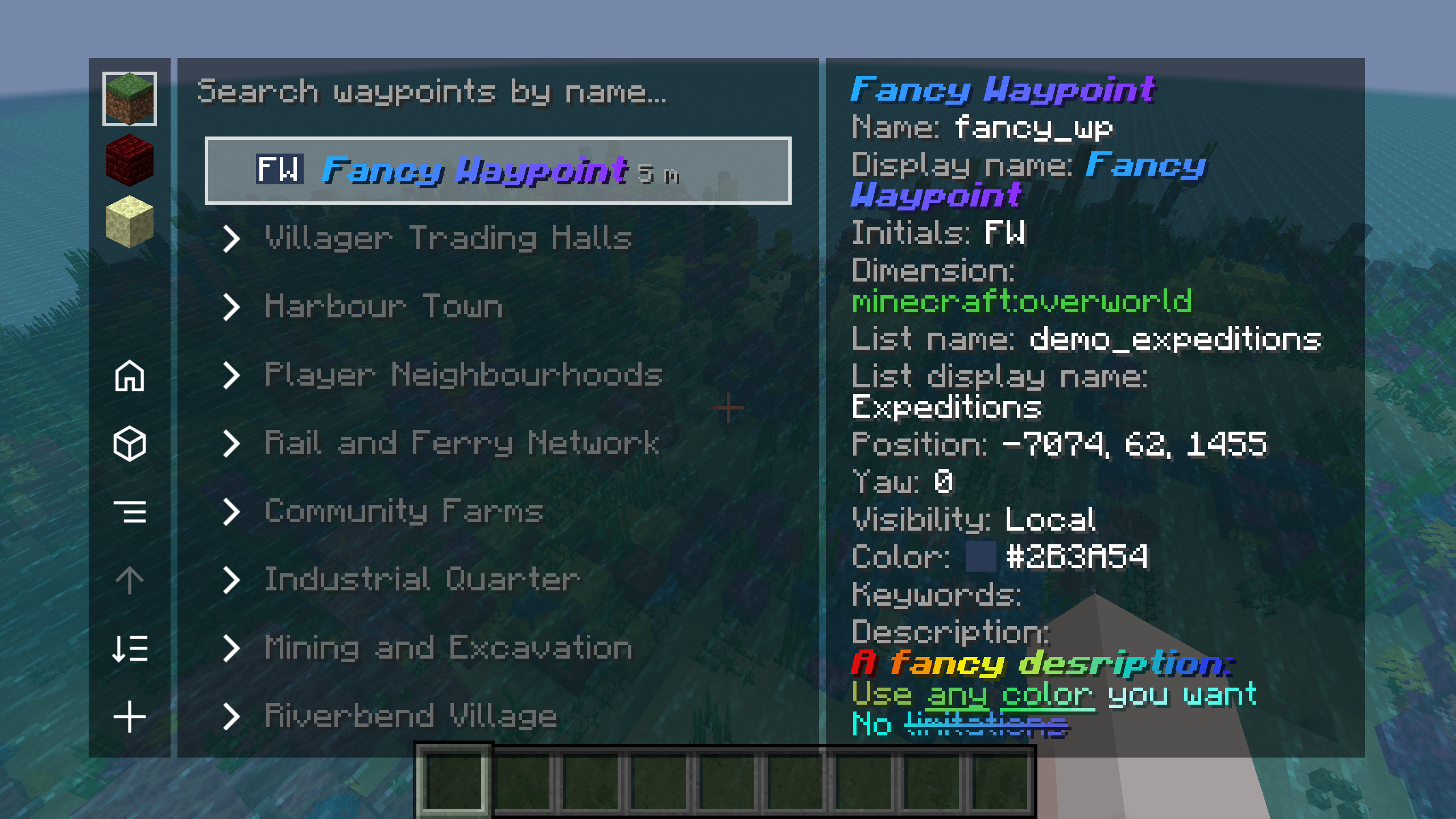
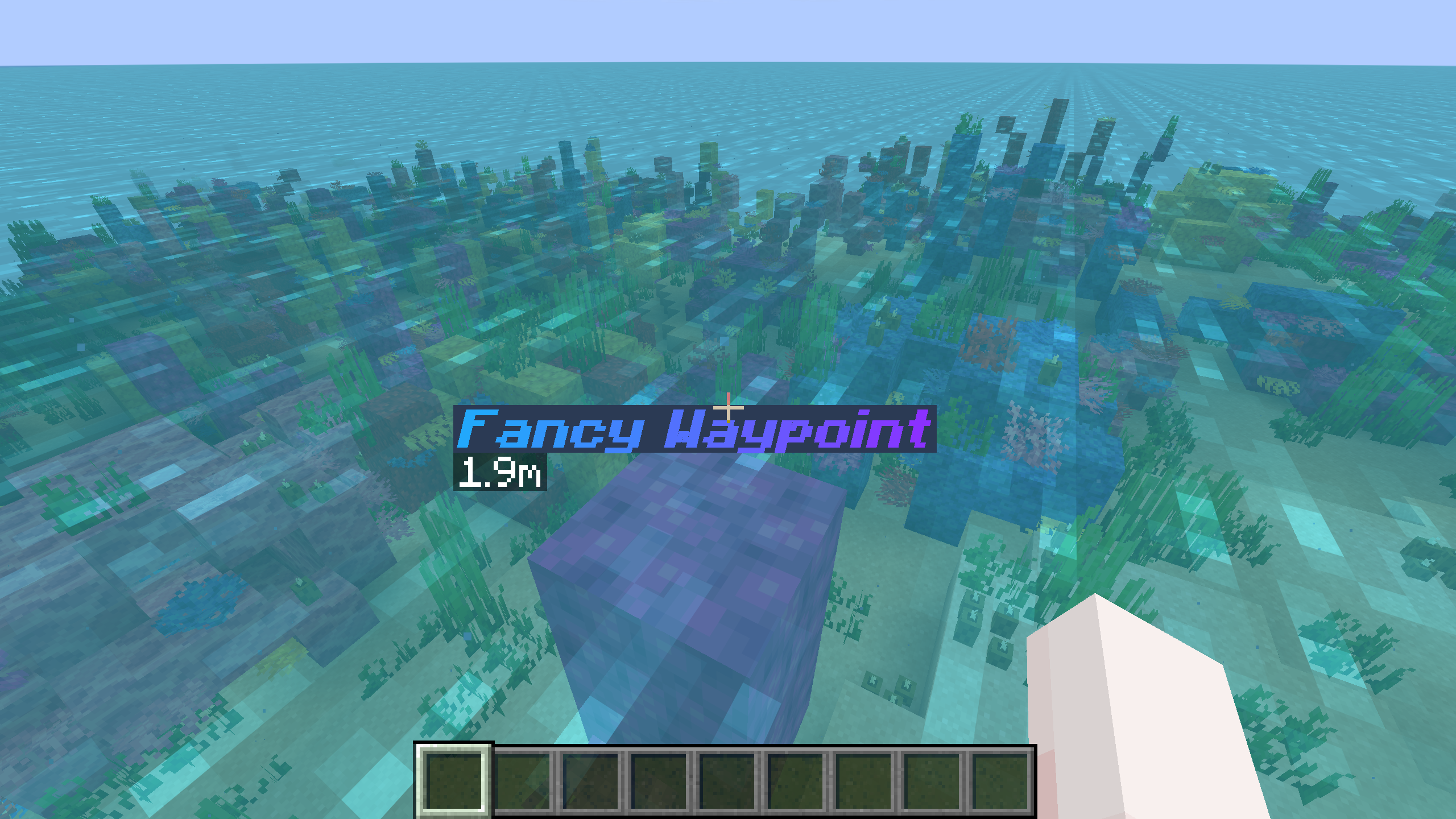
Styled names in the manager and the world. The example uses Fancy Waypoint, with a blue-to-purple display name in bold italics. Its formatting appears in the waypoint list, the details panel and the in-world marker.
Descriptions with their own formatting. The details panel shows a multicolored description with several text styles. You can use the same format to highlight directions or add context about a place.
A separate identifier for commands. The styled display name belongs to the waypoint identified as fancy_wp. You can keep a simple identifier for commands while editing the display name and description through the waypoint's edit controls or /wp edit.
Learn about identifiers and display names
A whole world, neatly organized
The client manager brings waypoint lists and destination details into one view. Choose a dimension, search by name or expand a list to browse its places.
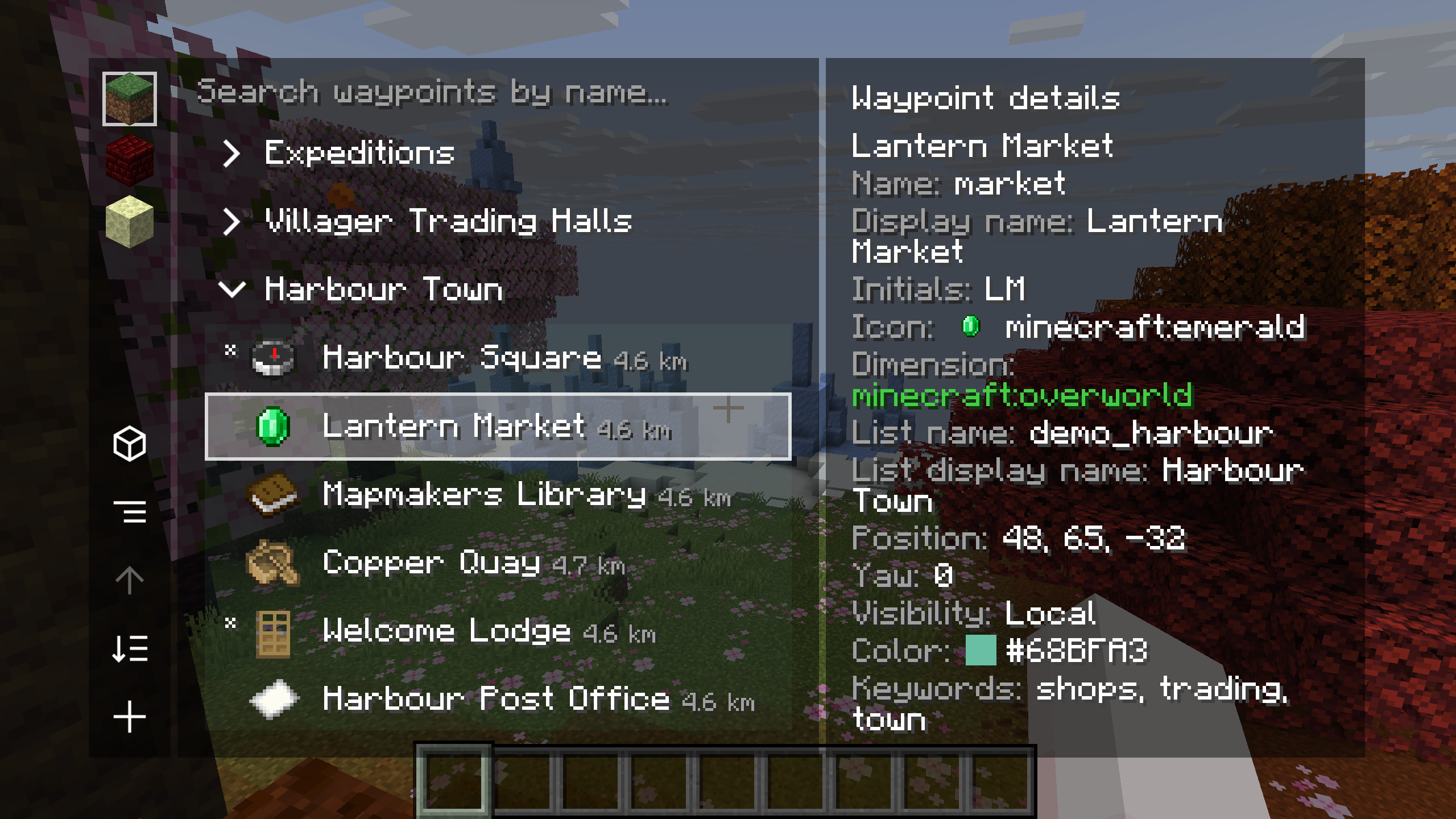
Lists for the places you share. Harbour Town is expanded here, with Lantern Market selected alongside Harbour Square, Mapmakers Library and other destinations. Item icons and distances help distinguish entries. The details panel shows the selected waypoint's identifier, display name, initials, coordinates, visibility, color and keywords.
Open the manager with Right Shift or /wp_gui. Hover over a local waypoint and press T to teleport to it. Available actions, including editing, navigation and teleportation, follow the server's permissions.
Your waypoints. Your favorite map.
Use shared destinations with Xaero's Minimap or supported VoxelMap-Updated builds. The example shows Shared Waypoint in both minimaps alongside its in-world markers.
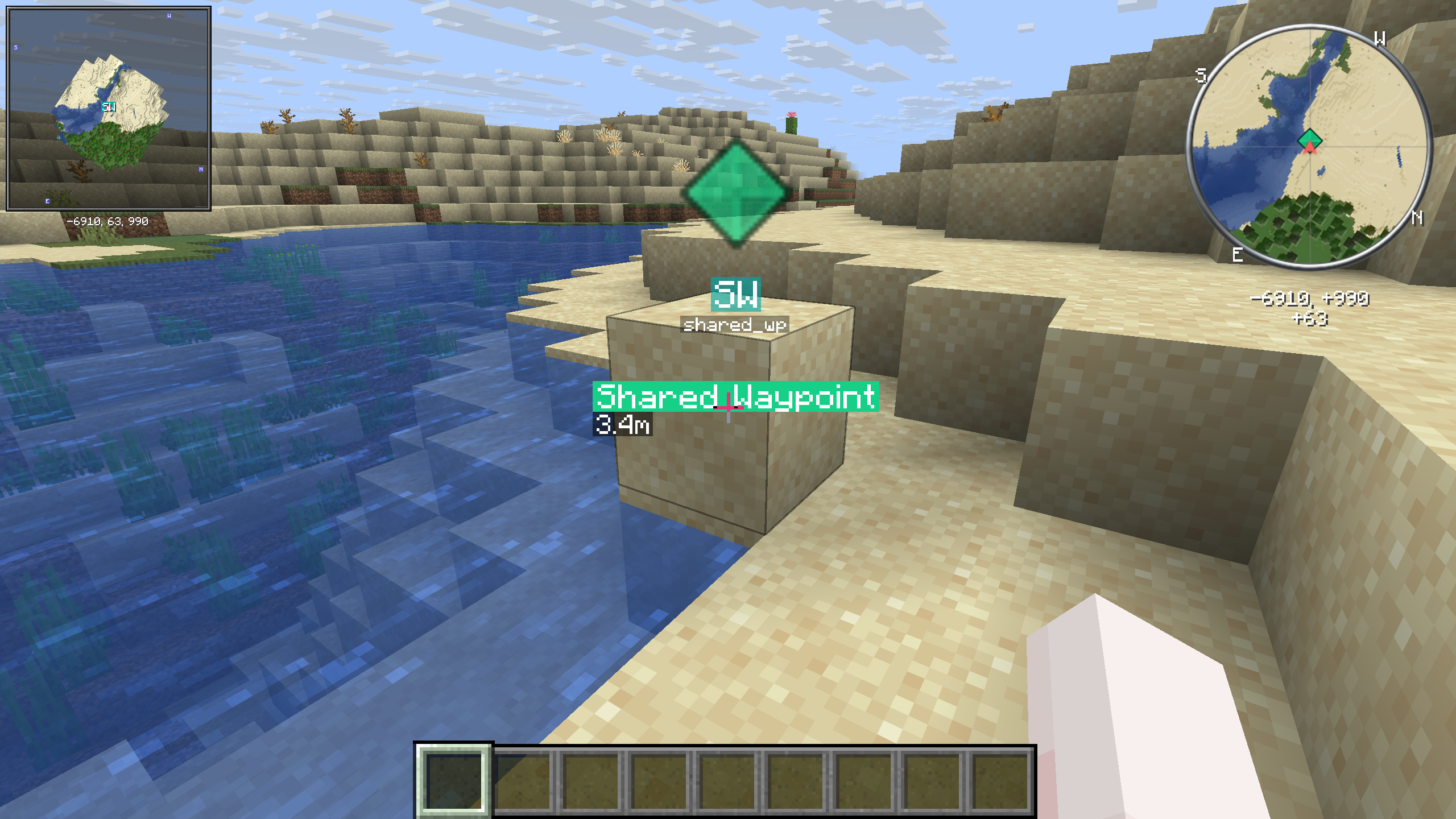
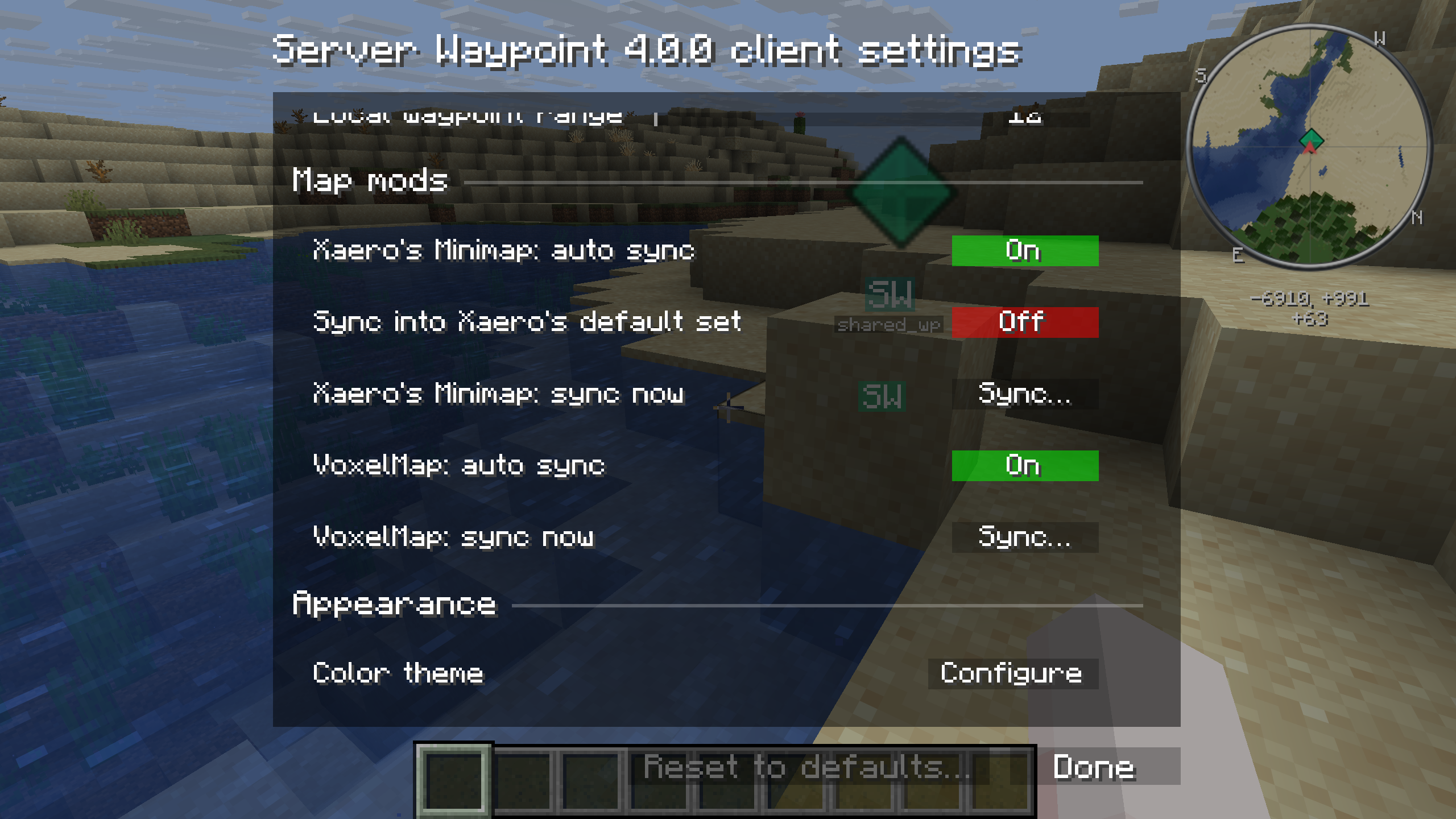
Choose when to sync. Press C in the waypoint manager to open the client configuration screen. Client settings provide separate automatic synchronization toggles and manual Sync buttons for Xaero and VoxelMap. The screenshot has automatic sync enabled for both, while syncing into Xaero's default set is disabled.
You can also upload map waypoints when you have permission. Xaero's World Map offers actions for adding and editing server waypoints when installed alongside Xaero's Minimap.
Check map and version compatibility
Shared places, visible as you explore
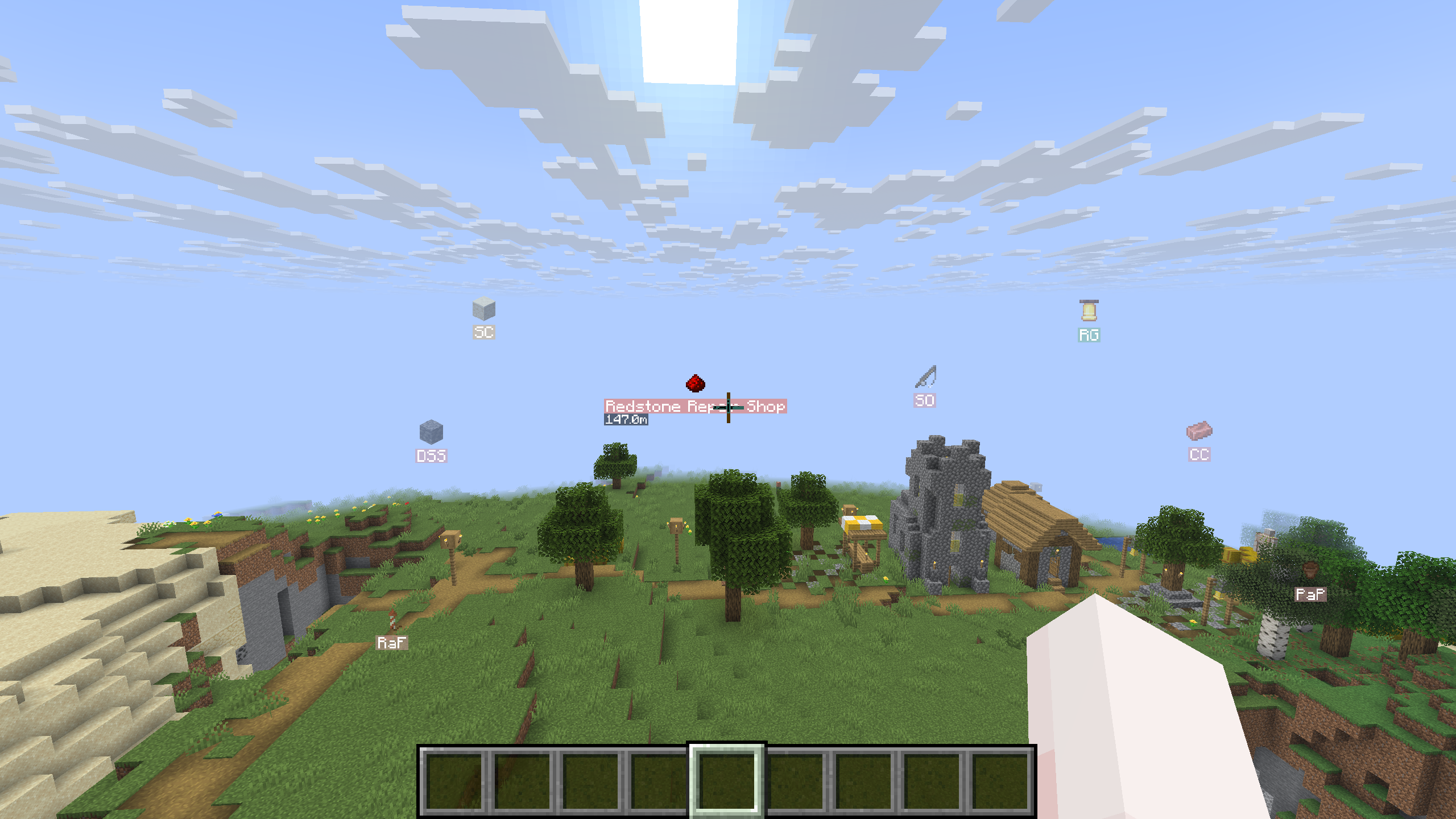
The client mod shows waypoints in the world with item icons, colors and initials. Look toward a marker to see its display name and distance.
Install it your way
For a server
Install the matching Fabric, Forge or NeoForge mod, or the Paper, Folia or Purpur plugin. Once you join, run /wp to browse waypoints and get started.
For a connected network
Install the optional Velocity plugin and configure the backend servers to share waypoints. Cross-server support is off by default and requires matching versions. The proxy plugin requires Java 25.
For client markers and the manager
Install the client mod with the dependencies listed for your download. Fabric requires Fabric API. You can also use the mod in singleplayer.
Migrate your MCDR waypoints
Moving from the MCDReforged (MCDR) plugins Locations or LocationMarker? Use locations2waypoints.py to convert your locations.json. It requires Python 3 with no extra packages.
-
Back up
locations.jsonand your existing Server Waypoint files, then stop the server. -
Download the script, open a terminal in its folder and run:
python3 locations2waypoints.py "/path/to/locations.json"Without a file argument, the script prompts you for the path.
-
Review any messages about skipped entries. The script creates a
waypoints/folder beside your source file, with alocationslist for each dimension in files such asminecraft$overworld.json. It keeps names and descriptions, rounds coordinates down to block positions and makes the waypoints shared with all players. -
Copy the generated JSON files into the appropriate folder under your server root:
Server platform Waypoint folder Fabric config/server_waypoint/waypoints/Forge or NeoForge defaultconfigs/server_waypoint/waypoints/Paper, Folia or Purpur plugins/ServerWaypoint/waypoints/If a destination file already exists, manually merge the generated
locationslist into its JSON array; choose another list name iflocationsis already taken. Replacing a dimension file removes its existing waypoint lists. The converter does not merge files and refuses to overwrite its own existing output files. -
Start the server and run
/wp listto browse the imported lists. Waypoint files require a restart;/wp reloaddoes not reload them.
Invalid entries and duplicate names within a dimension are skipped with a message. Keep your source file and review the conversion output before finishing.
Build somewhere worth finding
Community Discord | Report a bug
You're welcome to join the community, report an issue or help translate. Messages follow each player's Minecraft language setting; see the translation credits and review status for language coverage.